Data Science

Data Visualization Interfaces in Python With Dash

Data Visualization Interfaces in Python With Dash: Dash is a free and open-source framework for building interactive web applications in Python. It is built on top of Flask, Plotly.js, and React.js, and provides a simple and easy-to-use interface for creating data-driven web applications. With Dash, developers can create interactive dashboards, data visualizations, and other web applications that allow users to explore and analyze data in real time. Dash also supports real-time data streaming, so users can see live updates as new data becomes available.

Dash provides various components for building interactive web applications, including graphs, tables, sliders, and dropdowns. It also includes features like interactivity, theming, and responsive design, which make it easy to create web applications that are both functional and visually appealing. Dash is widely used in industries such as finance, healthcare, and transportation, where data analysis and visualization are critical for decision-making.

Data Visualization Interfaces in Python With Dash

Download:

Here are the steps to get started:

  1. Install Dash: You can install Dash using pip, by running the following command in your terminal or command prompt:
pip install dash
  1. Import the required modules: In your Python script, you’ll need to import the required modules, including dash, dash_core_components, and dash_html_components.
import dash
import dash_core_components as dcc
import dash_html_components as html
  1. Define the layout: Next, you’ll define the layout of your interface using the HTML and CSS components provided by Dash. You can use the dcc.Graph component to create graphs and charts.
app.layout = html.Div(children=[
   html.H1('My Data Visualization App'),
   dcc.Graph(id='my-graph')
])
  1. Define the callbacks: Finally, you’ll define the callbacks that will update the interface based on user input. You can use the @app.callback decorator to specify the input and output components, and the function that will be called when the input changes.
@app.callback(
   Output(component_id='my-graph', component_property='figure'),
   [Input(component_id='my-dropdown', component_property='value')]
)
def update_graph(selected_value):
   # update the graph based on the selected value
   # return the updated figure object
  1. Run the app: Finally, you’ll run the app using the run_server method provided by Dash.
if __name__ == '__main__':
   app.run_server(debug=True)

By following these steps, you can quickly develop data visualization interfaces in Python with Dash. Dash provides a wide range of components and features, making it easy to create powerful and interactive data-driven web applications.

Read more: Python DataVisualization Cookbook

Introduction to Geospatial Visualization with the tmap package

Introduction to Geospatial Visualization with the tmap package: Geospatial visualization is a powerful tool for exploring and communicating patterns and trends in spatial data. The tmap package in R provides an easy-to-use framework for creating high-quality static and interactive geospatial visualizations. In this introduction, we’ll cover some basic concepts and examples to get you started with using tmap for your own data visualizations.

Introduction to Geospatial Visualization with the tmap package

Download:

Basic tmap syntax

The basic syntax of tmap is simple and intuitive. Here’s an example of how to create a map of the United States with some sample data:

library(tmap)
data("World")
states <- World[World$region == "USA", ]
tm_shape(states) +
  tm_polygons("HPI", palette = "Blues")

In this code, we’re loading the tmap library, then loading the World dataset that comes with the package. We’re selecting just the data for the United States, and then creating a tmap object with tm_shape(). Finally, we’re adding a layer to the map with tm_polygons(), which displays the “HPI” variable (which stands for “Human Poverty Index”) using a blue color palette.

Mapping point data

tm_points() can be used to create point-based maps. Here’s an example:

library(sp)
data(meuse)
coordinates(meuse) <- ~x+y
tm_shape(meuse) +
  tm_dots("cadmium", palette = "Blues")

This code is using the meuse dataset, which is included with the sp package. We’re setting the x and y coordinates of the data using the coordinates() function, and then creating a tmap object with tm_shape(). Finally, we’re adding a layer to the map with tm_dots(), which displays the “cadmium” variable using a blue color palette.

Mapping raster data

tm_raster() can be used to create raster-based maps. Here’s an example:

library(raster)
data(volcano)
r <- raster(volcano)
tm_shape(r) +
  tm_raster(palette = "-Blues")

This code is using the volcano dataset, which is included with the raster package. We’re creating a raster object with the raster() function, and then creating a tmap object with tm_shape(). Finally, we’re adding a layer to the map with tm_raster(), which displays the raster data using a blue color palette.

Interactive maps

tmap also supports creating interactive maps using the tmap_leaflet() function. Here’s an example:

library(leaflet)
tm_shape(states) +
  tm_polygons("HPI", palette = "Blues") +
  tmap_leaflet()

This code is creating the same map as before, but adding tmap_leaflet() at the end to create an interactive map using the leaflet library.

In this introduction, we covered some basic concepts and examples for creating geospatial visualizations using the tmap package in R. With just a few lines of code, you can create high-quality static and interactive maps of your spatial data. For more information on using tmp, see the package documentation and tutorials.


Computational Finance: An Introductory Course with R

Computational Finance: An Introductory Course with R: R is a popular open-source programming language and software environment for statistical computing and graphics. It is widely used in computational finance for data analysis, modeling, and visualization. R provides a vast array of tools and packages that can be used for financial data analysis and modeling, making it a powerful tool for computational finance. Some of the key packages in R for computational finance include:

Computational Finance An Introductory Course with R

Download(PDF)

Quantmod: This package provides tools for quantitative financial modeling and trading. It includes functions for downloading financial data, calculating technical indicators, and backtesting trading strategies.

Performance Analytics: This package provides functions for portfolio performance analysis and risk management. It includes tools for calculating portfolio returns, risk metrics, and asset allocation strategies.

TTR: This package provides technical analysis functions for financial time series data. It includes tools for calculating moving averages, trendlines, and other technical indicators.

dplyr: This package provides a grammar of data manipulation for transforming and summarizing financial data. It includes functions for filtering, grouping, and aggregating data.

ggplot2:ggplot2 for data visualization This package provides tools for creating high-quality visualizations of financial data. It includes functions for creating histograms, scatterplots, and line charts.

In addition to these packages, R also provides powerful tools for data import and export, database connectivity, and machine learning. These features make R a versatile tool for financial data analysis and modeling. Here are a few examples of using R for computational finance:

  1. Monte Carlo Simulation:
# Define parameters
S0 <- 100 # initial stock price
mu <- 0.05 # expected return
sigma <- 0.2 # volatility
T <- 1 # time horizon
N <- 252 # number of time steps
dt <- T/N # time step

# Simulate stock prices
set.seed(123)
t <- seq(0, T, by=dt)
W <- rnorm(N, mean=0, sd=sqrt(dt))
W <- c(0, cumsum(W))
S <- S0 * exp((mu - 0.5 * sigma^2) * t + sigma * W)

# Plot simulated stock prices
plot(t, S, type="l", xlab="Time", ylab="Stock Price")
  1. Option Pricing:

Option pricing is a key area of computational finance. Here’s an example of pricing a European call option using the Black-Scholes-Merton model in R:

# Define parameters
S0 <- 100 # initial stock price
K <- 105 # strike price
r <- 0.05 # risk-free rate
sigma <- 0.2 # volatility
T <- 1 # time horizon

# Calculate option price
d1 <- (log(S0/K) + (r + 0.5 * sigma^2) * T) / (sigma * sqrt(T))
d2 <- d1 - sigma * sqrt(T)
N_d1 <- pnorm(d1)
N_d2 <- pnorm(d2)
C <- S0 * N_d1 - K * exp(-r * T) * N_d2

# Print option price
cat("European call option price: ", C, "\n")
  1. Portfolio Optimization:

Portfolio optimization is the process of selecting a portfolio of assets that maximizes returns while minimizing risk. Here’s an example of portfolio optimization using the Markowitz model in R:

# Load library
library(quadprog)

# Define parameters
returns <- c(0.1, 0.2, 0.15, 0.18) # expected returns
covariance <- matrix(c(0.02, 0.01, 0.005, 0.01, 0.03, 0.02, 0.005, 0.02, 0.04), nrow=3) # covariance matrix
target_return <- 0.15 # target return

# Calculate optimal portfolio
n <- length(returns)
Dmat <- 2 * covariance
dvec <- rep(0, n)
Amat <- cbind(rep(1, n), returns)
bvec <- c(1, target_return)
sol <- solve.QP(Dmat, dvec, t(Amat), bvec)
weights <- sol$solution

# Print weights
cat("Optimal weights: ", weights, "\n")

Python DataVisualization Cookbook

Python DataVisualization Cookbook: Python is a popular programming language data scientists, engineers, and developers use to analyze, manipulate and visualize data. Data visualization is an essential part of data analysis that helps in understanding complex data sets and presenting them meaningfully. The Python Data Visualization Cookbook is an excellent resource for those looking to learn about data visualization with Python. The Python Data Visualization Cookbook is a comprehensive guide that covers various techniques for visualizing data in Python. The cookbook is authored by Igor Milovanović, Aleksandar Erkalović, and Dimitry Foures-Angelov. The book is divided into three parts, each focusing on a particular aspect of data visualization.

Python DataVisualization Cookbook

Part 1: Getting Started with Python Data Visualization

The first part of the book covers the basics of data visualization and introduces the libraries used in Python for data visualization, including Matplotlib, Seaborn, and Plotly. The authors explain how to create basic plots such as scatter plots, line charts, and bar charts using Matplotlib. They also demonstrate how to use Seaborn, a library built on top of Matplotlib, to create more complex visualizations such as heatmaps, violin plots, and box plots. The authors also introduce Plotly, a web-based tool for creating interactive plots.

Part 2: Advanced Data Visualization Techniques

The second part of the book covers advanced data visualization techniques such as 3D plots, geospatial data visualization, and network visualization. The authors introduce the Mayavi library, used for 3D visualization in Python. They also cover the basics of geospatial data visualization using the Basemap library and demonstrate how to create interactive maps using Folium. The authors also introduce NetworkX, a library used for network visualization, and demonstrate how to create network visualizations.

Part 3: Best Practices for Data Visualization

The final part of the book covers best practices for data visualization, including designing effective visualizations, choosing appropriate color schemes, and presenting data in a meaningful way. The authors also cover data visualization tools used in the industry, including Tableau and Power BI.

Overall, the Python Data Visualization Cookbook is an excellent resource for anyone looking to learn about data visualization with Python. The book is well-structured, and the authors provide clear explanations of each topic covered. The cookbook is also full of practical examples, making it easy for readers to apply the techniques learned in the book to their own data sets.

Read more: Best Packages For Data Visualization In Python

Download(PDF)

Learn the Central Limit Theorem in R

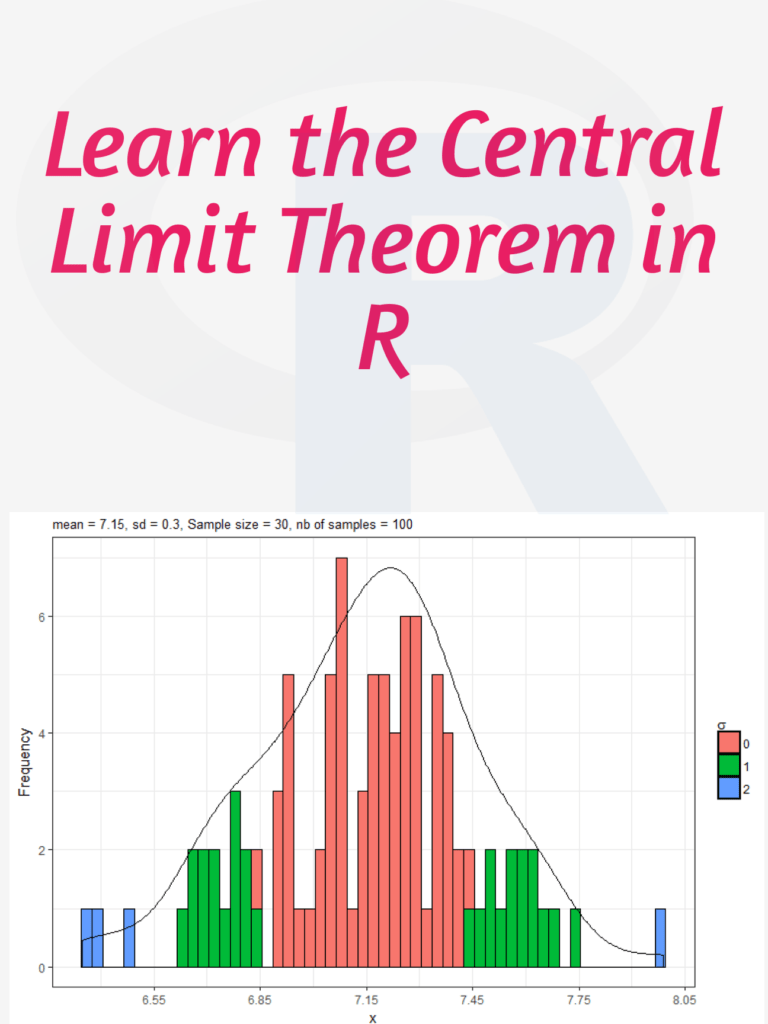
Learn the Central Limit Theorem in R: The Central Limit Theorem (CLT) is a fundamental concept in statistics that states that if you have a large sample size from any population with a finite mean and variance, then the sampling distribution of the mean will be approximately normal regardless of the shape of the original population distribution. In this tutorial, I will walk you through how to simulate the CLT using R step by step.

Learn the Central Limit Theorem in R

Download:

Step 1: Load Required Libraries We will be using the libraries “ggplot2” and “gridExtra” for this tutorial. So, we need to install and load them using the following code:

install.packages("ggplot2")
install.packages("gridExtra")

library(ggplot2)
library(gridExtra)

Step 2: Generate Data Let’s generate some data for this example. We will use the exponential distribution as our population distribution. The exponential distribution is a continuous probability distribution that describes the time between events in a Poisson process. It has a single parameter, which is the rate parameter.

set.seed(123) # for reproducibility
population <- rexp(1000, rate = 1)

Here, we generated 1000 observations from an exponential distribution with a rate parameter of 1.

Step 3: Simulate Sampling Distribution of Means To simulate the CLT, we will take random samples of size n from the population and calculate the mean. We will repeat this process 1000 times and store the means in a vector.

n <- 10 # sample size
num.simulations <- 1000 # number of simulations

sample.means <- replicate(num.simulations, mean(sample(population, n)))

Here, we took random samples of size 10 from the population and calculated the mean. We repeated this process 1000 times and stored the means in the vector “sample.means”.

Step 4: Visualize Sampling Distribution of Means Now, we can visualize the sampling distribution of means using a histogram.

# histogram of sample means
ggplot(data.frame(sample.means), aes(x = sample.means)) + 
  geom_histogram(aes(y = ..density..), color = "black", fill = "white", binwidth = 0.2) +
  stat_function(fun = dnorm, args = list(mean = mean(population), sd = sd(population)/sqrt(n)), color = "red", size = 1) +
  ggtitle(paste("Sampling Distribution of Means (n = ", n, ")", sep = "")) +
  xlab("Sample Means") +
  ylab("Density")

In this code, we created a histogram of the sample means and added a red line for the theoretical normal distribution with the same mean and standard deviation as the sampling distribution of means. We also added a title and axis labels to the plot.

Step 5: Repeat with Different Sample Sizes Finally, we can repeat this process for different sample sizes and visualize the results using a grid of plots.

# function to simulate CLT and create plot
plot_CLT <- function(n) {
  sample.means <- replicate(num.simulations, mean(sample(population, n)))
  
  plot <- ggplot(data.frame(sample.means), aes(x = sample.means)) + 
    geom_histogram(aes(y = ..density..), color = "black", fill = "white", binwidth = 0.2) +
    stat_function(fun = dnorm, args = list(mean = mean(population), sd = sd(population)/sqrt(n)), color = "red", size = 1) +
    ggtitle(p

Data Visualization in Python: A Comprehensive Guide to Powerful Packages

Data visualization is a crucial aspect of modern data analysis, transforming raw data into meaningful insights through graphical representations. Python, a popular language for data science, offers an extensive suite of libraries and packages for data visualization. Whether you’re a beginner or an expert, understanding these packages can help you craft stunning visualizations and effectively communicate your findings.

In this article, we’ll explore some of the most widely used Python packages for data visualization, including their features, benefits, and use cases.

Why Data Visualization Matters?

Data visualization is more than just charts and graphs. It bridges the gap between data and decision-making by:

  • Simplifying complex data: Makes large datasets easier to comprehend.
  • Highlighting patterns and trends: Identifies correlations, outliers, and anomalies.
  • Driving storytelling: Visual elements can make your analysis more impactful.
Data Visualization in Python: A Comprehensive Guide to Powerful Packages

Download:

Top Python Packages for Data Visualization

1. Matplotlib

Matplotlib is the cornerstone of Python data visualization. It is a robust library for creating static, animated, and interactive plots.

Key Features:

  • Customizable plots with fine control over appearance.
  • Supports multiple plot types, such as line graphs, scatter plots, and histograms.
  • Integrates seamlessly with other Python libraries like NumPy and Pandas.

Use Case: Ideal for creating publication-quality figures and simple visualizations.

import matplotlib.pyplot as plt  
x = [1, 2, 3, 4]  
y = [10, 20, 25, 30]  
plt.plot(x, y)  
plt.title('Simple Line Plot')  
plt.show()  

2. Seaborn

Built on top of Matplotlib, Seaborn is a data visualization library that simplifies complex visualizations.

Key Features:

  • Pre-built themes and color palettes.
  • Statistical plotting capabilities like heatmaps, box plots, and violin plots.
  • Handles Pandas DataFrame objects directly.

Use Case: Best for creating aesthetically pleasing and statistical visualizations.

import seaborn as sns  
import pandas as pd  
data = pd.DataFrame({'x': [1, 2, 3, 4], 'y': [10, 20, 25, 30]})  
sns.lineplot(data=data, x='x', y='y')  

3. Plotly

Plotly is an interactive graphing library that allows for the creation of dynamic, web-based visualizations.

Key Features:

  • Interactive plots with zoom and hover functionalities.
  • 3D plotting capabilities.
  • Integration with Dash for building web-based dashboards.

Use Case: Suitable for interactive dashboards and presentations.

import plotly.express as px  
df = px.data.gapminder().query("year == 2007")  
fig = px.scatter(df, x="gdpPercap", y="lifeExp", color="continent", size="pop")  
fig.show()  

4. Bokeh

Bokeh specializes in creating interactive and scalable visualizations for modern web browsers.

Key Features:

  • Supports large and streaming datasets.
  • Integrates well with Flask, Django, and other web frameworks.
  • Enables interactive tools like sliders, widgets, and tooltips.

Use Case: Ideal for web-based interactive plots.

from bokeh.plotting import figure, show  
plot = figure(title="Simple Scatter Plot")  
plot.circle([1, 2, 3, 4], [10, 20, 25, 30], size=10)  
show(plot)  

5. Altair

Altair is a declarative statistical visualization library based on Vega and Vega-Lite.

Key Features:

  • Simple grammar for creating visualizations.
  • Automatic handling of chart aesthetics and interactivity.
  • Works efficiently with Pandas DataFrames.

Use Case: Best for quick exploratory visualizations with minimal coding.

import altair as alt  
import pandas as pd  
data = pd.DataFrame({'x': [1, 2, 3, 4], 'y': [10, 20, 25, 30]})  
chart = alt.Chart(data).mark_line().encode(x='x', y='y')  
chart.show()  

Choosing the Right Library

The choice of a data visualization library depends on your project requirements:

  • For simplicity: Use Matplotlib or Seaborn.
  • For interactivity: Choose Plotly or Bokeh.
  • For quick exploration: Opt for Altair.

Conclusion

Python’s data visualization ecosystem is rich and diverse, offering tools for every need. By leveraging these libraries, you can transform data into compelling visual stories that drive impactful decisions. Whether you’re visualizing financial trends, analyzing scientific data, or building dashboards, Python has you covered.

Download: Python 3 and Data Visualization

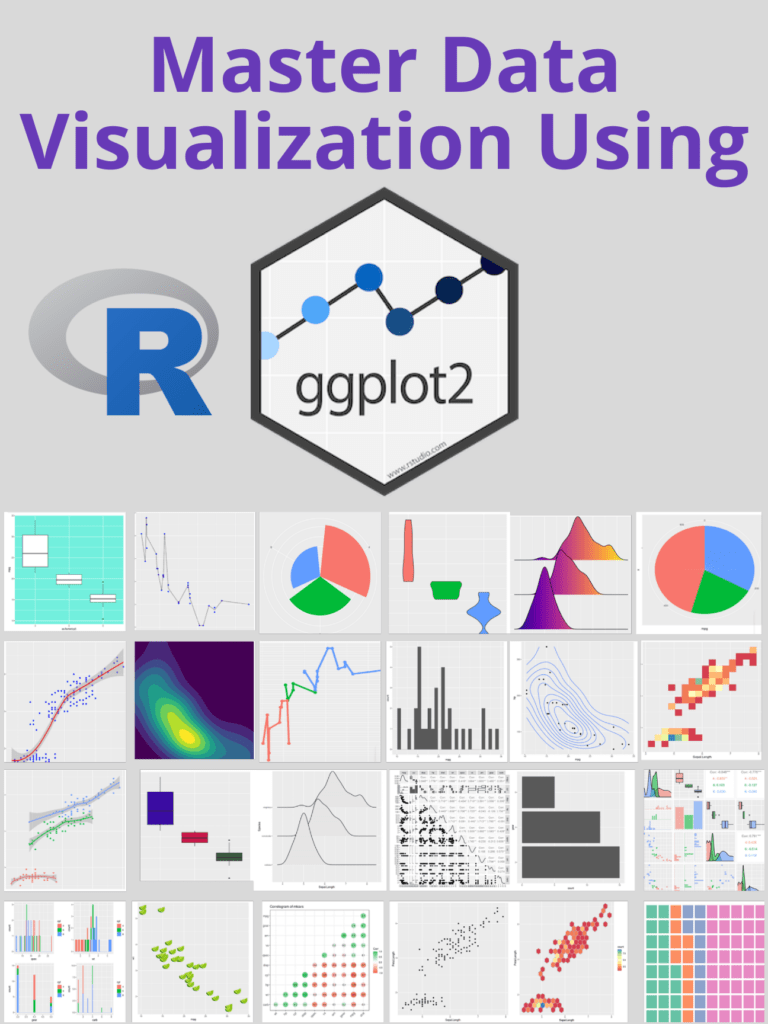
Master Data Visualization Using ggplot2

To master data visualization using ggplot2, it is important to start with the basics and understand the different components of a plot, such as layers, aesthetics, and scales. Learning the grammar of graphics, which is the foundation of ggplot2, is essential for creating complex and customized visualizations. Practicing creating different types of visualizations with ggplot2, starting with simple plots and gradually working your way up to more complex ones, can help improve your skills.

Additionally, it’s helpful to learn from others by examining examples of ggplot2 visualizations and utilizing online resources like blogs, forums, and tutorials. Experimenting with different chart types and using color effectively are important aspects of creating visually appealing and informative visualizations. Lastly, it’s important to consider accessibility for all users when creating visualizations, by using appropriate contrast and avoiding colorblindness issues, among other considerations. By following these steps, you can become proficient in data visualization using ggplot2.

Master Data Visualization Using ggplot2

Download:

Let’s understand with an example

let’s use the “mtcars” dataset that comes with R. This dataset contains information about various cars, including their miles per gallon (mpg), horsepower (hp), and weight (wt).

First, we need to load the ggplot2 package and the mtcars dataset:

library(ggplot2)
data(mtcars)

Next, let’s create a scatterplot of mpg versus horsepower. We can do this using the ggplot() function, specifying the dataset to use and the aesthetic mappings (i.e., which variables to map to the x and y axes):

ggplot(data = mtcars, aes(x = hp, y = mpg)) +
  geom_point()

This will create a basic scatterplot with horsepower on the x-axis and mpg on the y-axis. We use the geom_point() function to add points to the plot.

Next, let’s add a regression line to the plot to show the relationship between the two variables more clearly:

ggplot(data = mtcars, aes(x = hp, y = mpg)) +
  geom_point() +
  geom_smooth(method = "lm")

We add the geom_smooth() function with the “lm” (linear model) method to add a regression line to the plot.

Finally, let’s customize the plot a bit by changing the color of the points and regression line, adding axis labels and a title, and adjusting the axis limits:

ggplot(data = mtcars, aes(x = hp, y = mpg)) +
  geom_point(color = "blue") +
  geom_smooth(method = "lm", color = "red") +
  labs(x = "Horsepower", y = "Miles per gallon", title = "Relationship between horsepower and miles per gallon") +
  theme_classic() +
  xlim(c(0, 400)) +
  ylim(c(0, 35))

We use the labs() function to add axis labels and a title, and the theme_classic() function to change the plot theme to a more classic style. We also use the xlim() and ylim() functions to adjust the axis limits.

This should give you a good idea of how to create a basic data visualization using ggplot2 in R. Of course, there are many other types of plots and customizations you can make using ggplot2, but this should serve as a starting point.

Five tips to improve your R code

R is a powerful programming language used for data analysis and statistical computing. However, writing efficient and effective R code can be challenging, especially for those who are new to the language. In this article, we will discuss five tips to improve your R code and make it more readable, efficient, and reliable.

Five tips to improve your R code

1. Use vectorization

Vectorization is the process of performing operations on entire vectors instead of individual elements. This technique can significantly improve the performance of your code by reducing the number of loops required. For example, instead of using a for loop to add two vectors element-wise, you can use the “+” operator to add the vectors directly.

Here’s an example:

# Using a for loop
x <- 1:1000
y <- 1:1000
z <- numeric(length(x))

for (i in 1:length(x)) {
  z[i] <- x[i] + y[i]
}

# Using vectorization
x <- 1:1000
y <- 1:1000
z <- x + y

2. Avoid global variables

Using global variables can make your code more difficult to debug and maintain, especially when dealing with large programs. It’s best to use local variables instead, which are created and used within a function. This approach can also help avoid naming conflicts between different parts of your code.

Here’s an example:

# Using global variables
x <- 10

my_function <- function() {
  y <- x + 5
  return(y)
}

# Using local variables
my_function <- function(x) {
  y <- x + 5
  return(y)
}

result <- my_function(10)

3. Use appropriate data structures

Choosing the appropriate data structure can make a significant difference in the performance of your code. For example, using a matrix instead of a data frame can be faster for numerical operations, while using a list can be more flexible for storing different types of objects.

Here’s an example:

# Using a matrix
x <- matrix(1:1000000, nrow = 1000)
row_sums <- apply(x, 1, sum)

# Using a data frame
x <- data.frame(matrix(1:1000000, nrow = 1000))
row_sums <- apply(x, 1, sum)

# Using a list
my_list <- list(a = 1, b = "hello", c = TRUE)

4. Write readable code

Writing readable code can make it easier for others to understand your code and for you to maintain it in the future. Some best practices for writing readable code include using descriptive variable names, writing comments to explain complex code, and formatting your code consistently.

Here’s an example:

# Writing readable code
x <- c(1, 2, 3, 4, 5) # Create a vector of numbers
y <- sum(x) # Calculate the sum of the vector

5. Use functions from packages

R has a vast library of packages that provide pre-built functions for a wide range of tasks. Using functions from these packages can save you time and improve the reliability of your code, as these functions have often been thoroughly tested and optimized.

Here’s an example:

# Using a function from a package
library(dplyr)

x <- data.frame(a = c(1, 2, 3), b = c(4, 5, 6))
y <- select(x, a) # Select the 'a' column of the data frame

These five tips can help you improve your R code and make it more efficient, readable, and reliable.

Learn R for Applied Statistics: With Data Visualizations, Regressions, and Statistics

Learn R for Applied Statistics: With Data Visualizations, Regressions, and Statistics: Learning R for applied statistics can be a great way to gain insights into data analysis and modeling. It provides a wide range of statistical techniques, including linear and nonlinear modeling, time-series analysis, and multivariate analysis. R is also popular among researchers for data visualization and exploratory data analysis. With its open-source nature and active community, R offers extensive documentation and various packages, making it a powerful tool for statistical analysis and modeling in fields such as economics, biology, social sciences, and more. Its flexibility and ease of use make it an excellent choice for researchers and data analysts of all levels.

R provides several libraries and packages for regression analysis, making it an excellent tool for applied statistics. With its active community and extensive documentation, R is an excellent choice for researchers, data analysts, and scientists of all levels. One of the most widely used libraries for regression analysis in R is the “lm” function. It is used for linear regression and helps users to fit a linear model to a given set of data. The package provides users with several diagnostic measures such as the R-squared value, residual plots, and coefficients. Another popular library for regression analysis in R is the “glm” function.

Learn R for Applied Statistics: With Data Visualizations, Regressions, and Statistics

Download:

The package helps users to fit generalized linear models to a given set of data. The package provides a wide range of regression models such as logistic regression, Poisson regression, and negative binomial regression. The “car” library is another popular package for regression analysis in R. It provides several diagnostic tools and regression models such as ANOVA, MANOVA, and multiple regression. Finally, the “caret” package provides various machine learning algorithms, including regression analysis. The package helps users to train, test, and evaluate regression models and provides several techniques to handle missing data and outliers.

R is an excellent tool for data visualization and exploratory data analysis, offering various packages and libraries for creating high-quality graphics. With its powerful graphics capabilities and active community, R is an excellent choice for researchers, data analysts, and scientists of all levels. R’s ggplot2 package is one of the most widely used libraries for creating data visualizations. It provides a flexible and elegant system for creating complex and informative graphics. Its grammar of graphics approach allows users to create a wide range of visualizations using a consistent set of rules.

Other popular R packages for data visualization include plotly, lattice, and ggvis. Plotly provides interactive visualizations that allow users to explore data in real time, while lattice offers a powerful and flexible system for creating multi-panel plots. ggvis, on the other hand, provides an interactive grammar of graphics system for creating complex visualizations with interactivity.

Download(PDF)

How to make a boxplot in R?

A box plot is a graphical representation of a dataset that displays the distribution of data through five summary statistics: the minimum value, the first quartile (25th percentile), the median (50th percentile), the third quartile (75th percentile), and the maximum value. The box in the plot represents the middle 50% of the data (between the first and third quartiles), while the whiskers extend from the box to show the range of the data, excluding any outliers. Outliers are represented by dots or asterisks outside the whiskers. Box plots are useful for quickly visualizing the spread, skewness, and outliers of a dataset. They are commonly used in statistical analysis, especially for comparing distributions between different groups or variables.

How to make a boxplot in R?

Download:

To make a boxplot in R, you can use the boxplot() function, which is a built-in function in R. Here’s an example code:

# Create a vector of data
data <- c(10, 20, 15, 30, 25, 35, 40, 50)

# Create a boxplot of the data
boxplot(data)

In the above example, we first create a vector of data called data. Then we use the boxplot() function to create a boxplot of the data.

You can customize the boxplot by adding different parameters to the boxplot() function. Here are some examples:

  • Adding a title to the plot:
boxplot(data, main="Boxplot of Data")
  • Changing the x-axis label:
boxplot(data, xlab="Data")
  • Changing the color of the box and whiskers:
boxplot(data, col="blue")
  • Creating a horizontal boxplot:
boxplot(data, horizontal=TRUE)

These are just a few examples of how you can customize the boxplot in R. You can find more information about the boxplot() function and its parameters in the R documentation.

Read more: How to Create a Population Pyramid in R?