Books

How to Build Linear Regression Model and Interpret Results with R?

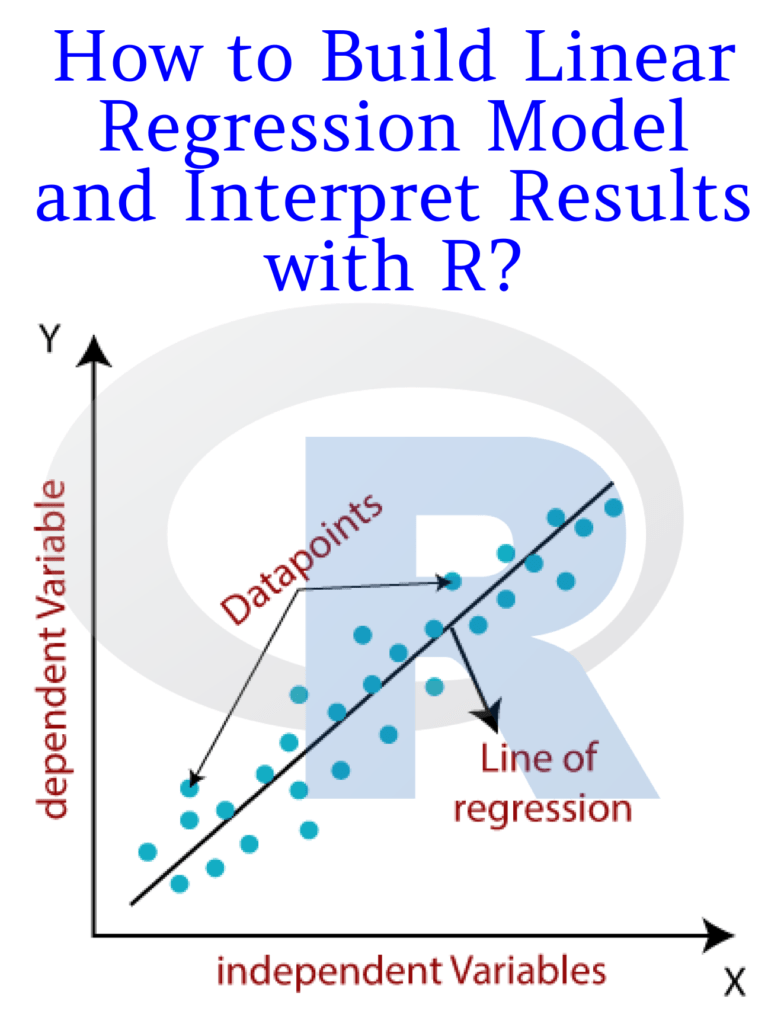
Linear regression is a widely used statistical modeling technique for predicting the relationship between a dependent variable and one or more independent variables. It is commonly used in various fields such as economics, finance, marketing, and social sciences. In this article, we will discuss how to build a linear regression model in R and interpret its results.
How to Build Linear Regression Model and Interpret Results with R?

Steps to build a linear regression model in R:

Step 1: Install and load the necessary packages

To build a linear regression model in R, we need to install and load the necessary packages. The “tidyverse” package includes many useful packages, including “dplyr”, “ggplot2”, and “tidyr”. We will also use the “lm” function, which is built into R, for building the linear regression model.

# install.packages("tidyverse")
library(tidyverse)

Step 2: Load and explore the data

We need to load the data into R and explore its structure, dimensions, and summary statistics to gain insights into the data. In this example, we will use the “mtcars” dataset, which is included in R. This dataset contains information about various car models and their performance characteristics.

data(mtcars)
head(mtcars)
summary(mtcars)

Step 3: Create the model

To create the linear regression model, we need to use the “lm” function in R. We need to specify the dependent variable and the independent variables in the formula. In this example, we will use the “mpg” (miles per gallon) variable as the dependent variable and the “wt” (weight) variable as the independent variable.

# Create the linear regression model
model <- lm(mpg ~ wt, data = mtcars)

Step 4: Interpret the model

Once the model is created, we need to interpret its coefficients, standard errors, p-values, and R-squared value to understand its significance and predictive power.

# Display the model coefficients, standard errors, p-values, and R-squared value
summary(model)

The output of the summary() function shows the following:

Call:
lm(formula = mpg ~ wt, data = mtcars)

Residuals:
    Min      1Q  Median      3Q     Max 
-4.5432 -2.3647 -0.1252  1.4096  6.8727 

Coefficients:
            Estimate Std. Error t value Pr(>|t|)    
(Intercept)  37.2851     1.8776  19.858  < 2e-16 ***
wt           -5.3445     0.5591  -9.559 1.29e-10 ***
---
Signif. codes:  0 ‘***’ 0.001 ‘**’ 0.01 ‘*’ 0.05 ‘.’ 0.1 ‘ ’ 1

Residual standard error: 3.046 on 30 degrees of freedom
Multiple R-squared:  0.7528,    Adjusted R-squared:  0.7446 
F-statistic: 91.38 on 1 and 30 DF,  p-value: 1.294e-10

The “Estimate” column shows the coefficients of the linear regression model. The intercept value is 37.2851, which represents the predicted value of the dependent variable when the independent variable is zero. The coefficient of the “wt” variable is -5.3445, which indicates that as the weight of the car increases by one.

Download(PDF)


Read More: Learn R for Applied Statistics: With Data Visualizations, Regressions, and Statistics

Storytelling with Data: A Data Visualization Guide for Business Professionals

Storytelling with Data: Do you want to learn how to communicate effectively with data? Do you want to impress your boss, clients, and colleagues with your data-driven insights and recommendations? Do you want to master the art and science of storytelling with data?

If you answered yes to any of these questions, then this blog post is for you. In this post, I will share with you some tips and tricks on how to use data storytelling to enhance your business communication skills and achieve your goals.

Storytelling with Data: A Data Visualization Guide for Business Professionals

What is data storytelling?

Data storytelling is the process of creating and delivering a narrative that explains, illustrates, or persuades using data as evidence. Data storytelling combines three elements: data, visuals, and narrative.

Data is the raw material that provides the facts and figures that support your message. Visuals are the graphical representations that help you display and highlight the key patterns, trends, and insights from your data. A narrative is a verbal or written explanation that connects the dots and tells a coherent and compelling story with your data.

Why is data storytelling important?

Data storytelling is important because it helps you:

  • Capture and maintain your audience’s attention. Data storytelling makes your message more engaging and memorable by using visuals and narrative techniques that appeal to human emotions and curiosity.
  • Simplify and clarify complex information. Data storytelling helps you distill and organize large amounts of data into meaningful and actionable insights that your audience can easily understand and relate to.
  • Influence and persuade your audience. Data storytelling helps you establish credibility and trust by backing up your claims with evidence. It also helps you motivate and inspire your audience to take action by showing them the benefits and implications of your data analysis.

How to create a data story?

Creating a data story is not a one-size-fits-all process. It depends on various factors such as your audience, your purpose, your data, and your medium. However, here are some general steps that can guide you in crafting a data story:

  1. Define your audience and your goal. Before you start working on your data story, you need to know who you are talking to and what you want to achieve. Ask yourself: Who is my audience? What do they care about? What do they already know? What do they need to know? What do I want them to do or feel after hearing my story?
  2. Find and analyze your data. Once you have a clear idea of your audience and your goal, you need to find and analyze the data that will support your message. Ask yourself: What data sources are available and relevant? How can I clean, transform, and explore the data? What are the key insights and patterns that emerge from the data?
  3. Choose your visuals and narrative techniques. After you have identified the main insights from your data, you need to choose how to present them visually and verbally. Ask yourself: What type of chart or graph best suits my data and my message? How can I design my visuals to make them clear, attractive, and effective? What narrative techniques can I use to structure my story and make it interesting and persuasive?
  4. Deliver your data story. The final step is to deliver your data story to your audience using the appropriate medium and format. Ask yourself: How can I tailor my delivery to suit my audience’s preferences and expectations? How can I use verbal and non-verbal cues to enhance my presentation skills? How can I solicit feedback and measure the impact of my data story?

Read more: Data Visualization and Exploration with R

Download(PDF)

Exploratory Data Analysis with R: How to Visualize and Summarize Data

Exploratory Data Analysis with R: How to Visualize and Summarize Data: Exploratory Data Analysis (EDA) is a critical step in any data analysis project. It involves the use of statistical and visualization techniques to summarize and understand the main characteristics of a dataset. R is a powerful programming language and environment for statistical computing and graphics, making it an excellent choice for EDA. In this article, we will explore how to perform EDA with R, focusing on data visualization and summary statistics.

Exploratory Data Analysis with R How to Visualize and Summarize Data

Download:

Importing Data

The first step in EDA is importing the data into R. R supports various file formats, including CSV, Excel, and SPSS. Let’s assume that we have a CSV file named “data.csv” in our working directory that we want to import. We can use the read.csv() function to import the data.

data <- read.csv("data.csv")

Exploring the Data

Once the data is imported, we can begin exploring it. We can start by getting an overview of the data using the summary() function, which provides basic summary statistics for each column of the dataset.

summary(data)

This will give us information such as the minimum and maximum values, mean, median, and quartiles for each numeric column, as well as the number of unique values for categorical columns.

We can also use the str() function to get a more detailed view of the structure of the data.

str(data)

This will show us the type of each column, as well as the number of observations and the number of missing values.

Visualizing the Data

EDA is not complete without data visualization. R provides a wide range of graphical tools for data visualization, including scatter plots, histograms, box plots, and more. Let’s look at some of the most common types of plots used in EDA.

Scatter Plots

A scatter plot is a graph that displays the relationship between two numeric variables. We can create a scatter plot using the plot() function.

plot(data$variable1, data$variable2)

This will create a scatter plot of “variable1” on the x-axis and “variable2” on the y-axis.

Histograms

A histogram is a graph that displays the distribution of a numeric variable. We can create a histogram using the hist() function.

hist(data$variable)

This will create a histogram of “variable”.

Box Plots

A box plot is a graph that displays the distribution of a numeric variable, as well as any outliers. We can create a box plot using the boxplot() function.

boxplot(data$variable)

This will create a box plot of “variable”.

Summary Statistics

In addition to visualization, we can also use summary statistics to understand the main characteristics of the data. R provides several functions for computing summary statistics, including mean, median, standard deviation, and more. Let’s look at some of the most common summary statistics.

Mean

The mean is the average value of a numeric variable. We can calculate the mean using the mean() function.

mean(data$variable)

This will calculate the mean of “variable”.

Median

The median is the middle value of a numeric variable. We can calculate the median using the median() function.

median(data$variable)

This will calculate the median of “variable”.

Standard Deviation

The standard deviation is a measure of the spread of a numeric variable. We can calculate the standard deviation using the sd() function.

sd(data$variable)

This will calculate the standard deviation of “variable”.

Practical Web Scraping for Data Science: Best Practices and Examples with Python

Practical Web Scraping for Data Science: Web scraping, also known as web harvesting or web data extraction, is a technique used to extract data from websites. It involves writing code to parse HTML content and extract information that is relevant to the user. Web scraping is an essential tool for data science, as it allows data scientists to gather information from various online sources quickly and efficiently. In this article, we will discuss practical web scraping techniques for data science using Python.

Before diving into the practical aspects of web scraping, it is essential to understand the legal and ethical implications of this technique. Web scraping can be used for both legal and illegal purposes, and it is essential to use it responsibly. It is crucial to ensure that the data being extracted is not copyrighted, and the website’s terms of service permit web scraping. Additionally, it is important to avoid overloading a website with requests, as this can be seen as a denial-of-service attack.

Practical Web Scraping for Data Science Best Practices and Examples with Python

Now let’s dive into the practical aspects of web scraping for data science. The first step is to identify the website that contains the data you want to extract. In this example, we will use the website “https://www.imdb.com” to extract information about movies. The website contains a list of top-rated movies, and we will extract the movie title, release year, and rating.

To begin, we need to install the following Python libraries: Requests, Beautiful Soup, and Pandas. These libraries are essential for web scraping and data manipulation.

!pip install requests
!pip install beautifulsoup4
!pip install pandas

After installing the necessary libraries, we can begin writing the code to extract the data. The first step is to send a request to the website and retrieve the HTML content.

import requests

url = 'https://www.imdb.com/chart/top'
response = requests.get(url)

Once we have the HTML content, we can use Beautiful Soup to parse the HTML and extract the information we want.

from bs4 import BeautifulSoup

soup = BeautifulSoup(response.content, 'html.parser')
movies = soup.select('td.titleColumn')

The select method is used to select elements that match a specific CSS selector. In this example, we are selecting all the elements with the class “titleColumn.”

We can now loop through the movies list and extract the movie title, release year, and rating.

movie_titles = []
release_years = []
ratings = []

for movie in movies:
    title = movie.find('a').get_text()
    year = movie.find('span', class_='secondaryInfo').get_text()[1:-1]
    rating = movie.find('td', class_='ratingColumn imdbRating').get_text().strip()
    
    movie_titles.append(title)
    release_years.append(year)
    ratings.append(rating)

Finally, we can create a Pandas dataframe to store the extracted data.

import pandas as pd

df = pd.DataFrame({'Title': movie_titles, 'Year': release_years, 'Rating': ratings})
print(df.head())

The output will be a dataframe containing the movie title, release year, and rating.

 Title  Year Rating
0  The Shawshank Redemption  1994    9.2
1             The Godfather  1972    9.1
2    The Godfather: Part II  1974    9.0
3           The Dark Knight  2008    9.0
4              12 Angry Men  1957    8.9

Downlod(PDF)

Introduction to Basic Statistics with R

Introduction to Basic Statistics with R: Statistics is a branch of mathematics that deals with the collection, analysis, interpretation, presentation, and organization of data. It has become an essential tool in many fields, including science, engineering, medicine, business, and economics. In this article, we will introduce you to the basic statistics concepts and their implementation in R, a popular statistical programming language.

Introduction to Basic Statistics with R

Download:

Step 1: Installing R and RStudio The first step in using R for statistical analysis is to install R and RStudio. R is a programming language for statistical computing and graphics, while RStudio is an integrated development environment (IDE) for R.

Step 2: Getting Started with R After installing R and RStudio, you can launch RStudio and start using R. The RStudio interface has several panes, including the console, editor, and workspace. The console is where you can enter commands and see the results. The editor is where you can write and save R code, while the workspace displays the objects and data structures in your environment.

Step 3: Basic Statistical Concepts Before we start using R, let’s review some basic statistical concepts. The following are some of the most common statistical terms:

  • Population: A population is a group of individuals or objects that we want to study.
  • Sample: A sample is a subset of the population that we collect data from.
  • Variable: A variable is a characteristic or attribute that we measure.
  • Data: Data is the information that we collect from the variables.
  • Descriptive Statistics: Descriptive statistics are methods that summarize and describe the characteristics of the data, such as measures of central tendency, measures of dispersion, and graphs.
  • Inferential Statistics: Inferential statistics are methods that use sample data to make inferences or predictions about the population.

Step 4: Data Import and Manipulation To start analyzing data in R, you need to import it into the R environment. R can read data from various file formats, such as CSV, Excel, and text files. Once you have imported your data, you can manipulate it using various functions and operators, such as subsetting, merging, and filtering.

Step 5: Descriptive Statistics in R R provides several functions for calculating descriptive statistics. The following are some of the most common descriptive statistics functions in R:

  • mean(): calculates the arithmetic mean of a vector or a matrix
  • median(): calculates the median of a vector or a matrix
  • sd(): calculates the standard deviation of a vector or a matrix
  • var(): calculates the variance of a vector or a matrix
  • summary(): provides a summary of the data, including the minimum, maximum, quartiles, mean, and median.

Step 6: Inferential Statistics in R R provides several functions for performing inferential statistics. The following are some of the most common inferential statistics functions in R:

  • t.test(): performs a t-test for two samples or one sample
  • cor(): calculates the correlation coefficient between two variables
  • lm(): performs linear regression analysis
  • chisq.test(): performs a chi-squared test for independence
  • anova(): performs analysis of variance (ANOVA)

Step 7: Data Visualization in R Data visualization is an essential part of statistical analysis. R provides several packages for creating various types of graphs, such as bar charts, scatter plots, line charts, and histograms. The following are some of the most common data visualization packages in R:

Using Python Analyze Data to Create Visualizations for BI Systems

In today’s world, data is being generated at an exponential rate. In order to make sense of this data, it is important to have a Business Intelligence (BI) system that can analyze the data and present it in a meaningful way. Python is a powerful programming language that can be used to analyze data and create visualizations for BI systems. In this article, we will discuss how to use Python to analyze data and create visualizations for BI systems.

  1. Data Analysis with Python

Python provides several libraries for data analysis. The most popular of these libraries are Pandas, Numpy, and Matplotlib. Pandas is a library that provides data structures for efficient data analysis. Numpy is a library that provides support for arrays and matrices. Matplotlib is a library that provides support for creating visualizations.

  1. Data Visualization with Python

Visualizations are an important part of BI systems. Python provides several libraries for creating visualizations. The most popular of these libraries are Matplotlib, Seaborn, and Plotly. Matplotlib is a library that provides support for creating basic visualizations. Seaborn is a library that provides support for creating statistical visualizations. Plotly is a library that provides support for creating interactive visualizations.

Using Python Analyze Data to Create Visualizations for BI Systems
  1. Connecting Python with BI Systems

Python can be connected with BI systems using APIs or SDKs. Some popular BI systems that can be connected with Python are Tableau, Power BI, and QlikView. Tableau provides an API that can be used to connect Python with Tableau. Power BI provides an SDK that can be used to connect Python with Power BI. QlikView provides a Python module that can be used to connect Python with QlikView.

  1. Creating Visualizations with Python for BI Systems

Once the data is analyzed and Python is connected with the BI system, visualizations can be created. The visualizations should be meaningful and should help in making decisions. Some examples of visualizations that can be created with Python for BI systems are bar charts, line charts, scatter plots, heat maps, and pie charts.

  1. Conclusion

Python is a powerful programming language that can be used to analyze data and create visualizations for BI systems. It provides several libraries for data analysis and visualization. Python can be connected with BI systems using APIs or SDKs. Visualizations should be meaningful and should help in making decisions. With Python, it is possible to create visualizations that can help in making decisions and improving business performance.

Download(PDF)

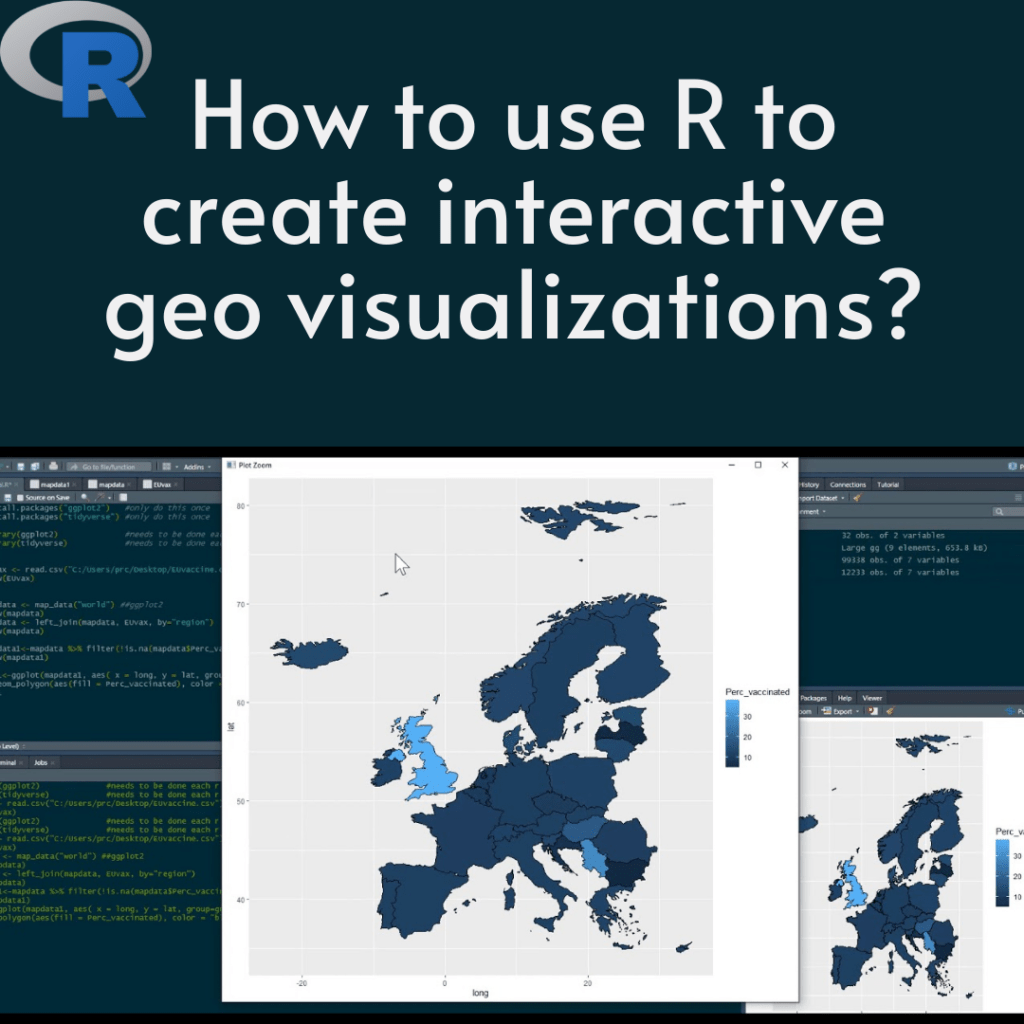
How to use R to create interactive geo visualizations?

Geovisualization is the process of displaying geospatial data in a visual form that helps people better understand and interpret data. R is a popular programming language for data analysis and visualization, and it has several packages that make it easy to create interactive geo visualizations. In this article, we will explore some of the R packages that can be used to create interactive geo visualizations.

How to use R to create interactive geo visualizations?

Download:
  1. ggplot2

ggplot2 is a popular package for creating static visualizations in R. However, it can also be used to create interactive geo visualizations. The ggplot2 package provides the geom_sf() function, which can be used to plot spatial data. The sf package is used to read spatial data, and the dplyr package can be used to manipulate the data. The plotly package can be used to create interactive plots from ggplot2 objects.

Here is an example of creating an interactive plot using ggplot2 and plotly:

library(sf)
library(ggplot2)
library(dplyr)
library(plotly)

# Read the spatial data
data <- st_read("path/to/data.shp")

# Group the data by a variable
data_grouped <- data %>% group_by(variable)

# Create the plot
plot <- ggplot() + 
  geom_sf(data = data_grouped, aes(fill = variable)) + 
  scale_fill_viridis_c() +
  theme_void()

# Create the interactive plot
ggplotly(plot)
  1. Leaflet

Leaflet is a popular JavaScript library for creating interactive maps. The leaflet package provides an interface to the Leaflet library, which can be used to create interactive maps in R. The package provides several functions for creating interactive maps, including addTiles(), addMarkers(), addPolygons(), and addPopups().

Here is an example of creating an interactive map using the leaflet package:

library(leaflet)
library(sf)

# Read the spatial data
data <- st_read("path/to/data.shp")

# Create the map
map <- leaflet(data) %>% addTiles() %>%
  addPolygons(fillColor = ~pal(variable)(variable),
              weight = 2,
              opacity = 1,
              color = "white",
              fillOpacity = 0.7) %>%
  addLegend(pal = pal, values = ~variable,
            title = "Variable",
            opacity = 0.7)

# Define the color palette
pal <- colorNumeric(palette = "YlOrRd", domain = data$variable)

# Display the map
map
  1. tmap

tmap is a package for creating thematic maps in R. It provides several functions for creating interactive maps, including tm_shape(), tm_fill(), tm_basemap(), and tm_layout(). The package also provides several color palettes for visualizing data.

Here is an example of creating an interactive map using the tmap package:

library(tmap)
library(sf)

# Read the spatial data
data <- st_read("path/to/data.shp")

# Create the map
map <- tm_shape(data) + 
  tm_fill("variable", palette = "Blues", style = "quantile") + 
  tm_basemap("Stamen.TonerLite") + 
  tm_layout(title = "Interactive Map")

# Display the map
tmap_leaflet(map)

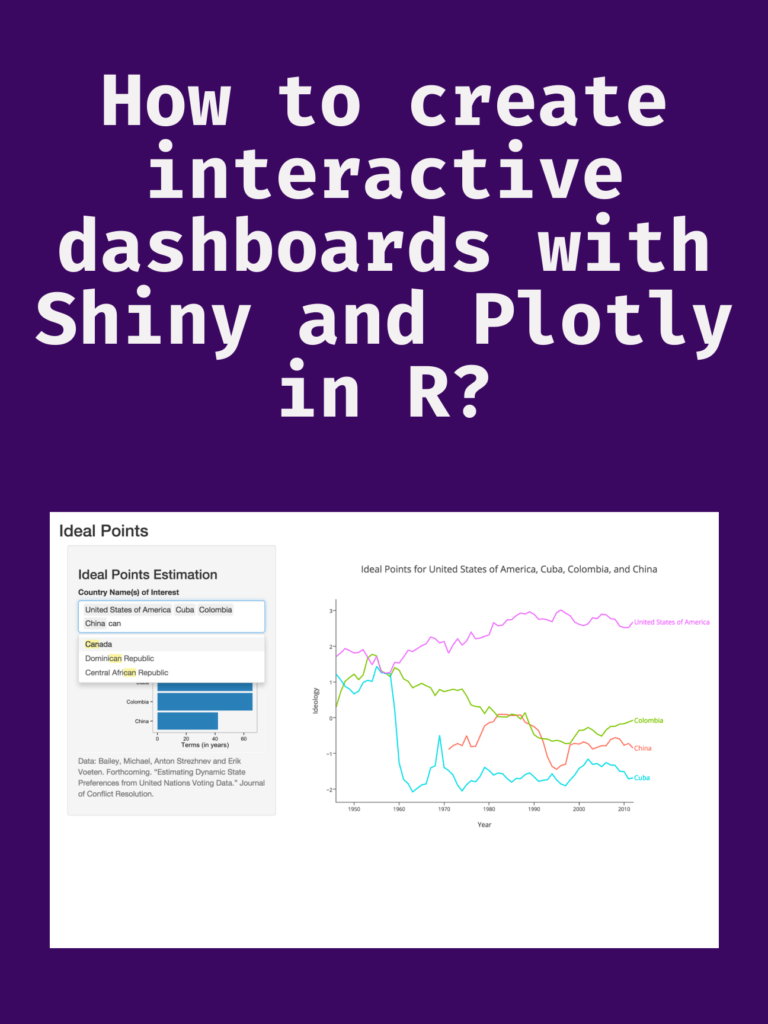
How to create interactive dashboards with Shiny and Plotly in R?

How to create interactive dashboards with Shiny and Plotly in R? Creating interactive dashboards is an important task in data analysis and visualization. Dashboards provide a way to visualize data and communicate insights to stakeholders. In this article, we will explore how to create interactive dashboards using Shiny and Plotly in R.

Shiny is a web application framework for R that allows users to create interactive web applications using R. Plotly is a powerful data visualization library that can create interactive visualizations for the web. Together, Shiny and Plotly provide a powerful toolset for creating interactive dashboards.

How to create interactive dashboards with Shiny and Plotly in R?

Setup

Before we start creating our dashboard, we need to install the necessary packages. We will be using the following packages:

install.packages("shiny")
install.packages("plotly")

Once we have installed these packages, we can start building our dashboard.

Building the dashboard

To start building our dashboard, we need to create a new Shiny application. We can do this by running the following command in R:

library(shiny)
shinyApp(ui = ui, server = server)

This will create a new Shiny application with a default user interface (UI) and server function (server).

Adding UI components

Next, we need to add UI components to our dashboard. These components will define the layout and appearance of our dashboard. We will be using the fluidPage function from Shiny to create a responsive UI. The fluidPage function will automatically adjust the layout of the dashboard based on the size of the user’s screen.

ui <- fluidPage(
  # Add UI components here
)

Next, we will add a title to our dashboard using the titlePanel function. We will also add a sidebar with input controls using the sidebarLayout and sidebarPanel functions.

ui <- fluidPage(
  titlePanel("My Dashboard"),
  sidebarLayout(
    sidebarPanel(
      # Add input controls here
    ),
    # Add output components here
  )
)

We can add various input controls to our sidebar using functions such as sliderInput, textInput, checkboxInput, and selectInput. These input controls will allow users to interact with our dashboard and filter or adjust the data displayed.

Adding server logic

Next, we need to add server logic to our dashboard. The server function will define how the dashboard reacts to user input and how it updates the visualizations.

server <- function(input, output) {
  # Add server logic here
}

We can use the renderPlotly function from Plotly to create interactive visualizations in our dashboard. This function takes a plotly object as input and creates an interactive visualization based on the user’s input.

server <- function(input, output) {
  output$plot <- renderPlotly({
    # Create interactive visualization here
  })
}

We can also use the reactive function from Shiny to create reactive expressions that update based on user input. These expressions can be used to filter data, adjust the parameters of visualizations, or perform calculations.

server <- function(input, output) {
  filtered_data <- reactive({
    # Filter data based on user input
  })
  
  output$plot <- renderPlotly({
    # Create interactive visualization based on filtered data
  })
}

Adding interactive visualizations

Finally, we can add interactive visualizations to our dashboard using the plot_ly function from Plotly. This function allows us to create a wide range of interactive visualizations, including scatterplots, bar charts, heatmaps, and more.

server <- function(input, output) {
  filtered_data <- reactive({

Download(PDF)

The Python Workbook

The Python Workbook” is a collection of exercises and projects designed to help individuals learn and practice the Python programming language. It is suitable for beginners who have little or no prior experience with programming, as well as for intermediate programmers who want to enhance their skills.

The workbook covers various topics in Python, including variables, data types, operators, control structures, functions, and object-oriented programming. Each chapter contains multiple exercises that range in difficulty from simple to challenging, and solutions to the exercises are provided at the end of the book.

The Python Workbook
A Brief Introduction with Exercises and Solutions
The Python Workbook A Brief Introduction with Exercises and Solutions

The exercises in “The Python Workbook” are designed to be self-contained and can be completed independently of each other. This allows readers to skip around and focus on specific areas of interest or to work through the book linearly.

Some of the projects included in the workbook require the use of third-party libraries, such as NumPy and Matplotlib, which are commonly used in data analysis and visualization. This provides readers with an opportunity to explore the broader Python ecosystem and gain experience working with real-world tools and technologies.

Overall, “The Python Workbook” is an excellent resource for anyone looking to learn or improve their skills in Python programming. It provides a structured and engaging approach to learning, and the exercises and projects are designed to reinforce key concepts and help readers build practical skills.

Download(PDF)

How to use RStudio’s visual editor and code snippets for faster dataviz?

How to use RStudio’s visual editor and code snippets for faster dataviz? RStudio is a popular Integrated Development Environment (IDE) for the R programming language. It offers a variety of features that can help make data visualization easier and faster. One of these features is the visual editor, which allows users to create visualizations by dragging and dropping elements onto a canvas. Another feature is code snippets, which are pre-written code snippets that can be inserted into a script to perform specific tasks. In this article, we will explore how to use RStudio’s visual editor and code snippets to create faster data visualizations.

How to use RStudio's visual editor and code snippets for faster dataviz?
How to use RStudio’s visual editor and code snippets for faster dataviz?

Using RStudio’s Visual Editor

A visual editor is a great tool for creating data visualizations quickly and easily. It allows you to create visualizations by dragging and dropping elements onto a canvas, which can be a great way to experiment with different layouts and designs.

Here’s how to use the visual editor in RStudio:

  1. Open a new R script file in RStudio.
  2. Click on the “Plots” tab in the bottom-right corner of the window.
  3. Click on the “Visualize” button to open the visual editor.
  4. Choose a data source from the list on the left-hand side of the window.
  5. Drag and drop elements onto the canvas to create your visualization.
  6. Use the settings on the right-hand side of the window to customize your visualization.

The visual editor offers a variety of elements that you can use to create your visualization, including:

  • Scatterplots
  • Bar charts
  • Line charts
  • Histograms
  • Heatmaps

To create a scatterplot, for example, simply drag and drop the “Scatterplot” element onto the canvas, select your data source, and choose the variables to use for the x-axis and y-axis. You can then customize the appearance of the scatterplot using the settings on the right-hand side of the window.

Using Code Snippets

Code snippets are pre-written blocks of code that can be inserted into a script to perform specific tasks. RStudio comes with a variety of code snippets that can be used to create data visualizations more quickly and easily.

Here’s how to use code snippets in RStudio:

  1. Open a new R script file in RStudio.
  2. Click on the “Code” tab in the bottom-right corner of the window.
  3. Click on the “Insert Snippet” button to open the code snippet library.
  4. Choose a snippet from the list and click “Insert” to insert it into your script.

Some of the code snippets available in RStudio include:

  • Creating a bar chart
  • Creating a scatterplot
  • Creating a line chart
  • Creating a histogram
  • Creating a heatmap

To use a code snippet, simply insert it into your script and customize it as needed. For example, if you want to create a bar chart, you can insert the “ggplot2_bar” snippet and then modify it to use your own data and variables.

Download(PDF)