data scientist

Survival Analysis with R: How to Model Time-to-Event Data


Survival analysis is a statistical technique used to analyze time-to-event data, such as the time until death or the time until the failure of a machine. R is a popular programming language used by statisticians and data analysts for data analysis, visualization, and modeling.

In R, survival analysis can be performed using the survival package. This package provides functions for fitting different types of survival models and for conducting various types of survival analyses, such as Kaplan-Meier curves, Cox proportional hazards regression, and parametric survival models.

Survival Analysis with R How to Model Time-to-Event Data
Survival Analysis with R: How to Model Time-to-Event Data
Download:

To begin, you will need to load the survival package into R by typing:

library(survival)

The first step in survival analysis is to create a survival object. A survival object is a data structure that contains information about the time-to-event data, including the time-to-event (often called “survival time”), the event status (often called “censoring status”), and any covariates that may affect the survival time.

To create a survival object, you can use the Surv() function. For example, suppose you have a dataset called mydata that contains information on the survival time and censoring status of patients in a clinical trial. You can create a survival object as follows:

my.survival <- Surv(time = mydata$time, event = mydata$status)

In this example, time is a vector of survival times, and status is a vector of censoring statuses (0 if the event was censored, 1 if the event occurred). The Surv() function combines these vectors into a single survival object.

Once you have created a survival object, you can use it to fit survival models. The most commonly used survival model is the Cox proportional hazards regression model, which allows you to estimate the effect of covariates on the hazard rate (i.e., the instantaneous risk of experiencing the event at any given time). To fit a Cox proportional hazards model in R, you can use the coxph() function. For example:

my.coxph <- coxph(formula = Surv(time, status) ~ covariate1 + covariate2, data = mydata)

In this example, formula is a formula that specifies the survival object and the covariates to be included in the model, and data is the name of the dataset containing the variables. The output of the coxph() function is an object of class “coxph”, which can be used to obtain estimates of the hazard ratio (i.e., the relative hazard of experiencing the event associated with a one-unit increase in a covariate) and other model parameters.

In addition to Cox proportional hazards regression, there are many other types of survival models that can be fitted using the survival package, such as parametric survival models, accelerated failure time models, and frailty models. The package also provides functions for conducting various types of survival analyses, such as Kaplan-Meier curves and log-rank tests.

Overall, survival analysis is a powerful method for analyzing time-to-event data in R, and the survival package provides a wide range of functions and tools for conducting different types of survival analyses.

Learn: Principal Component Analysis with R: How to Reduce Dimensionality

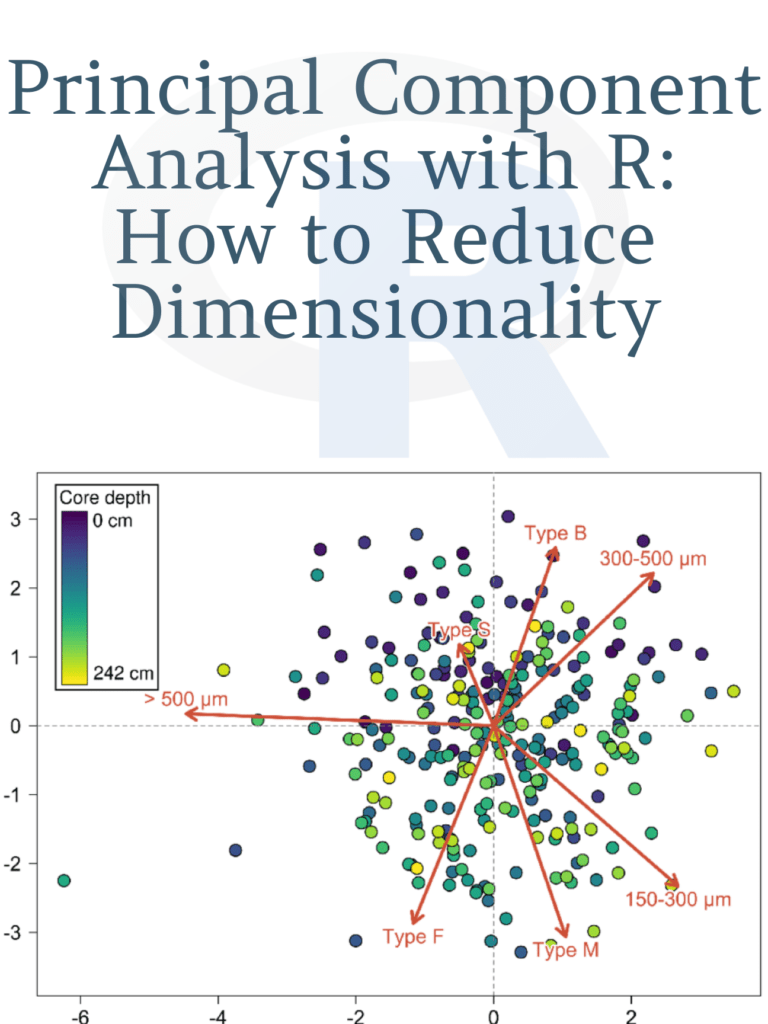
Principal Component Analysis with R: How to Reduce Dimensionality

As a student of data analysis, we understand that Principal Component Analysis (PCA) is a powerful tool that helps reduce the dimensionality of large datasets while retaining the most relevant information. PCA is widely used in various fields such as finance, biology, and image processing. In this article, we will guide you through the process of performing PCA using R, a popular statistical software.

Understanding Principal Component Analysis

PCA is a statistical method used to reduce the number of variables in a dataset while retaining the most important information. It works by transforming the original variables into a new set of uncorrelated variables, called principal components. These principal components are ordered in terms of the amount of variance they explain in the original data.

Performing PCA with R

In this section, we will show you how to perform PCA using R. We will use the iris dataset, which is included in the base R installation. The iris dataset contains measurements of the sepal length, sepal width, petal length, and petal width of three different species of iris flowers.

Principal Component Analysis with R

First, we load the iris dataset into R:

data(iris)

Next, we standardize the variables to have a mean of 0 and a standard deviation of 1, which is necessary for PCA:

irisscale <- scale(iris[,1:4])

Now, we can perform PCA on the standardized iris dataset:

irispca <- prcomp(irisscale)

The prcomp() function in R performs PCA and returns a list of objects. The most important object in the list is the rotation matrix, which contains the principal components.

Visualizing the Results of PCA

To visualize the results of PCA, we can create a scree plot, which shows the amount of variance explained by each principal component. We can create a scree plot using the following code:

plot(irispca)

This will create a plot that shows the proportion of variance explained by each principal component. The x-axis represents the principal components, and the y-axis represents the proportion of variance explained.

Next, we can create a biplot, which shows the relationship between the variables and the principal components. We can create a biplot using the following code:

biplot(irispca)

This will create a plot that shows the variables as arrows and the observations as points. The length and direction of the arrows represent the contribution of each variable to the principal components.

Download: Introduction to Scientific Programming and Simulation using R

Download(PDF)

Cluster Analysis with R: How to Group Similar Data Points

Cluster Analysis with R: How to Group Similar Data Points: Cluster analysis is a statistical technique used to group similar data points into clusters or segments. It is a useful tool in data analysis, especially when dealing with large datasets, to identify patterns and structure within the data. Cluster analysis can be applied to various fields, such as marketing, biology, and social sciences. In this article, we will explore how to perform cluster analysis using the R programming language.

Types of Clustering

There are two main types of clustering techniques, hierarchical and partitioning. Hierarchical clustering creates a tree-like structure that shows the relationship between data points, whereas partitioning clustering divides data into distinct clusters based on certain criteria. In this article, we will focus on the partitioning clustering technique, specifically k-means clustering.

Cluster Analysis with R How to Group Similar Data Points

K-Means Clustering

K-means clustering is a popular partitioning clustering technique used to group data points into K clusters. The K-means algorithm works by minimizing the sum of squared distances between each data point and the centroid of its cluster. The centroid is the center point of each cluster.

To perform k-means clustering in R, we first need to install and load the “stats” package. This package contains the “kmeans” function that we will use to cluster our data.

install.packages("stats")
library(stats)

Next, we need to import our data into R. For this example, we will use the built-in “iris” dataset that contains measurements of three different species of iris flowers.

data(iris)
head(iris)

The “iris” dataset contains four numeric variables: Sepal. Length, Sepal.Width, Petal.Length, and Petal.Width. We will use these variables to cluster the iris flowers into K groups.

To perform k-means clustering on the iris dataset, we need to specify the number of clusters we want to create. In this example, we will create three clusters since there are three species of iris flowers in the dataset.

set.seed(123)
kmeans_result <- kmeans(iris[,1:4], centers = 3)

The “kmeans” function takes two arguments, the first argument is the dataset, and the second argument is the number of clusters we want to create. We also set the seed value to ensure that our results are reproducible.

We can access the results of our clustering analysis by calling the “kmeans_result” object. The “kmeans_result” object contains several components, including the cluster centers and the cluster assignments for each data point.

kmeans_result$centers
kmeans_result$cluster

The “centers” component contains the centroid coordinates for each cluster, and the “cluster” component contains the cluster assignments for each data point.

To visualize our clustering results, we can use the “ggplot2” package to create a scatterplot of the iris dataset, colored by cluster assignment.

install.packages("ggplot2")
library(ggplot2)

iris$cluster <- kmeans_result$cluster
ggplot(iris, aes(x=Petal.Length, y=Petal.Width, color=as.factor(cluster))) + geom_point()

The scatterplot shows the iris flowers grouped into three clusters based on their Petal.Length and Petal.Width measurements.

Download(PDF)

Spatial Data Mining: How to use R for spatial data mining, including pattern detection, association analysis, and outlier detection

Spatial data mining is a process of discovering interesting and previously unknown patterns and relationships within spatial datasets. Spatial data mining involves the use of data mining techniques to analyze and extract valuable information from geospatial datasets. The use of spatial data mining has become increasingly important in fields such as urban planning, environmental management, and transportation planning. In this article, we will discuss how to use R for spatial data mining, including pattern detection, association analysis, and outlier detection.

Spatial Data Mining in R

R is a powerful open-source statistical software that is widely used for data analysis and visualization. R has a number of packages that are specifically designed for spatial data analysis, including the “spatial” package, the “spdep” package, and the “raster” package. These packages provide a range of functions for spatial data mining, including pattern detection, association analysis, and outlier detection.

Spatial Data Mining
Spatial Data Mining

Pattern Detection

Pattern detection is the process of identifying regularities or patterns in spatial datasets. In R, the “spatial” package provides a range of functions for pattern detection, including the “clustering” function, which can be used to identify spatial clusters in a dataset. The “clustering” function uses a number of clustering algorithms, including k-means clustering, hierarchical clustering, and density-based clustering.

For example, to identify spatial clusters of crime incidents in a city, we can use the “clustering” function in R. We can load the crime data into R using the “read.csv” function, and then use the “coordinates” function to convert the data into a spatial dataset. We can then use the “clustering” function to identify spatial clusters of crime incidents.

Association Analysis

Association analysis is the process of identifying associations or relationships between variables in spatial datasets. In R, the “spdep” package provides a range of functions for association analysis, including the “spatial lag” function, which can be used to calculate spatial autocorrelation.

Spatial autocorrelation is a measure of the similarity between neighboring observations in a spatial dataset. High levels of spatial autocorrelation indicate that neighboring observations are more similar to each other than would be expected by chance. Spatial autocorrelation can be used to identify spatial patterns of association in a dataset.

For example, to identify spatial patterns of association between air pollution and health outcomes, we can use the “spatial lag” function in R. We can load the air pollution and health outcome data into R using the “read.csv” function, and then use the “coordinates” function to convert the data into a spatial dataset. We can then use the “spatial lag” function to calculate spatial autocorrelation and identify spatial patterns of association between the variables.

Outlier Detection

Outlier detection is the process of identifying outliers or unusual observations in spatial datasets. In R, the “raster” package provides a range of functions for outlier detection, including the “boxplot” function, which can be used to identify outliers based on the distribution of the data.

For example, to identify outliers in a dataset of temperature measurements, we can use the “boxplot” function in R. We can load the temperature data into R using the “read.csv” function, and then use the “coordinates” function to convert the data into a spatial dataset. We can then use the “boxplot” function to identify outliers based on the distribution of the temperature data.

Conclusion

Spatial data mining is a powerful tool for discovering patterns, associations, and outliers in spatial datasets. R provides a range of functions and packages that can be used for spatial data mining, including the “spatial” package, the “spdep” package, and the “raster” package. By using these tools, analysts can gain valuable insights into spatial datasets, and make informed decisions.

Download: An Introduction to Spatial Regression Analysis in R

Download:

Data Analysis with Microsoft Excel

Data Analysis with Microsoft Excel: Data analysis is an essential part of any business or research project. It helps you to make informed decisions and understand the patterns and trends in your data. Microsoft Excel is one of the most widely used tools for data analysis, thanks to its versatility and user-friendliness. In this article, we will explore some of the basic and advanced techniques you can use to analyze data in Microsoft Excel.

Data Analysis with Microsoft Excel
  1. Sorting and filtering data:

Sorting and filtering are basic features that help you organize and narrow down your data to a specific range. To sort your data in Excel, select the data range, click on the Data tab, and then click on the Sort icon. Choose the column you want to sort by and select either ascending or descending order.

Filtering is used to display specific data within a range. To filter your data, select the data range, click on the Data tab, and then click on the Filter icon. You can then select the column you want to filter and choose the specific criteria for the filter.

  1. Pivot tables:

Pivot tables are a powerful tool for analyzing large amounts of data. They allow you to summarize and aggregate data based on different criteria. To create a pivot table in Excel, select the data range, click on the Insert tab, and then click on the Pivot Table icon. You can then choose the columns you want to include in the pivot table and drag and drop them into the appropriate areas of the pivot table.

  1. Conditional formatting:

Conditional formatting is used to highlight specific data based on certain conditions. For example, you can highlight all the cells that contain a value greater than a certain threshold. To apply conditional formatting in Excel, select the data range, click on the Home tab, and then click on the Conditional Formatting icon. You can then choose the formatting rules you want to apply.

  1. Charts and graphs:

Charts and graphs are a great way to visualize your data and identify patterns and trends. Excel offers a wide range of chart types, including column charts, line charts, and pie charts. To create a chart in Excel, select the data range, click on the Insert tab, and then click on the chart type you want to create.

  1. Regression analysis:

Regression analysis is a statistical technique used to analyze the relationship between two or more variables. Excel provides a built-in tool for performing regression analysis. To perform a regression analysis in Excel, select the data range, click on the Data Analysis icon in the Data tab, and then choose Regression from the list of options.

Microsoft Excel provides a wide range of tools and features for data analysis. By mastering these tools, you can analyze your data more effectively and make informed decisions based on your findings. Whether you are a business professional or a researcher, Excel is a powerful tool that can help you unlock the insights hidden in your data.

Download(PDF)

Exploring the Titanic Dataset with R: A Beginner’s Guide to EDA

Exploring the Titanic Dataset with R: A Beginner’s Guide to EDA It contains information about the passengers who were aboard the ill-fated Titanic, including their demographics, ticket information, cabin information, and survival status.

This dataset is often used for exploring various data analysis techniques and machine learning algorithms. In this article, we will explore the Titanic dataset using R and perform exploratory data analysis (EDA) to understand the data better.

Exploring the Titanic Dataset with R A Beginner's Guide to EDA
A Beginner’s Guide to EDA

Loading the Titanic Dataset

The Titanic Dataset can be downloaded from various sources, but in this article, we will use the “titanic” package, which is available on the Comprehensive R Archive Network (CRAN). To load the package and the dataset, we can use the following code:

# Install the titanic package if not already installed
# install.packages("titanic")

# Load the titanic package
library(titanic)

# Load the titanic dataset
data("Titanic")

Understanding the Titanic Dataset

Before we dive into the EDA, let’s understand the structure of the Titanic dataset. We can use the str() function to get the structure of the dataset:

str(Titanic)

The output of the above code shows that the Titanic dataset is a 4-dimensional array with dimensions Class, Sex, Age, and Survived. The Class dimension has three levels (1st, 2nd, and 3rd class), the Sex dimension has two levels (male and female), the Age dimension has two levels (child and adult), and the Survived dimension has two levels (no and yes).

Exploring the Titanic Dataset

Now that we understand the structure of the Titanic dataset let’s perform an EDA to understand the data better. We will start by looking at the overall survival rate of the passengers.

# Calculate the overall survival rate
overall_survival_rate <- sum(Titanic) / length(Titanic)
overall_survival_rate

The output of the above code shows that the overall survival rate of the passengers was around 32%. Now, let’s look at the survival rate by sex.

# Calculate the survival rate by sex
sex_survival_rate <- prop.table(Titanic, margin = c(2, 4))
sex_survival_rate

The output of the above code shows that the survival rate of female passengers was significantly higher than that of male passengers. Now, let’s look at the survival rate by class.

# Calculate the survival rate by class
class_survival_rate <- prop.table(Titanic, margin = c(1, 4))
class_survival_rate

The output of the above code shows that the survival rate of first-class passengers was significantly higher than that of second and third-class passengers. Finally, let’s look at the survival rate by age group.

# Calculate the survival rate by age group
age_survival_rate <- prop.table(Titanic, margin = c(3, 4))
age_survival_rate

The output of the above code shows that the survival rate of children was significantly higher than that of adults.

ANOVA and Tukey’s HSD Test with R: How to Compare Multiple Means

ANOVA and Tukey’s HSD Test with R: When conducting statistical analysis, it is often necessary to compare multiple means to determine if they are statistically significant. One commonly used method for doing so is ANOVA, or analysis of variance, which is a hypothesis-testing technique used to determine if there is a significant difference between the means of two or more groups.

In this article, we will discuss how to use ANOVA and Tukey’s HSD test in R to compare multiple means.

ANOVA and Tukey's HSD Test with R How to Compare Multiple Means
ANOVA and Tukey’s HSD Test with R How to Compare Multiple Means

Step 1: Load the Data To begin, you will need to load your data into R. You can do this using the read.csv() function or by importing your data from a file. Once your data is loaded, you can use the summary() function to get a quick overview of the data.

Step 2: Conduct ANOVA Analysis To conduct an ANOVA analysis in R, you can use the aov() function. The aov() function takes two arguments: the first is the formula, which specifies the variables you want to compare, and the second is the data frame containing the variables.

For example, if you have a data frame called “mydata” with three variables called “group1”, “group2”, and “group3”, you can conduct an ANOVA analysis using the following code:

mydata.aov <- aov(formula = c(group1, group2, group3) ~ 1, data = mydata)

The “formula” argument specifies that we want to compare the means of the three groups, while the “data” argument specifies the name of the data frame containing the variables.

Step 3: View the ANOVA Results Once you have conducted the ANOVA analysis, you can view the results using the summary() function:

summary(mydata.aov)

The summary() function will provide you with information about the F-statistic, degrees of freedom, and p-value.

Step 4: Conduct Tukey’s HSD Test If the ANOVA analysis shows that there is a significant difference between the means of the groups, you can use Tukey’s HSD test to determine which groups are different from each other.

To conduct Tukey’s HSD test in R, you can use the TukeyHSD() function:

tukey <- TukeyHSD(mydata.aov)

The TukeyHSD() function takes the ANOVA object as its argument and returns a matrix that shows the difference between the means of each group, along with the p-value and confidence interval.

Step 5: View the Tukey’s HSD Test Results To view the results of the Tukey’s HSD test, you can use the print() function:

print(tukey)

This will provide you with a table showing the means, the differences between the means, and the confidence intervals.

Download:

An Introduction to Spatial Regression Analysis in R

An Introduction to Spatial Regression Analysis in R: Spatial regression analysis is a statistical technique used to model spatial relationships between variables. It is an important tool for analyzing data that exhibit spatial dependence, such as data that is geographically referenced. Spatial regression analysis allows us to identify and quantify the spatial patterns in data and to make predictions based on these patterns.

R is a popular programming language used for statistical computing and graphics. It is a powerful tool for performing spatial regression analysis. In this article, we will provide an introduction to spatial regression analysis in R.

An Introduction to Spatial Regression Analysis in R

Download:

Getting Started with R

To get started with R, you need to install the R software on your computer. You can download the software from the official website. Once you have installed R, you can open it and start using it to perform spatial regression analysis.

Spatial Regression Analysis in R

Spatial regression analysis in R involves several steps. First, you need to load the data into R. The data should be in a format that R can read, such as a comma-separated value (CSV) file. Once the data is loaded into R, you can perform spatial regression analysis using the spatial regression functions available in R.

One of the most common spatial regression models used in R is the spatial autoregressive model. This model assumes that the value of a variable at a given location is influenced by the values of that variable at neighboring locations. The spatial autoregressive model can be estimated using the spatialreg package in R.

Another commonly used spatial regression model is the spatial error model. This model assumes that the values of a variable at neighboring locations are correlated due to unobserved factors. The spatial error model can also be estimated using the spatialreg package in R.

Spatial regression analysis in R involves several other functions and packages, such as the spdep package, which provides tools for spatial dependence analysis, and the rgdal package, which provides tools for reading and writing spatial data.

Visualizing Spatial Data in R

R provides a range of tools for visualizing spatial data. You can create maps and plots of spatial data using the ggplot2 package and the leaflet package in R. These packages allow you to create interactive maps and visualizations that can be customized to suit your needs.

How to share your dataviz online with RStudio and GitHub Pages?

How to share your dataviz online with RStudio and GitHub Pages? Data visualization is a powerful tool for communicating complex information in an easily digestible way. With the rise of data-driven decision-making, the ability to create and share data visualizations has become increasingly important. Fortunately, with the help of tools like RStudio Connect and GitHub Pages, sharing your data visualizations online has never been easier. In this article, we’ll walk through the process of sharing your dataviz online using RStudio Connect and GitHub Pages.

How to share your dataviz online with RStudio and GitHub Pages?

Download:

Step 1: Create Your Data Visualization

The first step in sharing your data visualization online is, of course, creating it. RStudio is a great tool for creating data visualizations using R, and there are countless packages available for creating everything from basic bar charts to complex interactive visualizations.

Once you have created your visualization in R, you will need to save it as an HTML file. This can be done using the htmlwidgets package in R. Simply call the saveWidget() function with your visualization as the first argument and the file path where you want to save the HTML file as the second argument.

Step 2: Deploy Your Visualization to RStudio Connect

RStudio Connect is a platform for sharing R-based content, including data visualizations, with others. To deploy your visualization to RStudio Connect, you will need to create an account on the platform and upload your HTML file.

To upload your HTML file to RStudio Connect, simply click on the “Upload” button in the dashboard and select your file. You can then customize the settings for your visualization, such as who can access it and whether it should be password-protected.

Step 3: Publish Your Visualization to GitHub Pages

GitHub Pages is a free hosting service provided by GitHub that allows you to publish your HTML files online. To publish your visualization to GitHub Pages, you will need to create a repository on GitHub and upload your HTML file to it.

Once you have created your repository and uploaded your HTML file, you can enable GitHub Pages by going to the repository settings and selecting the “Pages” tab. From there, you can choose which branch you want to publish your visualization from and customize your site settings.

Step 4: Share Your Visualization

Now that your visualization is online, you can share it with others by simply sending them the URL. You can also embed your visualization on other websites by using the iframe code provided by RStudio Connect or GitHub Pages.

Data Visualization in Python using Matplotlib

Data visualization is an essential aspect of data analysis. It helps to understand data by representing it in a visual form. Python has several libraries that are used for data visualization, and Matplotlib is one of the most popular ones. Matplotlib is a Python library that is used to create static, animated, and interactive visualizations in Python. It is an open-source library that is compatible with various platforms like Windows, Linux, and macOS.

Matplotlib provides a wide range of functions to create different types of visualizations, such as line plots, scatter plots, bar plots, pie charts, histograms, and many more. It is a versatile library that can be used to create high-quality plots and graphs with ease. In this article, we will explore how to use Matplotlib to create various types of visualizations in Python.

Data Visualization in Python using Matplotlib

Installation

Before we start, we need to install Matplotlib. It can be installed using pip, a package installer for Python. Open a terminal or command prompt and type the following command:

pip install matplotlib

This will install the latest version of Matplotlib.

Line Plot

A line plot is a type of chart that displays data as a series of points connected by straight lines. Matplotlib provides the plot() function to create line plots. Let’s create a line plot of some sample data.

import matplotlib.pyplot as plt

# Sample data
x = [1, 2, 3, 4, 5]
y = [2, 4, 6, 8, 10]

# Create line plot
plt.plot(x, y)

# Show plot
plt.show()

Scatter Plot

A scatter plot is a type of chart that displays data as a collection of points. It is used to visualize the relationship between two variables. Matplotlib provides the scatter() function to create scatter plots. Let’s create a scatter plot of some sample data.

import matplotlib.pyplot as plt

# Sample data
x = [1, 2, 3, 4, 5]
y = [2, 4, 6, 8, 10]

# Create scatter plot
plt.scatter(x, y)

# Show plot
plt.show()

Bar Plot

A bar plot is a type of chart that displays data as rectangular bars. It is used to compare different categories of data. Matplotlib provides the bar() function to create bar plots. Let’s create a bar plot of some sample data.

import matplotlib.pyplot as plt

# Sample data
x = ['A', 'B', 'C', 'D', 'E']
y = [10, 24, 36, 40, 22]

# Create bar plot
plt.bar(x, y)

# Show plot
plt.show()

Pie Chart

A pie chart is a type of chart that displays data as slices of a circle. It is used to show the proportion of each category of data. Matplotlib provides the pie() function to create pie charts. Let’s create a pie chart of some sample data.

import matplotlib.pyplot as plt

# Sample data
sizes = [30, 25, 20, 15, 10]
labels = ['A', 'B', 'C', 'D', 'E']

# Create pie chart
plt.pie(sizes, labels=labels)

# Show plot
plt

Download(PDF)