Introduction to Basic Statistics with R

Introduction to Basic Statistics with R: Statistics is a branch of mathematics that deals with the collection, analysis, interpretation, presentation, and organization of data. It has become an essential tool in many fields, including science, engineering, medicine, business, and economics. In this article, we will introduce you to the basic statistics concepts and their implementation in R, a popular statistical programming language.

Introduction to Basic Statistics with R

Download:

Step 1: Installing R and RStudio The first step in using R for statistical analysis is to install R and RStudio. R is a programming language for statistical computing and graphics, while RStudio is an integrated development environment (IDE) for R.

Step 2: Getting Started with R After installing R and RStudio, you can launch RStudio and start using R. The RStudio interface has several panes, including the console, editor, and workspace. The console is where you can enter commands and see the results. The editor is where you can write and save R code, while the workspace displays the objects and data structures in your environment.

Step 3: Basic Statistical Concepts Before we start using R, let’s review some basic statistical concepts. The following are some of the most common statistical terms:

  • Population: A population is a group of individuals or objects that we want to study.
  • Sample: A sample is a subset of the population that we collect data from.
  • Variable: A variable is a characteristic or attribute that we measure.
  • Data: Data is the information that we collect from the variables.
  • Descriptive Statistics: Descriptive statistics are methods that summarize and describe the characteristics of the data, such as measures of central tendency, measures of dispersion, and graphs.
  • Inferential Statistics: Inferential statistics are methods that use sample data to make inferences or predictions about the population.

Step 4: Data Import and Manipulation To start analyzing data in R, you need to import it into the R environment. R can read data from various file formats, such as CSV, Excel, and text files. Once you have imported your data, you can manipulate it using various functions and operators, such as subsetting, merging, and filtering.

Step 5: Descriptive Statistics in R R provides several functions for calculating descriptive statistics. The following are some of the most common descriptive statistics functions in R:

  • mean(): calculates the arithmetic mean of a vector or a matrix
  • median(): calculates the median of a vector or a matrix
  • sd(): calculates the standard deviation of a vector or a matrix
  • var(): calculates the variance of a vector or a matrix
  • summary(): provides a summary of the data, including the minimum, maximum, quartiles, mean, and median.

Step 6: Inferential Statistics in R R provides several functions for performing inferential statistics. The following are some of the most common inferential statistics functions in R:

  • t.test(): performs a t-test for two samples or one sample
  • cor(): calculates the correlation coefficient between two variables
  • lm(): performs linear regression analysis
  • chisq.test(): performs a chi-squared test for independence
  • anova(): performs analysis of variance (ANOVA)

Step 7: Data Visualization in R Data visualization is an essential part of statistical analysis. R provides several packages for creating various types of graphs, such as bar charts, scatter plots, line charts, and histograms. The following are some of the most common data visualization packages in R:

Using Python Analyze Data to Create Visualizations for BI Systems

In today’s world, data is being generated at an exponential rate. In order to make sense of this data, it is important to have a Business Intelligence (BI) system that can analyze the data and present it in a meaningful way. Python is a powerful programming language that can be used to analyze data and create visualizations for BI systems. In this article, we will discuss how to use Python to analyze data and create visualizations for BI systems.

  1. Data Analysis with Python

Python provides several libraries for data analysis. The most popular of these libraries are Pandas, Numpy, and Matplotlib. Pandas is a library that provides data structures for efficient data analysis. Numpy is a library that provides support for arrays and matrices. Matplotlib is a library that provides support for creating visualizations.

  1. Data Visualization with Python

Visualizations are an important part of BI systems. Python provides several libraries for creating visualizations. The most popular of these libraries are Matplotlib, Seaborn, and Plotly. Matplotlib is a library that provides support for creating basic visualizations. Seaborn is a library that provides support for creating statistical visualizations. Plotly is a library that provides support for creating interactive visualizations.

Using Python Analyze Data to Create Visualizations for BI Systems
  1. Connecting Python with BI Systems

Python can be connected with BI systems using APIs or SDKs. Some popular BI systems that can be connected with Python are Tableau, Power BI, and QlikView. Tableau provides an API that can be used to connect Python with Tableau. Power BI provides an SDK that can be used to connect Python with Power BI. QlikView provides a Python module that can be used to connect Python with QlikView.

  1. Creating Visualizations with Python for BI Systems

Once the data is analyzed and Python is connected with the BI system, visualizations can be created. The visualizations should be meaningful and should help in making decisions. Some examples of visualizations that can be created with Python for BI systems are bar charts, line charts, scatter plots, heat maps, and pie charts.

  1. Conclusion

Python is a powerful programming language that can be used to analyze data and create visualizations for BI systems. It provides several libraries for data analysis and visualization. Python can be connected with BI systems using APIs or SDKs. Visualizations should be meaningful and should help in making decisions. With Python, it is possible to create visualizations that can help in making decisions and improving business performance.

Download(PDF)

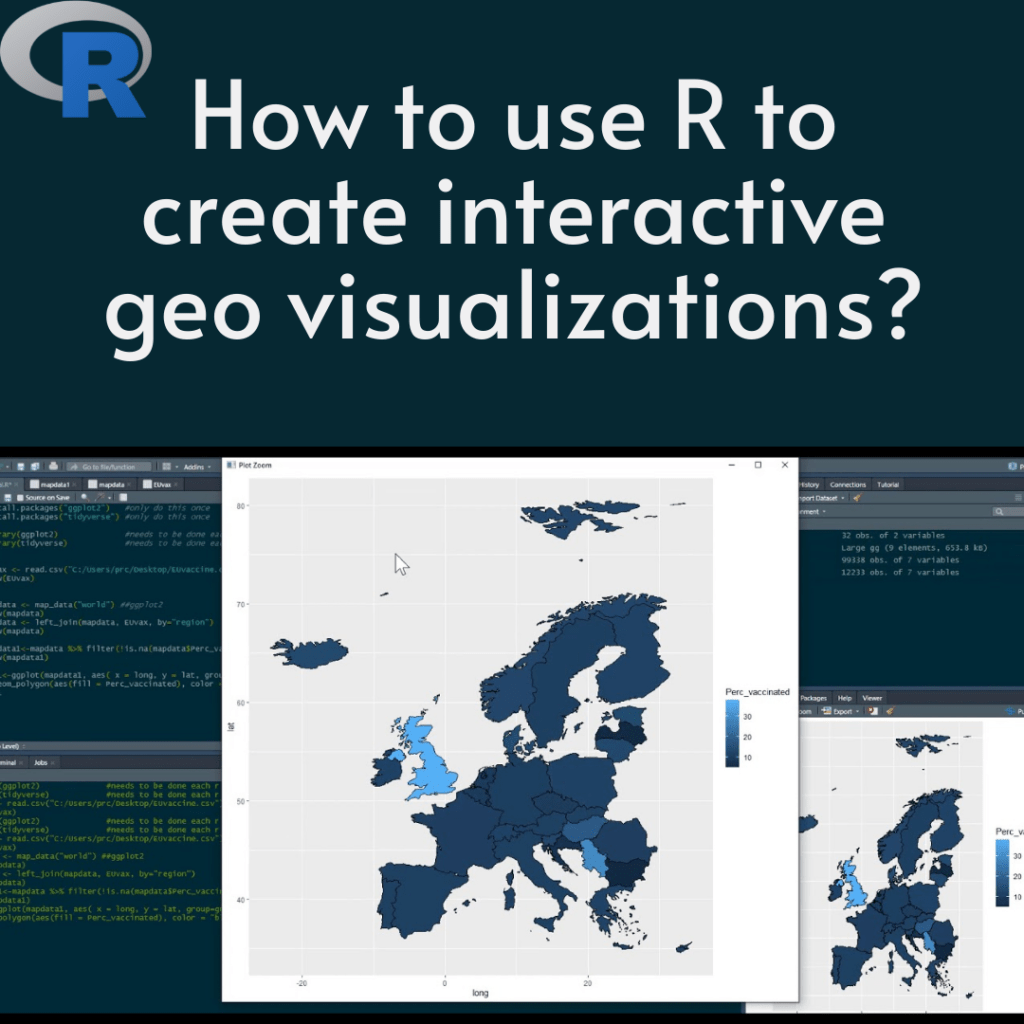
How to use R to create interactive geo visualizations?

Geovisualization is the process of displaying geospatial data in a visual form that helps people better understand and interpret data. R is a popular programming language for data analysis and visualization, and it has several packages that make it easy to create interactive geo visualizations. In this article, we will explore some of the R packages that can be used to create interactive geo visualizations.

How to use R to create interactive geo visualizations?

Download:
  1. ggplot2

ggplot2 is a popular package for creating static visualizations in R. However, it can also be used to create interactive geo visualizations. The ggplot2 package provides the geom_sf() function, which can be used to plot spatial data. The sf package is used to read spatial data, and the dplyr package can be used to manipulate the data. The plotly package can be used to create interactive plots from ggplot2 objects.

Here is an example of creating an interactive plot using ggplot2 and plotly:

library(sf)
library(ggplot2)
library(dplyr)
library(plotly)

# Read the spatial data
data <- st_read("path/to/data.shp")

# Group the data by a variable
data_grouped <- data %>% group_by(variable)

# Create the plot
plot <- ggplot() + 
  geom_sf(data = data_grouped, aes(fill = variable)) + 
  scale_fill_viridis_c() +
  theme_void()

# Create the interactive plot
ggplotly(plot)
  1. Leaflet

Leaflet is a popular JavaScript library for creating interactive maps. The leaflet package provides an interface to the Leaflet library, which can be used to create interactive maps in R. The package provides several functions for creating interactive maps, including addTiles(), addMarkers(), addPolygons(), and addPopups().

Here is an example of creating an interactive map using the leaflet package:

library(leaflet)
library(sf)

# Read the spatial data
data <- st_read("path/to/data.shp")

# Create the map
map <- leaflet(data) %>% addTiles() %>%
  addPolygons(fillColor = ~pal(variable)(variable),
              weight = 2,
              opacity = 1,
              color = "white",
              fillOpacity = 0.7) %>%
  addLegend(pal = pal, values = ~variable,
            title = "Variable",
            opacity = 0.7)

# Define the color palette
pal <- colorNumeric(palette = "YlOrRd", domain = data$variable)

# Display the map
map
  1. tmap

tmap is a package for creating thematic maps in R. It provides several functions for creating interactive maps, including tm_shape(), tm_fill(), tm_basemap(), and tm_layout(). The package also provides several color palettes for visualizing data.

Here is an example of creating an interactive map using the tmap package:

library(tmap)
library(sf)

# Read the spatial data
data <- st_read("path/to/data.shp")

# Create the map
map <- tm_shape(data) + 
  tm_fill("variable", palette = "Blues", style = "quantile") + 
  tm_basemap("Stamen.TonerLite") + 
  tm_layout(title = "Interactive Map")

# Display the map
tmap_leaflet(map)

How to share your dataviz online with RStudio and GitHub Pages?

How to share your dataviz online with RStudio and GitHub Pages? Data visualization is a powerful tool for communicating complex information in an easily digestible way. With the rise of data-driven decision-making, the ability to create and share data visualizations has become increasingly important. Fortunately, with the help of tools like RStudio Connect and GitHub Pages, sharing your data visualizations online has never been easier. In this article, we’ll walk through the process of sharing your dataviz online using RStudio Connect and GitHub Pages.

How to share your dataviz online with RStudio and GitHub Pages?

Download:

Step 1: Create Your Data Visualization

The first step in sharing your data visualization online is, of course, creating it. RStudio is a great tool for creating data visualizations using R, and there are countless packages available for creating everything from basic bar charts to complex interactive visualizations.

Once you have created your visualization in R, you will need to save it as an HTML file. This can be done using the htmlwidgets package in R. Simply call the saveWidget() function with your visualization as the first argument and the file path where you want to save the HTML file as the second argument.

Step 2: Deploy Your Visualization to RStudio Connect

RStudio Connect is a platform for sharing R-based content, including data visualizations, with others. To deploy your visualization to RStudio Connect, you will need to create an account on the platform and upload your HTML file.

To upload your HTML file to RStudio Connect, simply click on the “Upload” button in the dashboard and select your file. You can then customize the settings for your visualization, such as who can access it and whether it should be password-protected.

Step 3: Publish Your Visualization to GitHub Pages

GitHub Pages is a free hosting service provided by GitHub that allows you to publish your HTML files online. To publish your visualization to GitHub Pages, you will need to create a repository on GitHub and upload your HTML file to it.

Once you have created your repository and uploaded your HTML file, you can enable GitHub Pages by going to the repository settings and selecting the “Pages” tab. From there, you can choose which branch you want to publish your visualization from and customize your site settings.

Step 4: Share Your Visualization

Now that your visualization is online, you can share it with others by simply sending them the URL. You can also embed your visualization on other websites by using the iframe code provided by RStudio Connect or GitHub Pages.

Data Visualization in Python using Matplotlib

Data visualization is an essential aspect of data analysis. It helps to understand data by representing it in a visual form. Python has several libraries that are used for data visualization, and Matplotlib is one of the most popular ones. Matplotlib is a Python library that is used to create static, animated, and interactive visualizations in Python. It is an open-source library that is compatible with various platforms like Windows, Linux, and macOS.

Matplotlib provides a wide range of functions to create different types of visualizations, such as line plots, scatter plots, bar plots, pie charts, histograms, and many more. It is a versatile library that can be used to create high-quality plots and graphs with ease. In this article, we will explore how to use Matplotlib to create various types of visualizations in Python.

Data Visualization in Python using Matplotlib

Installation

Before we start, we need to install Matplotlib. It can be installed using pip, a package installer for Python. Open a terminal or command prompt and type the following command:

pip install matplotlib

This will install the latest version of Matplotlib.

Line Plot

A line plot is a type of chart that displays data as a series of points connected by straight lines. Matplotlib provides the plot() function to create line plots. Let’s create a line plot of some sample data.

import matplotlib.pyplot as plt

# Sample data
x = [1, 2, 3, 4, 5]
y = [2, 4, 6, 8, 10]

# Create line plot
plt.plot(x, y)

# Show plot
plt.show()

Scatter Plot

A scatter plot is a type of chart that displays data as a collection of points. It is used to visualize the relationship between two variables. Matplotlib provides the scatter() function to create scatter plots. Let’s create a scatter plot of some sample data.

import matplotlib.pyplot as plt

# Sample data
x = [1, 2, 3, 4, 5]
y = [2, 4, 6, 8, 10]

# Create scatter plot
plt.scatter(x, y)

# Show plot
plt.show()

Bar Plot

A bar plot is a type of chart that displays data as rectangular bars. It is used to compare different categories of data. Matplotlib provides the bar() function to create bar plots. Let’s create a bar plot of some sample data.

import matplotlib.pyplot as plt

# Sample data
x = ['A', 'B', 'C', 'D', 'E']
y = [10, 24, 36, 40, 22]

# Create bar plot
plt.bar(x, y)

# Show plot
plt.show()

Pie Chart

A pie chart is a type of chart that displays data as slices of a circle. It is used to show the proportion of each category of data. Matplotlib provides the pie() function to create pie charts. Let’s create a pie chart of some sample data.

import matplotlib.pyplot as plt

# Sample data
sizes = [30, 25, 20, 15, 10]
labels = ['A', 'B', 'C', 'D', 'E']

# Create pie chart
plt.pie(sizes, labels=labels)

# Show plot
plt

Download(PDF)

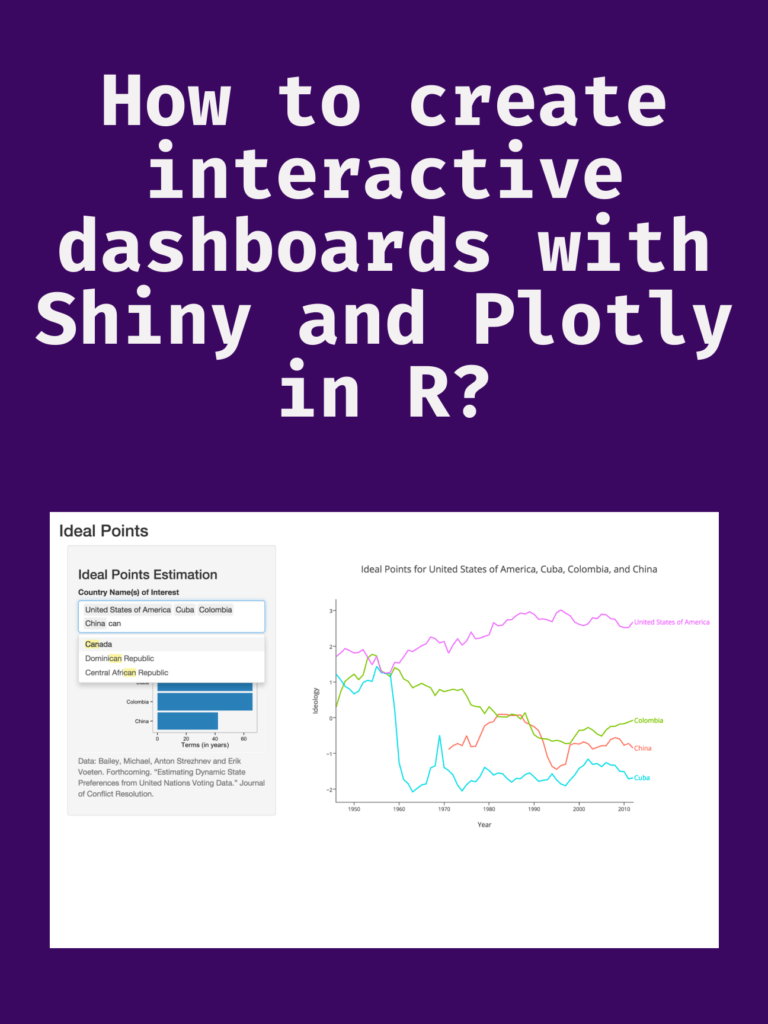
How to create interactive dashboards with Shiny and Plotly in R?

How to create interactive dashboards with Shiny and Plotly in R? Creating interactive dashboards is an important task in data analysis and visualization. Dashboards provide a way to visualize data and communicate insights to stakeholders. In this article, we will explore how to create interactive dashboards using Shiny and Plotly in R.

Shiny is a web application framework for R that allows users to create interactive web applications using R. Plotly is a powerful data visualization library that can create interactive visualizations for the web. Together, Shiny and Plotly provide a powerful toolset for creating interactive dashboards.

How to create interactive dashboards with Shiny and Plotly in R?

Setup

Before we start creating our dashboard, we need to install the necessary packages. We will be using the following packages:

install.packages("shiny")
install.packages("plotly")

Once we have installed these packages, we can start building our dashboard.

Building the dashboard

To start building our dashboard, we need to create a new Shiny application. We can do this by running the following command in R:

library(shiny)
shinyApp(ui = ui, server = server)

This will create a new Shiny application with a default user interface (UI) and server function (server).

Adding UI components

Next, we need to add UI components to our dashboard. These components will define the layout and appearance of our dashboard. We will be using the fluidPage function from Shiny to create a responsive UI. The fluidPage function will automatically adjust the layout of the dashboard based on the size of the user’s screen.

ui <- fluidPage(
  # Add UI components here
)

Next, we will add a title to our dashboard using the titlePanel function. We will also add a sidebar with input controls using the sidebarLayout and sidebarPanel functions.

ui <- fluidPage(
  titlePanel("My Dashboard"),
  sidebarLayout(
    sidebarPanel(
      # Add input controls here
    ),
    # Add output components here
  )
)

We can add various input controls to our sidebar using functions such as sliderInput, textInput, checkboxInput, and selectInput. These input controls will allow users to interact with our dashboard and filter or adjust the data displayed.

Adding server logic

Next, we need to add server logic to our dashboard. The server function will define how the dashboard reacts to user input and how it updates the visualizations.

server <- function(input, output) {
  # Add server logic here
}

We can use the renderPlotly function from Plotly to create interactive visualizations in our dashboard. This function takes a plotly object as input and creates an interactive visualization based on the user’s input.

server <- function(input, output) {
  output$plot <- renderPlotly({
    # Create interactive visualization here
  })
}

We can also use the reactive function from Shiny to create reactive expressions that update based on user input. These expressions can be used to filter data, adjust the parameters of visualizations, or perform calculations.

server <- function(input, output) {
  filtered_data <- reactive({
    # Filter data based on user input
  })
  
  output$plot <- renderPlotly({
    # Create interactive visualization based on filtered data
  })
}

Adding interactive visualizations

Finally, we can add interactive visualizations to our dashboard using the plot_ly function from Plotly. This function allows us to create a wide range of interactive visualizations, including scatterplots, bar charts, heatmaps, and more.

server <- function(input, output) {
  filtered_data <- reactive({

Download(PDF)

Creating a normal distribution plot using ggplot2 in R

Creating a normal distribution plot using ggplot2 in R: The normal distribution is a probability distribution that is often used to model real-world phenomena, such as the distribution of test scores or the heights of a population. It is a bell-shaped curve that is symmetric around its mean value, and its standard deviation determines its spread. In this article, we will walk through the steps of creating a normal distribution plot using the ggplot2 package in R.

Creating a normal distribution plot using ggplot2 in R

Download:

Step 1: Generate a dataset

To create a normal distribution plot, we first need to generate a dataset that follows a normal distribution. We can use the rnorm function in R to generate a random sample of numbers that follow a normal distribution with a specified mean and standard deviation. For example, let’s generate a sample of 1000 numbers with a mean of 50 and a standard deviation of 10:

set.seed(123)  # for reproducibility
data <- data.frame(x = rnorm(1000, mean = 50, sd = 10))

This will create a data frame with one column, “x”, that contains our randomly generated numbers.

Step 2: Create a histogram

Next, we can create a histogram of our data using the ggplot2 package. A histogram is a graphical representation of the distribution of a dataset, and it can help us visualize the shape of our normal distribution.

library(ggplot2)
ggplot(data, aes(x = x)) +
  geom_histogram(binwidth = 1, color = "black", fill = "white") +
  labs(x = "Values", y = "Frequency", title = "Histogram of Normal Distribution")

This code will create a histogram with a binwidth of 1, a black border, and white fill. The x-axis will be labeled “Values”, the y-axis will be labeled “Frequency”, and the title of the plot will be “Histogram of Normal Distribution”.

Step 3: Add a density curve

To make our plot more informative, we can add a density curve to show the shape of the normal distribution. A density curve is a smoothed version of the histogram that shows the distribution of our data more clearly.

ggplot(data, aes(x = x)) +
  geom_histogram(binwidth = 1, color = "black", fill = "white") +
  geom_density(color = "blue", size = 1) +
  labs(x = "Values", y = "Density", title = "Histogram and Density Curve of Normal Distribution")

This code will add a blue density curve to our histogram with a size of 1. The x-axis will be labeled “Values”, the y-axis will be labeled “Density”, and the title of the plot will be “Histogram and Density Curve of Normal Distribution”.

Step 4: Customize the plot

Finally, we can customize our plot by adding axis labels, changing the colors and fonts, and adjusting the layout.

ggplot(data, aes(x = x)) +
  geom_histogram(binwidth = 1, color = "black", fill = "#69b3a2") +
  geom_density(color = "#e9c46a", size = 1) +
  labs(x = "Values", y = "Density", title = "Normal Distribution Plot") +
  theme_minimal() +
  theme(plot.title = element_text(size = 18, face = "bold"),
        axis.title = element_text(size = 14, face = "bold"),
        axis.text = element_text(size = 12),
        legend.position = "none")

This code will change the fill color of the histogram to “#69b3a2” and the color of the density curve to “#e9c46

The Python Workbook

The Python Workbook” is a collection of exercises and projects designed to help individuals learn and practice the Python programming language. It is suitable for beginners who have little or no prior experience with programming, as well as for intermediate programmers who want to enhance their skills.

The workbook covers various topics in Python, including variables, data types, operators, control structures, functions, and object-oriented programming. Each chapter contains multiple exercises that range in difficulty from simple to challenging, and solutions to the exercises are provided at the end of the book.

The Python Workbook
A Brief Introduction with Exercises and Solutions
The Python Workbook A Brief Introduction with Exercises and Solutions

The exercises in “The Python Workbook” are designed to be self-contained and can be completed independently of each other. This allows readers to skip around and focus on specific areas of interest or to work through the book linearly.

Some of the projects included in the workbook require the use of third-party libraries, such as NumPy and Matplotlib, which are commonly used in data analysis and visualization. This provides readers with an opportunity to explore the broader Python ecosystem and gain experience working with real-world tools and technologies.

Overall, “The Python Workbook” is an excellent resource for anyone looking to learn or improve their skills in Python programming. It provides a structured and engaging approach to learning, and the exercises and projects are designed to reinforce key concepts and help readers build practical skills.

Download(PDF)

How to use RStudio’s visual editor and code snippets for faster dataviz?

How to use RStudio’s visual editor and code snippets for faster dataviz? RStudio is a popular Integrated Development Environment (IDE) for the R programming language. It offers a variety of features that can help make data visualization easier and faster. One of these features is the visual editor, which allows users to create visualizations by dragging and dropping elements onto a canvas. Another feature is code snippets, which are pre-written code snippets that can be inserted into a script to perform specific tasks. In this article, we will explore how to use RStudio’s visual editor and code snippets to create faster data visualizations.

How to use RStudio's visual editor and code snippets for faster dataviz?
How to use RStudio’s visual editor and code snippets for faster dataviz?

Using RStudio’s Visual Editor

A visual editor is a great tool for creating data visualizations quickly and easily. It allows you to create visualizations by dragging and dropping elements onto a canvas, which can be a great way to experiment with different layouts and designs.

Here’s how to use the visual editor in RStudio:

  1. Open a new R script file in RStudio.
  2. Click on the “Plots” tab in the bottom-right corner of the window.
  3. Click on the “Visualize” button to open the visual editor.
  4. Choose a data source from the list on the left-hand side of the window.
  5. Drag and drop elements onto the canvas to create your visualization.
  6. Use the settings on the right-hand side of the window to customize your visualization.

The visual editor offers a variety of elements that you can use to create your visualization, including:

  • Scatterplots
  • Bar charts
  • Line charts
  • Histograms
  • Heatmaps

To create a scatterplot, for example, simply drag and drop the “Scatterplot” element onto the canvas, select your data source, and choose the variables to use for the x-axis and y-axis. You can then customize the appearance of the scatterplot using the settings on the right-hand side of the window.

Using Code Snippets

Code snippets are pre-written blocks of code that can be inserted into a script to perform specific tasks. RStudio comes with a variety of code snippets that can be used to create data visualizations more quickly and easily.

Here’s how to use code snippets in RStudio:

  1. Open a new R script file in RStudio.
  2. Click on the “Code” tab in the bottom-right corner of the window.
  3. Click on the “Insert Snippet” button to open the code snippet library.
  4. Choose a snippet from the list and click “Insert” to insert it into your script.

Some of the code snippets available in RStudio include:

  • Creating a bar chart
  • Creating a scatterplot
  • Creating a line chart
  • Creating a histogram
  • Creating a heatmap

To use a code snippet, simply insert it into your script and customize it as needed. For example, if you want to create a bar chart, you can insert the “ggplot2_bar” snippet and then modify it to use your own data and variables.

Download(PDF)

Introduction to Econometrics with R

Econometrics is a branch of economics that uses statistical and mathematical methods to analyze economic data. It is an important tool for economists and policymakers to make informed decisions about economic policies and forecast economic outcomes. R is a programming language widely used in econometrics to analyze, visualize, and interpret data. In this article, we will provide an introduction to econometrics with R. We will discuss the basic concepts of econometrics and how R can be used to apply these concepts.

Introduction to Econometrics with R

Download:

What is Econometrics?

Econometrics is the application of statistical methods to economic data to test economic theories and forecast economic outcomes. It is used to estimate the relationships between economic variables, such as price and quantity, income and expenditure, and interest rates and investment. Econometrics uses statistical models to describe the relationships between these variables and to make predictions about future economic behavior.

Econometrics involves three steps:

  1. Specification: This involves defining the economic theory and the variables that will be used to test it.
  2. Estimation: This involves estimating the parameters of the model using statistical methods.
  3. Evaluation: This involves testing the validity of the model and the accuracy of the predictions.

R and Econometrics

R is a popular programming language used in econometrics because of its versatility and its ability to handle large and complex datasets. R provides a wide range of functions for econometric analysis, including linear regression, time-series analysis, panel data analysis, and non-parametric analysis.

R also provides a wide range of visualization tools, including graphs, charts, and tables, to help economists and policymakers understand economic data and make informed decisions.

Using R for Econometric Analysis

To use R for econometric analysis, you will need to install the relevant packages for your analysis. There are several packages available for econometric analysis, including:

  1. plm: This package is used for panel data analysis.
  2. lmtest: This package is used for hypothesis testing of linear regression models.
  3. tsDyn: This package is used for time-series analysis.
  4. ggplot2: This package is used for data visualization.

Once you have installed the relevant packages, you can start using R for econometric analysis. Here are some basic steps:

  1. Load the data: You can load data into R using various methods, including CSV files, Excel files, or SQL databases.
  2. Clean and preprocess the data: This involves removing missing values, and outliers, and transforming the data if necessary.
  3. Model specification: This involves defining the economic theory and the variables that will be used to test it.
  4. Estimation: This involves estimating the parameters of the model using statistical methods.
  5. Evaluation: This involves testing the validity of the model and the accuracy of the predictions.
  6. Visualization: This involves creating graphs, charts, and tables to help understand and communicate the results of the analysis.

Download(PDF)