Monetize your Data Science skills: Data science is without a doubt the most in-demand field today. No wonder data scientists with proficient skills are handsomely rewarded in jobs across the world. There are multiple interesting ways to make money from data science skills.
Monetize Your Data Science Skills
1. Write A Blog
Data science is new like every other technology! we love to read the content on websites. The opportunity is for you that there are very less resources in data science. Whatever is already present is good but data science fields lack some more quality content. Blogging is one of the most popular ways to share your findings with the world. There are so many ways to monetize blogs like Adsense, affiliates, etc. You may start to earn money from data science in this way as well.
2. Freelancing
You can start freelancing to monetize data science skills effectively through the power of the internet. You can work as much or as little as you want as a freelancer, giving you the freedom to advance at your own pace. There are many opportunities due to the rising demand for data science expertise. Freelancing is one of the top ways to monetize data science skills as a data scientist in 2023. There are multiple websites ( Upwork, Fiverr, and Freelance.) that provide sufficient and high-quality work for different professions with good payments, sometimes international payments.
3. Competing In Hackathons
You can put your data science skills to the test in high-stakes competitions such as Kaggle competitions. Active participation in Kaggle competitions, as well as global data science competitions, helps data scientists to improve their data science skills as well as earn good rewards. This will help to add some value to the CV of a data scientist to show communication skills, technical skills, as well as other data science skills.
4. Start A Consulting Firm
You can start with small projects with clearly defined goals. As a data science consultant, it will be your job to assist businesses in using data to solve issues and guide choices. This can entail everything from data analysis and model development to giving advice and producing documents. For this You must possess a strong foundation of data science knowledge and skills, as well as exceptional communication and problem-solving capabilities, to be effective.
5. Create Data Science Courses
One of the best ways to monetize your Data Science skills is to create data science courses for this, you must have experience in teaching and explaining technical concepts. You can Join online teaching platforms to work with them on instructing certain topics and courses. Create your own course and sell it on different platforms such as Udemy, teachable, Thinkific, Ruzuku, and LearnDash.
How To Start With Data Science? There’s no doubt about it data science is in high demand. As of 2023, the average data scientist in the US makes over $113,000 a year, and data scientists in San Francisco make over $140,000. Learn data science and you could find yourself working in this promising, well-compensated field. Just thinking about the first step can leave you dazed and confused, especially if you lack previous experience in the field. With so many different data science careers to explore, you might find yourself wondering which is the right one for you and if you’ve got what it takes to fit the profile. Wondering how to start with Data Science. Start with this!
How To Start With Data Science Career 2023?
Is Data Science for Me? Well, we’ve all asked ourselves that question when we were at square one of our data science learning path. And we haven’t forgotten that every expert was once a beginner.
So, this data science career guide has a three-fold purpose:
Show you why data science opportunities are worth exploring;
Inform you about the different careers in data science and boost your efficiency in discovering suitable data science roles
Give you the know-how you need to pursue your professional data science path
So, what exactly is data science? It’s the process of asking interesting questions and then answering those questions using data. Generally speaking, the data science workflow looks like this:
Ask a question
Gather data that might help you to answer that question
Clean the data
Explore, analyze, and visualize the data
Build and evaluate a machine-learning model
Communicate results
This workflow doesn’t necessarily require advanced mathematics, deep learning mastery, or many other skills listed above. But it does require knowledge of a programming language and the ability to work withdata in that language. And although you need mathematical fluency to become really good at data science, you only need abasic understanding of mathematicsto get started.
Get comfortable with Python and R: Python and R are both great choices as programming languages for data science. R tends to be more popular in academia, and Python tends to be more popular in the industry, but both languages have a wealth of packages that support the data science workflow.
You don’t need to learn both Python and R to get started. Instead, you should focus on learning one language and its ecosystem of datascience packages. If you’ve chosen Python you may want to consider installing the Anaconda distribution because it simplifies the process of package installation and management on Windows, OSX, and Linux.
You also don’t need to become a Python expert to move on. Instead, you should focus on mastering the following: data types, data structures, imports, functions, conditional statements, comparisons, loops, and comprehensions. Everything else can wait until later!
Learn data analysis, manipulation, and visualization with pandas: For working with data in Python, you should learn how to use panda’s library. pandas provide a high-performance data structure (called a “DataFrame”) suitable for tabular data with columns of different types, similar to an Excel spreadsheet or SQL table. It includes tools for reading and writing data, handling missing data, filtering data, cleaning messy data, merging datasets, visualizing data, and so much more. In short, learning about pandas will significantly increase your efficiency when working with data.
However, pandas include an overwhelming amount of functionality, and (arguably) provide too many ways to accomplish the same task. Those characteristics can make it challenging to learn about pandas and discover best practices.
Focus on practical applications and not just theory: While undergoing courses and training, you should focus on the practical applications of things you are learning. This would help you not only understand the concept but also give you a deeper sense of how it would be applied in reality.
A few tips you should do when following a course:
Make sure you do all the exercises and assignments to understand the applications.
Work on a few open data sets and apply your learning. Even if you don’t understand the math behind a technique initially, understand the assumptions, what it does and how to interpret the results. You can constantly develop a deeper understanding at a later stage.
Take a look at the solutions by people who have worked in the field. They would be able to pinpoint you with the right approach faster.
Keep learning and practising: Here is my best advice for improving your data science skills: Find “the thing” that motivates you to practice what you learned and to learn more, and then do that thing. That could be personal data science projects, Kaggle competitions, online courses, reading books, reading blogs, attending meetups or conferences, or something else! Your data science journey has only begun! There is so much to learn in the field of data science that it would take more than a lifetime to master. Just remember: You don’t have to master it all to launch your data science career, you just have to get started!
Top 3 Free Online Courses for Data Science Certification: Learning about data science can seem very daunting, but many different online courses can help. Since the primary functions of data science are carried out online, it only makes sense that you learn about them online. Using Online Course Report’s exclusive methodology, we’ve searched high and low for the best no-fee courses for data science. The courses on the list below are all entirely free for students and are hosted by preeminent learning institutions and educational sites. If you have always been curious about data science and wondered whether or not you could do it, look no further than our list of these free online courses for data science certification.
Free Online Courses for Data Science Certification
IBM is perhaps the most prolific company in computer history and is undoubtedly a reputable resource from which to learn about data science. IBM has partnered with Coursera to create this data science specialization, which includes 9 courses that take approximately 11 months to fully complete. This is truly an in-depth look at data science that will fully prepare you to enter the IT world and start working. The courses within this specialization include topics like what exactly data science is, tools for data science, data science methodology, Python, databases and SQL, and data visualization. At the end of the specialization, you will also complete a capstone project that is designed to give you a sense of what real data scientists deal with in their everyday careers. Nearly 40 per cent of the students who completed this best free data science online program began a new career upon finishing, and you can earn a shareable certificate for free when you fully complete the specialization.
This selection of ten courses from Coursera will leave you fully prepared to take on a career in data science, all for free! More than 400,000 students have already enrolled in the course, and it has a 4.5 out of 5-star rating with more than 80,000 reviews. You have the option for a flexible schedule when you enrol in this specialization, meaning you can set your own deadlines for projects that work with your schedule. When you finish the coursework, you will also earn a shareable certificate that you can share on a resume or with employers. Throughout the free online course, you will delve into topics like GitHub, machine learning, R programming, regression analysis, data analysis, debugging, data manipulation, data cleansing, and cluster analysis. The specialization takes about 11 months to complete if you work at a pace of 7 hours a week, and it is taught by three professors from the John Hopkins University Bloomberg School of Public Health.
Everyone in the professional world is familiar with LinkedIn, as it is perhaps the most expansive and trusted professional networking site on the internet. Typically, the site operates on a subscription basis where users pay to access all of the site’s content. Luckily for you, they offer a 1-month free trial for new users where you can access the entirety of this specialization for free. Whether you have experience in IT or not, this data science specialization will help to prepare you for a new job. There are 8 learning items that make up more than 17 hours of content within the course, meaning you will do a deep dive on many important topics including data science fundamentals, statistics foundations, data governance, and data mining. At the end of the free online data science course, you will earn a certificate of achievement courtesy of LinkedIn, which can easily be shared with your profile.
R is the most powerful tool to execute algorithms related to data science and has the capability of working with abundant data. It provides a wide variety of linear and non-linear models, classical statistical tests, time series analysis and machine learning capabilities (i.e., classification, clustering, regression, and reinforcement learning), and excellent visualization techniques.
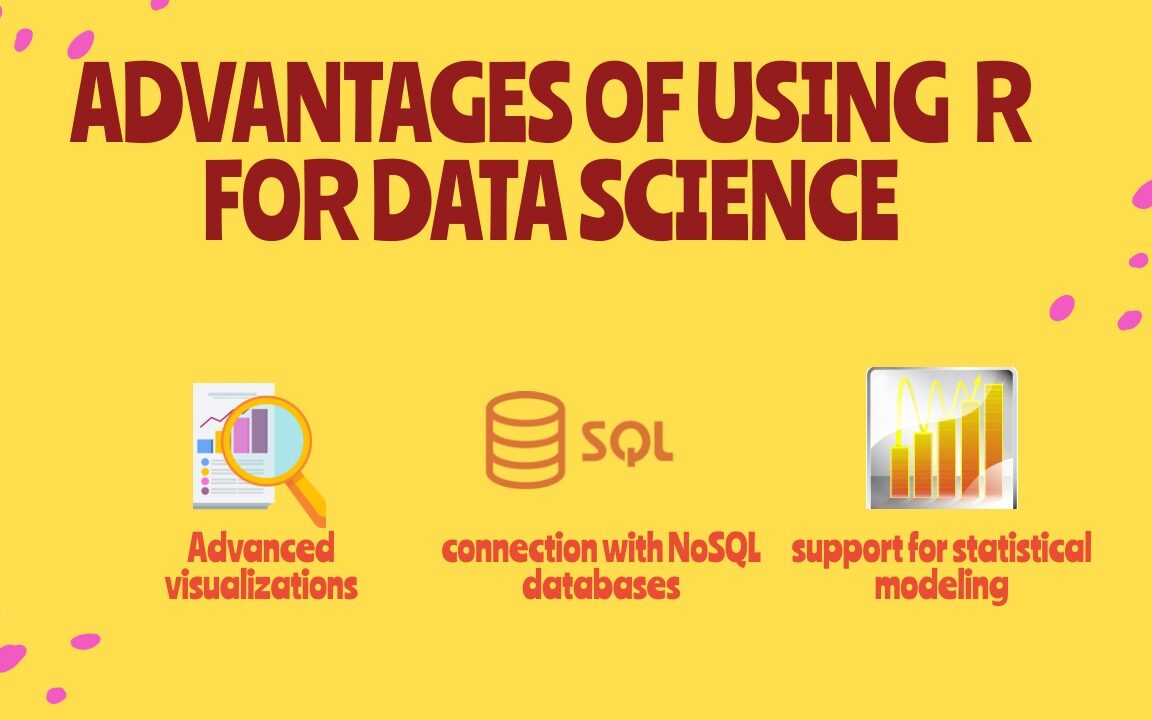
Advantages of Using R for Data Science
5 Advantages of Using R for Data Science
1) Free and Open Source
An open-source language is a language on which we can work without needing a license or a fee. R is an open-source language. We can contribute to the development of R by optimizing our packages, developing new ones, and resolving issues.
2) Extensive support for statistical modeling
Statistical modeling is essential to determine how one variable is related to others. R provides powerful capabilities to deal with statistical modeling. It has excellent functions for central tendency, the measure of variability, probability, hypothesis testing, ANOVA, and regression analysis.
3) Extremely easy data wrangling
R has several packages that hugely simplify the process of preparing your data for analysis. You may have your data stored in the .csv or .txt file, in Excel spreadsheets, in relational databases, or as a SAS or Stata file. R can load these various types of files with just one line of code.
The process of data cleaning and transforming is also straightforward. One line of code – and you create a separate dataset without any missing values, another line – and you impose multiple filters on your data. With such powerful capabilities, the time you spend preparing your data for analysis can decrease significantly, giving you more time to spend it on the analysis itself.
4) The connection with NoSQL databases
The majority of data science projects deal with unstructured data. R can provide interfaces with NoSQL databases and analyze unstructured data in effective ways.
5) Advanced visualizations
Even the basic functionality of R allows you to create histograms, scatterplots, or line plots with only a tiny bit of code. These are very convenient functions for visualizing your data before even starting any analysis. In a few seconds, you can see your data and get insights that are not visible from the tabulated data alone.
However, if you spend some time learning more advanced visualization packages, such as ggplot2, for example, you’ll be able to build some very impressive graphs. R provides seemingly countless ways to visualize your data. These graphs will look very professional. And you’ll get access to a whole host of extra options, such as adding maps to your visualizations or making them animated.
Solving a System of Equations in R With Examples: Solving a system of equations in R is a common task in mathematical and statistical applications. R has several built-in functions and packages to solve systems of equations, including the lm() function and the ‘rootSolve’ package. In this article, we will demonstrate how to solve a system of equations in R using these tools, with examples.
Solving a System of Equations in R With Examples
Example 1: Solving a System of Linear Equations with lm() Function
The lm() function can be used to solve a system of linear equations, where the equation can be represented in the form of y = mx + b, where m is the slope and b is the y-intercept. Let’s consider the following system of two linear equations:
y = 2x + 1
y = -x + 3
To solve this system of equations using lm() function, we first have to create a data frame to represent the equations, and then use the lm() function to fit a linear model to the data.
Creating a data frame to represent the equations
df <- data.frame(x = c(1, 2, 3), y = c(3, 5, 7))
Fitting a linear model to the data
lm_fit <- lm(y ~ x, data = df)
Extracting the coefficients of the model
coeffs <- coefficients(lm_fit)
Solving for x and y
x <- -(coeffs[1]/coeffs[2]) y <- coeffs[1] + coeffs[2] * x
Printing the solution
cat(“The solution is x =”, x, “and y =”, y)
The output will be:
The solution is x = 1.5 and y = 4
Example 2: Solving a Non-Linear System of Equations with rootSolve Package
The rootSolve package can be used to solve a non-linear system of equations, where the equations are not represented in the form of y = mx + b. Let’s consider the following system of two non-linear equations:
x^2 + y^2 = 1
x + y = 1
To solve this system of equations using rootSolve package, we first have to install and load the package, and then use the uniroot() function to find the solution.
Installing and loading the rootSolve package
install.packages(“rootSolve”) library(rootSolve)
Defining the system of equations
equations <- function(z) { x <- z[1] y <- z[2] f1 <- x^2 + y^2 – 1 f2 <- x + y – 1 c(f1, f2) }
Solving for x and y
solution <- uniroot(equations, c(-1, -1))
Printing the solution
cat(“The solution is x =”, solution$root[1], “and y =”, solution$root[2])
The output will be:
The solution is x = 0.5 and y = 0.5
Solving a system of equations in R is a straightforward task with the help of built-in functions and packages such as lm() and rootSolve. These functions can be used to solve both linear and non-linear systems of equations and provide accurate solutions for real-world problems.
With the help of the R programming cheat sheet, we can perform a wide variety of statistical (linear and nonlinear modelling, classical statistical tests, time-series analysis, classification, clustering, …) and graphical techniques, and is highly extensible.
One of R’s strengths is the ease with which well-designed publication-quality plots can be produced, including mathematical symbols and formulae where needed. Great care has been taken over the defaults for the minor design choices in graphics, but the user retains full control.
You can display your data analysis reports in several ways in Excel. However, if you know the right data visualization technique your data analysis results can be more notable, and your audience can quickly grasp what you want to project in the data. It also leaves a good impact on your presentation style. You can improve your data visualization productivity by using the built-in table functionality available in Excel.
1. Create The Table
Place your cursor in the area you want to make a table. On the menu bar, select Insert, Table. Excel will guess the range to create the table.
You will then validate the area that Excel has determined is the table you wish to create. Your table should have headers and the checkbox will default to accept the first row of the range to be the table headers.
Once you hit OK the range will format as a table with the default formatting. Select Table Tools that will now be visible on the menu bar which will display more formatting options.
The Design menu bar has many visual and operational options to choose from, some of which we will cover below.
2. Name the Table to Allow for Easier References
As shown in the screen capture above, the default name for the first table is “Table1”. Naming the table something meaningful allows you to reference the table in calculations and other functionality. The reference, rather being Table1 would be YearlySalary which allows for built-in documentation making your calculations more meaningful.
To change the table name, enter a new value in the Table Name box under the Table Tools option on the toolbar, as pictured below.
3. Format the Columns
As you use the tables in other Excel features, such as pivot tables and graphs, the column format will be picked up in the other tools. For example, formatting the columns as Currency and then no decimals will cause the formats to be used in Graphs as shown in the last section below.
4. Insert Slicers
Under the table tools, there is a Slicer option. Clicking on this option allows you to use various columns in the table as filters which allows you to slice the data for different views. With a cell selected in the table, select the Insert Slicer toolbar item in the Table Tools menu bar. You can then select the slicers you want to add. The final view is below with the Insert Slicer dialogue.
5. Insert a Chart
Now that you have filters you can easily add a chart. Selecting the table, you can insert a graph by selecting the Insert menu option then, select a chart you want to view by selecting that option on the toolbar. The graph is then filtered based on your slicer selection.
Note: The graph pictured has the axis formatted with the Year value removed. There are several formats available in the graph format menu option.
In this day and age, our data dependence is overwhelming. Thanks to our cellphones and laptop, a halo of data surrounds our life. Data is nothing but a piece of classified information. Microsoft Excel is one of the most used data handling/analysis software. At the same time, one tiny mistake in analyzing data can cause headaches. Data is the backbone of any analysis that you do. It is an eternal problem and not only in Excel! Here’s a list of the top 10 Super Neat Ways to Clean Data in Excel as follows.
1. Get Rid of Extra Spaces
When it comes to clean data on excel extra spaces are painfully difficult to spot. While you may somehow spot the extra spaces between words or numbers, trailing spaces are not even visible. Here is a neat way to get rid of these extra spaces.
– Use TRIM Function.
Here a practical examples of using the TRIM function.
Example 1 – Remove Leading, Trailing, and Double Spaces
TRIM function is made to do this.
Below is an example where there are leading, trailing, and double spaces in the cells.
You can easily remove all these extra spaces by using the below TRIM function:
=TRIM(A1)
Copy-paste this into all the cells and you are all set.
2. Select & Treat all blank cells
Blank cells are troublesome because they often create errors while creating reports. And, people usually want to replace such cells with 0, Not Available or something like that. But replacing each cell manually on a large data table would take hours. Luckily, there’s an easy way to tackle this problem.
Steps:
Select the entire Data (you want to treat)
Press F5 (on the keyboard)
A dialogue box will appear > Select “Special”
Select “Blanks” & click “OK”
Now, all blank cells will be highlighted in pale grey color, out of which one cell would be white with a different border. That’s the active cell, type the statement you want to replace in blank cells.
Hit “Ctrl+Enter”
3. Convert Numbers Stored as Text into Numbers
When you want to Clean Data On Excel Sometimes you import data from text files or external databases, numbers get stored as text. Also, some people are in the habit of using an apostrophe (‘) before a number to make it text. This could create serious issues if you are using these cells in calculations. Here is a foolproof way to convert these numbers stored as text back into numbers.
Steps:
In any blank cell, type 1
Select the cell where you typed 1, and press Control + C
Select the cell/range which you want to convert to numbers
Select Paste –> Paste Special (KeyBoard Shortcut – Alt + E + S)
In the Paste Special Dialogue box, select Multiply (in the operations category)
Click OK. This converts all the numbers in text format back to numbers.
4. Remove Duplicates
Elimination of duplicate data is necessary for the creation of unique data & less usage of storage. In duplication, you can either highlight it or delete it.
A) Highlight Duplicates:
Select the data & go to Home > Conditional Formatting > Highlight CellRules > Duplicate Values
A dialogue box will appear (Duplicate Values), Select Duplicate & format colour
Press OK
All duplicate values will be highlighted!
B) Delete Duplicates:
Select the data & go to DATA > Remove Duplicates
A dialogue box will appear (Remove Duplicates), and tick columns whose duplicates need to be found.
Remember to click on “My data has headers” (if your Data has headers) or else column heads will be considered as data & a duplication search will be applied to it too.
Click OK!
Duplicate values will be removed! Suppose you select 4 of 4 columns. Then that four column rows should also match or else; they won’t be considered a duplicate.
5. Highlight Errors
There are 2 ways you can highlight Errors while cleaning Data on Excel:
Using Conditional Formatting
Select the entire data set
Go to Home –> Conditional Formatting –> New Rule
In New Formatting Rule Dialogue Box select ‘Format Only Cells that Contain’
In the Rule Description, select Errors from the drop-down
Set the format and click OK. This highlights any error value in the selected dataset
Using Go To Special
Select the entire data set
Press F5 (this opens the Go To Dialogue box)
Click on Special Button at the bottom left
Select Formulas and uncheck all options except Errors
This selects all the cells that have an error in it. Now you can manually highlight these, delete them, or type anything into them.
6. Change Text to Lower/Upper/Proper Case
While importing data, we often find names in irregular forms like lower, upper case, or sometimes mixed. Such errors are not easy to eliminate manually. Here’s a fingertip trick to bring back the consistency.
LOWER(text)
UPPER(text)
PROPER(text)
Steps:
Just type the formula you want to use, suppose “LOWER(“ and select the cell whose case needs to be changed.
Hit “CTRL+ENTER.”
The case has been changed & Consistent
Drag down to do the same for other cells.
Similarly for UPPER() & PROPER()
7. Parse Data Using Text to Column
Sometimes the received Data has texts filled in one cell, only separated by punctuations. Usually, the addresses are cramped in one cell separated by a comma. To distinguish values in separate cells, we can use “Text to Column.”
Steps:
Select the Data
Go to Data> Text to Column
A dialogue box will appear (Convert Text to Columns Wizard – Step 1 of 3), select Delimited or Fixed Width as per your convenience.
Delimited is to be selected if the width isn’t fixed, click “NEXT”
In Delimiters tick the option which separates your text in the cell. Suppose “Norwich Cathedral, Norwich, UK,” here three values are separated by commas. So we will select “Comma” for this example. And, deselect the rest options.
View the preview & click on “NEXT”
Select Column Data Format & destination cell address
Click “FINIS
8. Spell Check
Spelling mistakes are common in text files & PowerPoint. However, MS points out such errors by underlining them with colourful dashes. And, MS Excel doesn’t have such a feature. But you can use it below steps to clean data on excel.
Select the Data
Press “F7”
A dialogue box appears, which shows you the possible wrong word & it’s the possible correct spelling. Click on “Change,” if you agree with the suggestion.
Check & change till it says “Spell check complete. You’re good to go!”
9. Delete all Formatting
In my job, I used multiple databases to get the data in excel. Every database had it’s own data formatting. When you have all the data in place, here is how you can delete all the formatting in one go:
Select the data set
Go to Home –> Clear –> Clear Formats
Similarly, you can clear Content, Comments, Hyperlink, or entire data (using Clear All).
10. Use Find & Replace to Clean Data in Excel
A) Changing Cell References:
Press “CTRL+H” to open “Find and Replace”
Now in Replace > “Find What” (change the reference range too) “Replace With”
Suppose Find What: $B to Replace With $C
Click on “Replace All”
Similarly finding & replacing using reference range we can clean the Data
B) Find & Change Specific Format:
Press “CTRL+H”
Select “Options”
Now go to “Format” of “Find What.” Here you can specify the format or choose a format from the cell. Suppose you select a format.
Now it will show you the preview for “Find What.”
Click on “Format” of “Replace With.” Suppose we go for “Format…”
Now select format, for example, Number, Alignment, Font, Border, Fill, Protection.
Suppose we select Color and then select any colour to fill the column header cell.
Click on Replace All
Instantly the format has been changed!
C) Removal of Line Breaks:
Suppose we have data where it is separated by line breaks (same cell but different rows). To remove these line breaks, follow the below steps:
Press “CTRL+H”
Find and Replace dialogue box will appear, press “CTRL+J”
Go to the replace with box & type a single space
Click Replace All
All rows will be managed in one row within the same cell!
D) Removal of Parenthesis:
Select the Data
Press “CTRL+H”
Type (*) in “Find What” (This will consider all characters within parenthesis)
Leave the Replace With column empty & click Replace
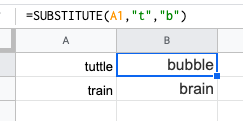
This is a useful trick that is ideal for updating cells in bulks. It’s another one that does exactly what it says and is extremely useful for updating URLs, removing unintentional spaces or spelling errors. In the example above, the formula is replacing the letter ‘t’ with ‘b’.
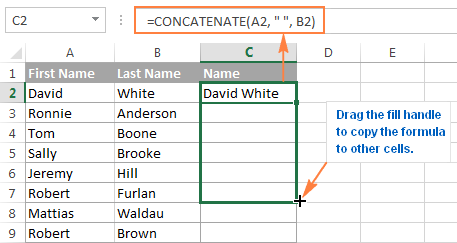
2. CONCATENATE
=CONCATENATE is one of the easiest to learn but most powerful formulas when conducting data analysis. Combine text, numbers, dates and more from multiple cells into one. This is an excellent function for creating API endpoints, product SKUs, and Java queries.
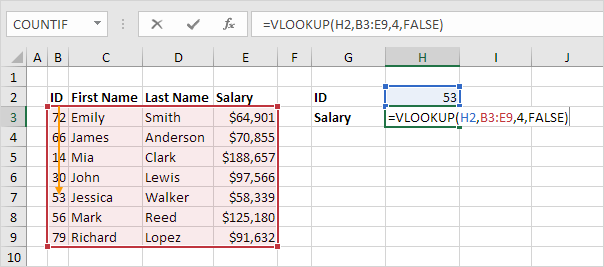
3. VLOOKUP
You’ve no doubt come across =VLOOKUP, which will be familiar to anyone who’s used Excel. The formula allows you to lookup data that is arranged in vertical columns. For example, if you have a list of months of the year with the profit made in each month, =VLOOKUP can present the data from the month of your choice.
4. LEN
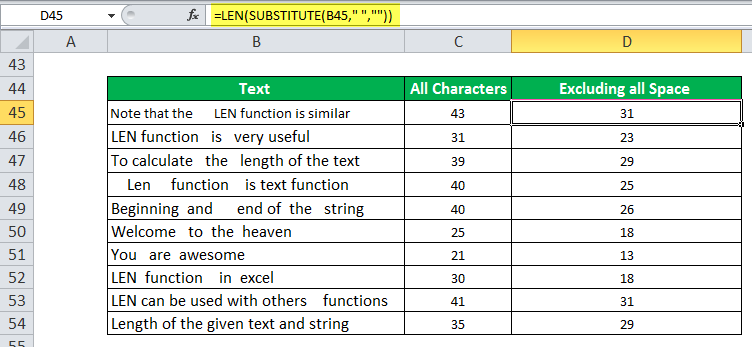
=LEN quickly provides the number of characters in a given cell. As in the example above, you can identify two different kinds of product Stock Keeping Units (SKUs) using the =LEN formula to see how many characters the cell contains. LEN is especially useful when trying to determine the differences between different Unique Identifiers (UIDs), which are often lengthy and not in the right order.
5. SUMIFS
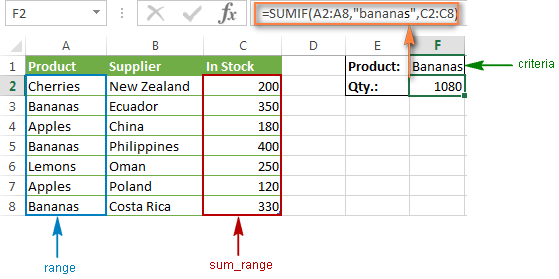
The =SUMIF function is an essential formula in the world of data analytics. The formula adds up the values in cells that meet a selected number. In the above example, the formula is adding up the numbers in cells that are higher than the number 8.
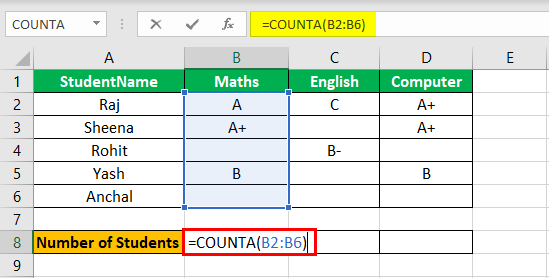
=COUNTA identifies whether a cell is empty or not. In the life of a data analyst, you’re going to run into incomplete data sets daily. COUNTA will allow you to evaluate any gaps the dataset might have without having to reorganize the data.
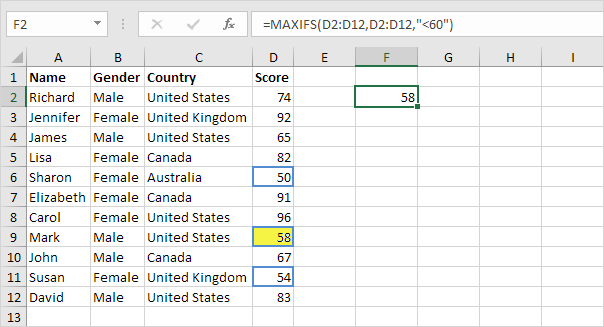
7. MINIFS/MAXIFS
This handy formula identifies which value is the lowest and which is the highest. But it does more than just that, it also sorts values in relation to particular criteria too. For example, you can use it to sort the oldest and youngest ages from a sample of men and women, displaying the values by gender.
8. FIND/SEARCH
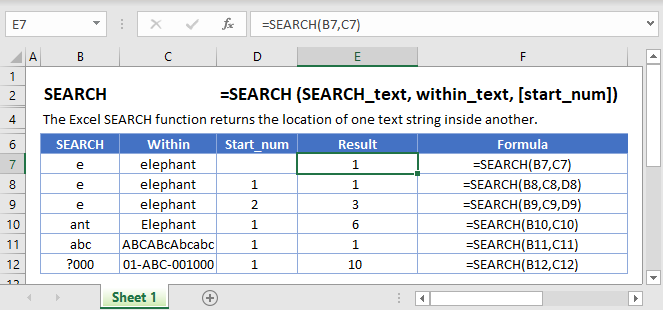
=FIND/=SEARCH are powerful functions for isolating specific text within a data set. Both are listed here because =FIND will return a case-sensitive match, i.e. if you use FIND to query for “Big” you will only return Big=true results. But a =SEARCH for “Big” will match with Big or big, making the query a bit broader. This is particularly useful for looking for anomalies or unique identifiers.
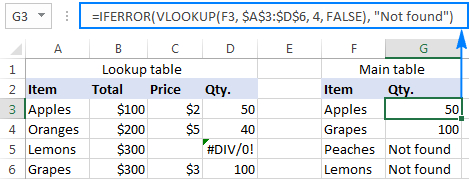
9. IFERROR
=IFERROR is something that any analyst who actively presents data should take advantage of. .You can use the IFERROR function to trap and handle errors in a formula. IFERROR returns a value you specify if a formula evaluates to an error; otherwise, it returns the result of the formula.
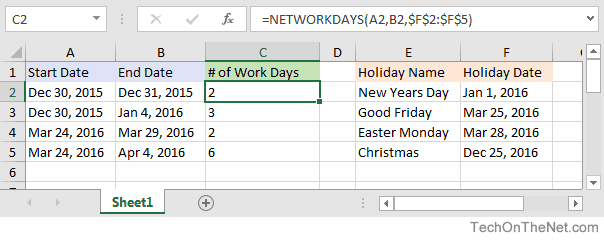
10. DAYS/NETWORKDAYS
This one is fairly self-explanatory. =DAYS determines the number of days between two calendar dates, and is commonly used to determine product life cycles or contract periods. =NETWORKDAYS is its more useful counterpart and is used to calculate the number of working days between two dates. You could say this formula lives for the weekend.
Since 1987, Microsoft Excel has been used in virtually every office by employees with various job titles. But how is Excel used in data analysis today and can it be learned? While some enjoy playing with pivotal tables and histograms, others limit themselves to simple pie charts and conditional formatting. We explain the pros and cons of using Excel for data analysis and the top Excel functions that every data analyst needs to know.
What is Excel?
Excel is spreadsheet software. Excel is a convenient go-to software that is both comprehensible and familiar, and a key part of Excel is how it can be used for ad hoc analysis. Many people are familiar with Excel and that level of comfort is where much of its power stems from.
What types of data can be entered into an Excel spreadsheet?
Everyone thinks of financial data with Excel, but it can apply to any industry data. All types of data are appropriate! The only exception would be the size of the datasets. Small to medium-sized datasets are best for Excel. If a dataset becomes too large, it’s cumbersome in Excel. Many times, data analysts will take a look at the underlying data using Excel before they use a heavier application like Python or SQL.
Pros & Cons of Excel in Data Analysis
Excel is powerful because it’s quick and easy to use, but the downside is that it isn’t scalable. As data sizes become larger, we hit limits in our notebook and time limits on our computers. Excel also lacks the ability to automate processes.
Alternatives to Excel
Google Sheets is a free alternative to Excel. The collaborative aspect of Google Sheets is great, but it also makes it harder to protect your data from other parts of the company. It is awesome software but Google Sheets isn’t quite as advanced as Excel is and I doubt they will ever catch up. Excel is continuously improving and expanding.
Analyzing Data Sets with Excel
To know how to analyze data in Excel, you can instantly create different types of charts, including line and column charts, or add miniature graphs. You can also apply a table style, create PivotTables, quickly insert totals, and apply conditional formatting. Analyzing large data sets with Excel makes work easier if you follow a few simple rules:
Select the cells that contain the data you want to analyze.
Click the Quick Analysis button image button that appears at the bottom right of your selected data (or press CRTL + Q).
Selected data with Quick Analysis Lens button visible
In the Quick Analysis gallery, select a tab you want. For example, choose Charts to see your data in a chart.
Pick an option, or just point to each one to see a preview.
You might notice that the options you can choose are not always the same. That is often because the options change based on the type of data you have selected in your workbook.
To understand the best way to analyze data in excel, you might want to know which analysis option is suitable for you. Here we offer you a basic overview of some of the best options to choose from.
Formatting: Formatting lets you highlight parts of your data by adding things like data bars and colors. This lets you quickly see high and low values, among other things.
Charts: Charts Excel recommends different charts, based on the type of data you have selected. If you do not see the chart you want, click More Charts.
Totals: Totals let you calculate the numbers in columns and rows. For example, Running Total inserts a total that grows as you add items to your data. Click the little black arrows on the right and left to see additional options.
Tables: Tables make it easy to filter and sort your data. If you do not see the table style you want, click More.
Sparklines: Sparklines are like tiny graphs that you can show alongside your data. They provide a quick way to see trends.
How to Analyze Data in Excel: Data Analysis
Data Analysis is simpler and faster with Excel analytics. Here, we offer some tips for work:
Create auto expandable ranges with Excel tables: One of the most underused features of MS Excel is Excel Tables. Excel Tables have wonderful properties that allow you to work more efficiently. Some of these features include:
Formula Auto Fill: Once you enter a formula in a table it will be automatically copied to the rest of the table.
Auto Expansion: New items typed below or at the right of the table become part of the table.
Visible headers: Regardless of your position within the table, your headers will always be visible.
Automatic Total Row: To calculate the total of a row, you just have to select the desired formula.
Use Excel Tables as part of a formula: Like in dropdown lists, if you have a formula that depends on a Table, when you add new items to the Table, the reference in the formula will be automatically updated.
Use Excel Tables as a source for a chart: Charts will be updated automatically as well if you use an Excel Table as a source. As you can see, Excel Tables allow you to create data sources that do not have to be updated when new data is included.
How to Analyze Data in Excel: Data Visualization
Quickly visualize trends with sparklines: Sparklines are a visualization feature of MS Excel that allows you to quickly visualize the overall trend of a set of values. Sparklines are mini-graphs located inside of cells. You may want to visualize the overall trend of monthly sales by a group of salesmen.
To create the sparklines, follow these steps below:
Select the range that contains the data that you will plot (This step is recommended but not required, you can select the data range later).
Go to Insert > Sparklines > Select the type of sparkline you want (Line, Column, or Win/Loss). For this specific example, I will choose Lines.
Click on the range selection button Select Range Excel Button to browse for the location of the sparklines, press Enter and click OK. Make sure you select a location that is proportional to the data source. For example, if the data source range contains 6 rows then the location of the sparkline must contain 6 rows.
To format the sparkline you may try the following:
To change the colour of markers:
Click on any cell within the sparkline to show the Sparkline Tools menu.
In the Sparkline tools menu, go to Marker Color and change the colour for the specific markers you want.
For example High points on the green, Low points on red, and the remaining in blue.
To change the width of the lines:
Click on any cell within the sparkline to show the Sparkline Tools menu.
In the Sparkline tools contextual menu, go to Sparkline Color > Weight and change the width of the line as you desire.
Save Time with Quick Analysis: One of the major improvements introduced back in Excel 2013 was the Quick Analysis feature. This feature allows you to quickly create graphs, sparklines, PivotTables, PivotCharts, and summary functions by just clicking on a button.
When you select data in Excel 2013 or later, you will see the Quick Analysis button Quick Analysis Excel Button in the bottom-right corner of the range selected. If you click on the Quick Analysis button you will see the following options:
1. Formatting
2. Charts
3. Totals
4. Tables
5. Sparklines
When you click on any of the options, Excel will show a preview of the possible results you could obtain given the data you selected.
If you click on the Quick Analysis button and go to charts, you could quickly create the graph below just by clicking a button.
If you go to Totals, you can quickly insert a row with the average for each column:
If you click on Sparklines, you can quickly insert Sparklines:
As you can see, the Quick Analysis feature really allows you to quickly perform different visualizations and analyses with almost no effort.
Data Jobs that Use Excel
Any position with the word “analyst” at the end of it requires Excel! That includes Data Analyst, Business Analyst, Business Operations Analyst, and Reporting Analyst.