data scientist

Line graph with R

A line graph is a type of chart used to display data as a series of points connected by lines. It is commonly used to show trends over time or to compare multiple data sets. Line graphs are useful for visualizing data that changes continuously over time, such as stock prices, weather patterns, or population growth. They can also be used to compare multiple data sets, such as the performance of different companies in a particular industry. To create a line graph in R, you can use the built-in plot() function or the more powerful ggplot2 library. Here is an example of how to create a line graph using ggplot2.

Line graph with R
Line graph with R

First, let’s create a sample data frame with some random values:

# Create sample data frame
x <- 1:10
y <- c(3, 5, 6, 8, 10, 12, 11, 9, 7, 4)
df <- data.frame(x, y)

Next, we’ll use ggplot() to create a plot object, and then add a geom_line() layer to draw the line:

# Load ggplot2 library
library(ggplot2)

# Create plot object
p <- ggplot(df, aes(x, y))

# Add line layer
p + geom_line()

This will create a basic line graph with the x values on the x-axis and the y values on the y-axis. You can customize the appearance of the graph by adding additional layers or modifying the ggplot() object. For example, you can add axis labels and a title:

# Add axis labels and title
p + geom_line() + 
  labs(x = "X-axis label", y = "Y-axis label", title = "Title of the graph")

You can also modify the line color and thickness using the color and size arguments of geom_line():

# Change line color and thickness
p + geom_line(color = "red", size = 2) +
  labs(x = "X-axis label", y = "Y-axis label", title = "Title of the graph")

These are just a few examples of the many customization options available in ggplot2.

Download(PDF)

Create an area graph with R

Create an area graph with R: Area graphs are a great way to visualize data over time, especially when you want to see how different data sets contribute to an overall trend. In this tutorial, we will be using R programming to create an area graph using the ggplot2 library.

Create an area graph with R

First, we need to install and load the ggplot2 library:

install.packages("ggplot2")
library(ggplot2)

Next, we need some data to work with. We will be using the built-in economics data set that comes with R, which contains data on the US economy from 1967 to 2015:

data(economics)

To create an area graph with ggplot2, we first need to prepare the data by converting it from a wide format to a long format using the gather function from the tidyr library:

library(tidyr)
economics_long <- gather(economics, key = "variable", value = "value", -date)

This code creates a new data frame called economics_long that has three columns: date, variable, and value. The date column contains the dates from the original economics data set, the variable column contains the names of the different economic indicators, and the value column contains the corresponding values for each indicator on each date.

Now that we have our data in the right format, we can create our area graph using ggplot2:

ggplot(economics_long, aes(x = date, y = value, fill = variable)) +
  geom_area()

This code creates a new ggplot object that uses the economics_long data frame as its data source. The aes function is used to specify the variables to be plotted: the date column on the x-axis, the value column on the y-axis, and the variable column for the fill color of the areas. The geom_area function is used actually to create the area graph.

By default, ggplot2 stacks the areas on top of each other, but we can change this by adding the position = "identity" argument to the geom_area function

ggplot(economics_long, aes(x = date, y = value, fill = variable)) +   geom_area(position = "identity") 

This code creates the same area graph as before, but with the area’s side by side instead of stacked.

We can also customize the graph’s appearance by adding labels, adjusting the color scheme, and so on. Here’s an example:

ggplot(economics_long, aes(x = date, y = value, fill = variable)) +
  geom_area(position = "identity", alpha = 0.7, color = "white") +
  scale_fill_manual(values = c("#FF5733", "#C70039", "#900C3F", "#581845")) +
  labs(title = "US Economic Indicators",
       subtitle = "1967-2015",
       x = "Year",
       y = "Value",
       fill = "Indicator") +
  theme_minimal()

This code creates an area graph with a reduced alpha value to add transparency, a white border for each area, and a custom color scheme using the scale_fill_manual function. We also added a title and subtitle, labels for the x- and y-axes, and a legend label using the labs function. Finally, we applied the theme_minimal theme to give the graph a clean, modern look.

ANOVA in R

ANOVA (Analysis of Variance) is a statistical technique used to determine whether there are any significant differences between the means of two or more groups. R is a powerful programming language used for statistical analysis, and it includes several functions for conducting ANOVA. In this article, we will discuss how to perform ANOVA in R.

ANOVA in R
ANOVA in R
  1. Install Required Packages To perform ANOVA in R, you need to install two packages: “car” and “multcomp”. You can install these packages using the following command:
install.packages("car")
install.packages("multcomp")
  1. Load the Required Libraries After installing the required packages, you need to load them into R using the following command:
library(car)
library(multcomp)
  1. Prepare the Data Before performing ANOVA, you need to prepare your data. The data should be organized in a way that allows you to compare the means of different groups. The data can be in the form of a CSV file, a spreadsheet, or a data frame in R.
  2. Conduct ANOVA Once your data is prepared, you can conduct ANOVA using the aov() function in R. The aov() function takes two arguments: the first argument is the formula that specifies the variables and their interactions, and the second argument is the data frame that contains the data.

For example, suppose we have a dataset called “mydata” that contains three variables: “group”, “score1”, and “score2”. The “group” variable has three levels (A, B, and C), and the “score1” and “score2” variables contain the scores of the participants in each group. To perform ANOVA, we can use the following code:

mydata <- read.csv("data.csv")
mydata$group <- factor(mydata$group)
fit <- aov(cbind(score1, score2) ~ group, data=mydata)

In this example, we first load the data from a CSV file called “data.csv”. We then convert the “group” variable into a factor using the factor() function. Finally, we use the aov() function to conduct ANOVA on the “score1” and “score2” variables, with the “group” variable as the factor.

  1. Check for Significant Differences After conducting ANOVA, you need to check whether there are any significant differences between the means of the groups. You can do this using the summary() function in R.
summary(fit)

The summary() function will provide you with the F-statistic, the degrees of freedom, and the p-value for each variable in the model. The p-value indicates the significance level of the variable, and a p-value less than 0.05 indicates that the variable is significant.

  1. Post-hoc Analysis If ANOVA indicates that there are significant differences between the means of the groups, you can perform post-hoc analysis to determine which groups are significantly different from each other. You can do this using the TukeyHSD() function in R.
TukeyHSD(fit)

The TukeyHSD() function will perform Tukey’s Honest Significant Difference (HSD) test, which is a post-hoc test that compares all pairs of groups and determines which pairs are significantly different from each other. The output of the TukeyHSD() function will provide you with the p-value and the confidence interval for each pair of groups.

Download(PDF)


Errors in R and how to fix them

R is a powerful programming language for data analysis, but errors are inevitable. By understanding the common errors and how to fix them, you can write more robust and efficient code. In this article, we will look at the top errors in R and how to fix them.

Errors in R and how to fix them
  1. Syntax Errors Syntax errors are the most common errors in R. These errors occur when the code is not written correctly. It could be a missing comma, a misplaced parenthesis, or a misspelled function. R will show an error message with the line number where the error occurred. To fix the error, go to that line and correct the syntax.
  2. Object Not Found Errors This error occurs when you try to access an object that doesn’t exist. It could be a variable or a function that has not been defined. To fix this error, check if the object is defined or if there is a typo in the object name. You can also check if the object is in the correct environment.
  3. Data Type Errors R is a strongly typed language, which means that each variable has a specific data type. Data type errors occur when you try to assign a value of one data type to a variable of a different data type. For example, trying to assign a string to a numeric variable. To fix this error, make sure that the data type of the variable matches the data type of the value.
  4. Out of Memory Errors, R uses memory to store data and variables. If you try to load a large dataset or perform a computation that requires more memory than is available, you will get an out-of-memory error. To fix this error, try freeing up memory by removing unnecessary objects or using more efficient code. You can also increase the memory available to R by using the “memory.limit()” function.
  5. Package Not Found Errors R has a vast collection of packages that extend its functionality. If you try to use a package that is not installed, you will get a package not found error. To fix this error, install the required package using the “install.packages()” function. You can also check if the package is spelled correctly.
  6. Infinite and Missing Values In R, missing values are represented by NA, and infinite values are represented by Inf. If you perform a computation that results in an infinite or missing value, you will get an error. To fix this error, you can remove the missing or infinite values using the “na.omit()” and “is.finite()” functions.
  7. Unintended Loops Loops are powerful constructs in R, but they can cause errors if not used correctly. Unintended loops occur when a loop is not correctly structured, leading to an infinite loop or a loop that never executes. To fix this error, check the loop structure and ensure that it terminates when it should.

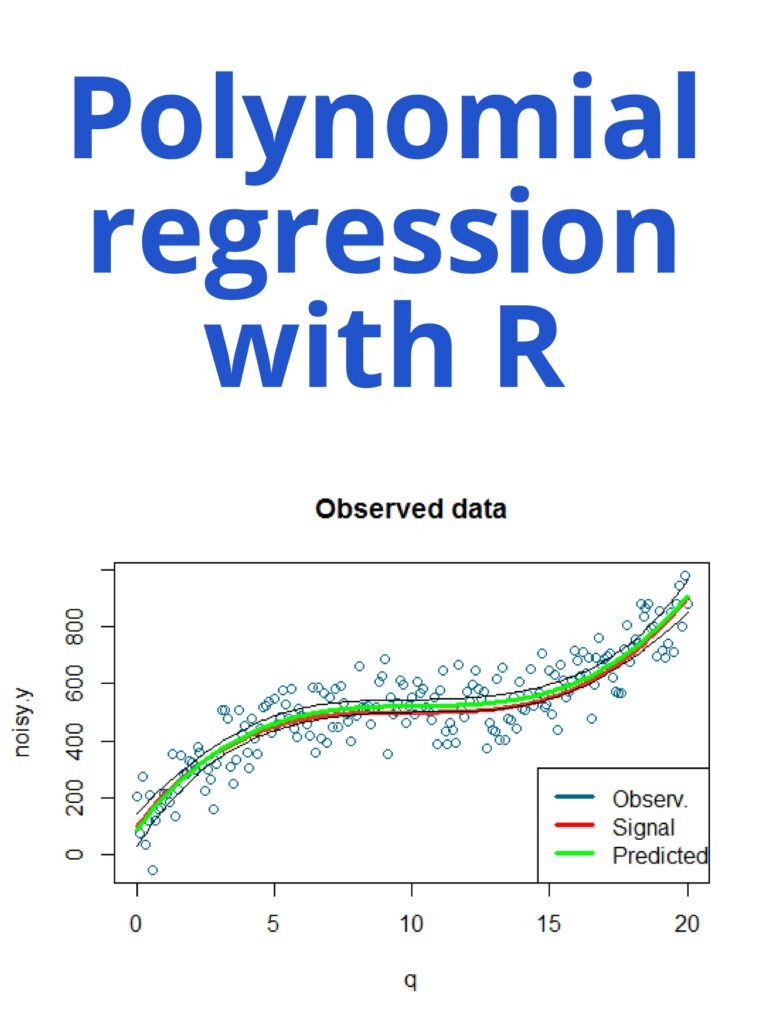
Polynomial regression with R

Polynomial regression is a type of regression analysis in which the relationship between the independent variable x and the dependent variable y is modeled as an nth-degree polynomial. In R, you can perform polynomial regression using the lm() function, which fits a linear model.

Polynomial regression with R

Here’s an example of how to perform polynomial regression in R:

Suppose we have the following data:

x <- c(1, 2, 3, 4, 5)
y <- c(2, 6, 9, 10, 12)

We can fit a second-degree polynomial regression model using the lm() function as follows:

model <- lm(y ~ poly(x, 2, raw=TRUE))

In this case, poly(x, 2, raw=TRUE) creates a matrix of the predictors, where the columns are x raised to the power of 0, 1, and 2 (i.e., the intercept, x, and x^2). The raw=TRUE argument specifies that the predictors should not be standardized.

We can then use the summary() function to obtain the model summary:

summary(model)

This will output a summary of the model, including the coefficients, standard errors, t-values, and p-values for each predictor.

We can also use the predict() function to make predictions based on the model:

new_x <- seq(1, 5, length.out=100)
new_y <- predict(model, newdata=data.frame(x=new_x))

This will generate 100 new values of x and use the model to predict the corresponding values of y.

Finally, we can use the ggplot2 package to visualize the data and the fitted model:

library(ggplot2)
df <- data.frame(x, y, new_x, new_y)
ggplot(df, aes(x, y)) + 
  geom_point() + 
  geom_line(aes(x=new_x, y=new_y), color="blue")

This will create a scatter plot of the data points, overlaid with a blue line representing the fitted model.

How to create a heat map on R programming?

How to create a heat map on R programming? Heat maps are a graphical representation of data that uses color coding to show the values of a matrix. They are useful for visualizing large amounts of data and identifying patterns and trends. This article will show you how to create a heat map in R programming. To create a heat map in R, we will use the heatmap() function, which is part of the base R package. We will also use the scale() function to normalize the data so that the colors represent the relative values of the matrix.

How to create a heat map on R programming

Here are the steps to create a heat map in R:

Step 1: Prepare your data

The data for your heat map should be in a matrix format, with rows and columns representing variables and the values representing the observations. Here is an example of a matrix:

data <- matrix(c(10, 20, 30, 40, 50, 60, 70, 80, 90), nrow = 3, ncol = 3)

Step 2: Normalize the data

We will use the scale() function to normalize the data so that the colors represent the relative values of the matrix. This is done by subtracting the mean and dividing by the standard deviation of each row or column:

scaled_data <- scale(data, center = TRUE, scale = TRUE) 

Step 3: Create the heat map

To create the heat map, we will use the heatmap() function. Here is the code:

heatmap(scaled_data, col = rev(heat.colors(10)), margins = c(5, 10)) 

The scaled_data argument is the matrix of normalized data. The col argument specifies the color palette to use. In this case, we are using the heat.colors() function to generate a palette of 10 colors, which we reverse with the rev() function so that higher values are darker. The margins argument specifies the size of the margins around the heat map.

Step 4: Add labels to the heat map

To add labels to the heat map, we can use the xlab, ylab, and main arguments. Here is an example:

heatmap(scaled_data, col = rev(heat.colors(10)), margins = c(5, 10),
        xlab = "Columns", ylab = "Rows", main = "Heat Map Example")

The xlab argument specifies the label for the x-axis, the ylab argument specifies the label for the y-axis, and the main argument specifies the main title of the heat map.

Step 5: Customize the heat map

There are many ways to customize the heat map in R. For example, you can change the font size and color of the labels, adjust the size of the heat map, and add a color scale legend. Here is an example of how to change the font size and color of the labels:

heatmap(scaled_data, col = rev(heat.colors(10)), margins = c(5, 10),         xlab = "Columns", ylab = "Rows", main = "Heat Map Example",         cex.axis = 1.5, col.axis = "white") 

The cex.axis argument specifies the font size of the axis labels, and the col.axis argument specifies the color of the axis labels.

R Decision Tree Modeling

R Decision Tree Modeling: A decision tree is a type of predictive modeling tool used in data mining, statistics, and machine learning. It is a tree-like model of decisions and their possible consequences, including chance event outcomes, resource costs, and utility. In R, there are several packages that can be used to create decision trees. The most commonly used packages are rpart and party. The rpart package is used to create regression and classification trees, while the party package is used to create conditional inference trees.

R Decision Tree Modeling

Here is an example of how to create a decision tree using the rpart package in R:

# Load the rpart package
library(rpart)

# Load the iris dataset
data(iris)

# Create a decision tree using the rpart function
iris.tree <- rpart(Species ~ ., data = iris)

# Plot the decision tree
plot(iris.tree)

In this example, we first load the rpart package and then load the iris dataset. We then use the rpart function to create a decision tree with the Species column as the target variable and all other columns as predictors. Finally, we use the plot function to visualize the decision tree.

Here is an example of how to create a decision tree using the party package in R:

# Load the party package
library(party)

# Load the iris dataset
data(iris)

# Create a decision tree using the ctree function
iris.tree <- ctree(Species ~ ., data = iris)

# Plot the decision tree
plot(iris.tree)

In this example, we first load the party package and then load the iris dataset. We then use the ctree function to create a decision tree with the Species column as the target variable and all other columns as predictors. Finally, we use the plot function to visualize the decision tree.

Both the rpart and party packages offer several options for customizing the decision tree, such as controlling the depth of the tree, the complexity parameter, and the splitting criterion. You can refer to the documentation of each package for more information on how to customize your decision tree.

Download(PDF)

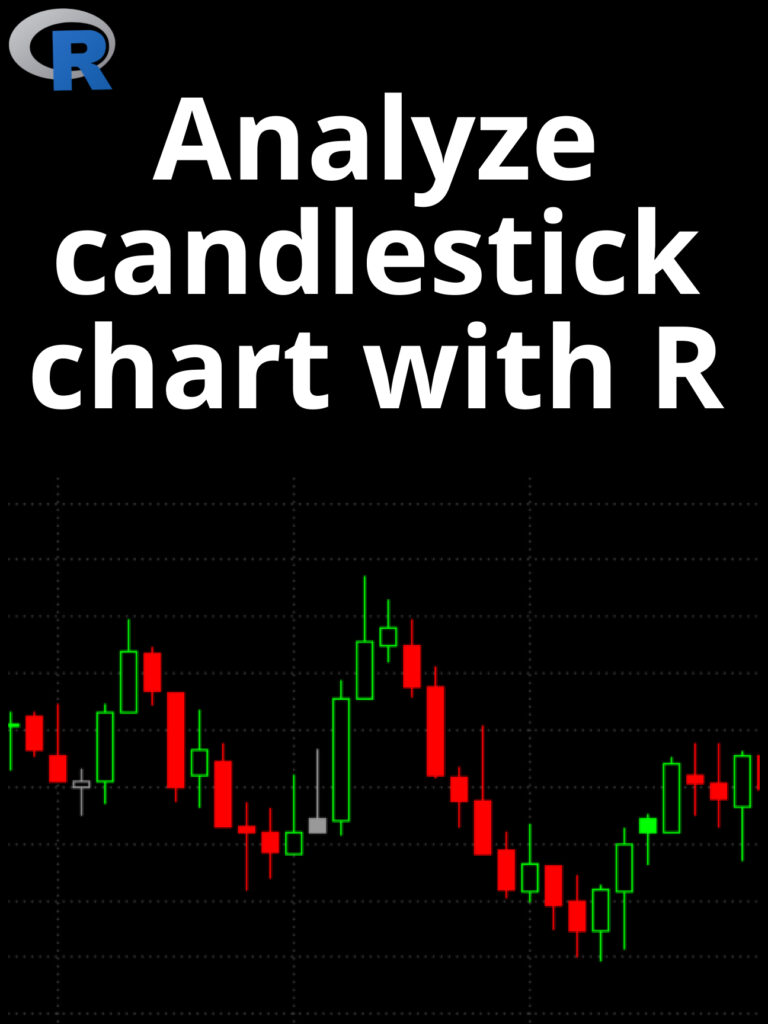
Analyze candlestick chart with R

Analyze candlestick chart with R: A candlestick chart is a type of financial chart used to represent the price movement of an asset, such as a stock, currency, or commodity, over a specific period of time. It is called a “candlestick” chart because each data point is represented by a rectangular box with a vertical line protruding from the top and bottom, resembling a candle with a wick. To analyze a candlestick chart in R, you can use the quantmod package which provides functions for downloading financial data and plotting candlestick charts. Here’s an example of how to analyze a candlestick chart in R:

Analyze candlestick chart with R
 
  1. Install and load the quantmod package:
install.packages("quantmod")
library(quantmod)
  1. Download financial data for a stock using the getSymbols() function. In this example, we’ll download data for Apple (AAPL) from Yahoo Finance:
getSymbols("AAPL", from = "2020-01-01", to = "2022-02-27")

This downloads daily data for AAPL from January 1, 2020 to February 27, 2022.

  1. Plot a candlestick chart using the chartSeries() function from quantmod:
chartSeries(AAPL, theme = "white", TA = NULL)

This will plot a candlestick chart for AAPL with a white background and no technical indicators.

  1. Analyze the chart. Candlestick charts can provide a wealth of information about price movements and trends. Here are some things to look for:
  • Long green candles (or “bullish” candles) indicate that buyers were in control and pushed the price up.
  • Long red candles (or “bearish” candles) indicate that sellers were in control and pushed the price down.
  • Small candles with long upper and lower wicks indicate indecision or uncertainty in the market.
  • Patterns such as “doji” candles (where the opening and closing prices are very close together) can indicate a potential trend reversal.

You can also use technical indicators and overlays to further analyze the chart, such as moving averages, Bollinger Bands, or MACD. The quantmod package provides functions for adding these indicators to your chart.

Here’s an example of how to add a simple moving average to your chart:

addSMA(20)

This will add a 20-day simple moving average to your chart. You can adjust the period of the moving average by changing the number in the function call.

Overall, analyzing candlestick charts requires some knowledge and interpretation of the technical analysis. It’s important to remember that past performance is not necessarily indicative of future results, and that chart patterns and indicators should be used in conjunction with other information to make trading decisions.

Download:

Best Ways To Scraping Data With R

Best Ways To Scraping Data With R: Scraping data refers to the process of extracting information from websites and other online sources. The data collected can be used for various purposes, such as market research, competitor analysis, and content creation. There are several ways to scrape data with R, depending on the type of data and the source of the data. Here are some common methods:

Best Ways To Scraping Data With R
  1. Using the rvest package: The rvest package provides easy-to-use tools for web scraping. Here is an example code to scrape the titles and authors of the articles on the New York Times homepage:
library(rvest)

url <- "https://www.nytimes.com/"
page <- read_html(url)

titles <- page %>%
  html_nodes(".css-1qiat4j") %>%
  html_text()

authors <- page %>%
  html_nodes(".css-1n7hynb") %>%
  html_text()

data <- data.frame(title = titles, author = authors)
  1. Using the RSelenium package: The RSelenium package provides a way to automate web browsers using R. Here is an example code to scrape the titles and URLs of the articles on the New York Times homepage using RSelenium:
library(RSelenium)
library(rvest)

remDr <- remoteDriver(browserName = "chrome")
remDr$open()

url <- "https://www.nytimes.com/"
remDr$navigate(url)

page <- read_html(remDr$getPageSource()[[1]])

titles <- page %>%
  html_nodes(".css-1qiat4j") %>%
  html_text()

urls <- page %>%
  html_nodes(".css-1qiat4j a") %>%
  html_attr("href")

data <- data.frame(title = titles, url = urls)

remDr$close()
  1. Using the httr package: The httr package provides functions to make HTTP requests and handle responses. Here is an example code to scrape the current Bitcoin price from the Coinbase API using the httr package:
library(httr)

url <- "https://api.coinbase.com/v2/prices/BTC-USD/spot"
response <- GET(url)
data <- content(response)$data

price <- data$amount
currency <- data$currency

print(paste("Bitcoin price:", price, currency))

Try challenging yourself with interesting use cases and uncovering challenges. Scraping the web with R can be really fun!

Download(PDF)

Create a ggalluvial plot in R

Create a ggalluvial plot in R: A ggalluvial plot, also known as an alluvial diagram, is a type of visualization used to show how categorical data is distributed among different groups. It is particularly useful for visualizing how categorical variables are related to each other across different levels of a grouping variable.

Create a ggalluvial plot in R

To create a ggalluvial plot in R, you can follow these steps:

Step 1: Install and load the required packages

install.packages("ggplot2")
install.packages("ggalluvial")
library(ggplot2)
library(ggalluvial)

Step 2: Prepare the data

The ggalluvial package requires data to be in a specific format. The data must be in a data frame where each row represents a single observation, and each column represents a category. Each category column should have a unique name, and each row should have a unique identifier.

Here is an example data frame:

# create example data frame
data <- data.frame(
  id = c(1, 2, 3, 4, 5, 6),
  gender = c("Male", "Male", "Female", "Male", "Female", "Female"),
  age = c("18-24", "25-34", "35-44", "18-24", "25-34", "35-44"),
  country = c("USA", "Canada", "USA", "Canada", "Canada", "USA")
)

Step 3: Create the ggalluvial plot

ggplot(data = data,
       aes(x = gender, stratum = age, alluvium = id, fill = country)) +
  geom_alluvium() +
  geom_stratum() +
  ggtitle("Gender, Age, and Country") +
  theme(legend.position = "bottom")

The geom_alluvium() function creates the flowing paths that connect the different categories, and the geom_stratum() function adds the vertical bars that represent the categories. The ggtitle() function adds a title to the plot, and the theme() function adjusts the legend position to the bottom.

For next example, let’s use the diamonds dataset from the ggplot2 package:

data("diamonds")

Now let’s create a ggalluvial plot to visualize the relationship between cut, color, and price of diamonds:

ggplot(diamonds, aes(y = price, axis1 = cut, axis2 = color)) +
  geom_alluvium(aes(fill = cut), width = 0.1) +
  geom_stratum(width = 1/8, fill = "black", color = "grey") +
  geom_text(stat = "stratum", aes(label = after_stat(stratum)), 
            size = 3, fontface = "bold", color = "white") +
  scale_fill_brewer(type = "qual", palette = "Set1") +
  theme_minimal() +
  labs(title = "Diamonds by Cut, Color, and Price",
       subtitle = "Data from ggplot2::diamonds")

This code will create a ggalluvial plot with cut and color on the axes, and price represented by the y-axis. The alluvia are colored by cut, and the strata are filled in black with white text labels.

You can customize the plot further by adjusting the parameters in the geom_alluvium, geom_stratum, and scale_fill_brewer functions.

Download: