Data Science

How to Create a Population Pyramid in R?

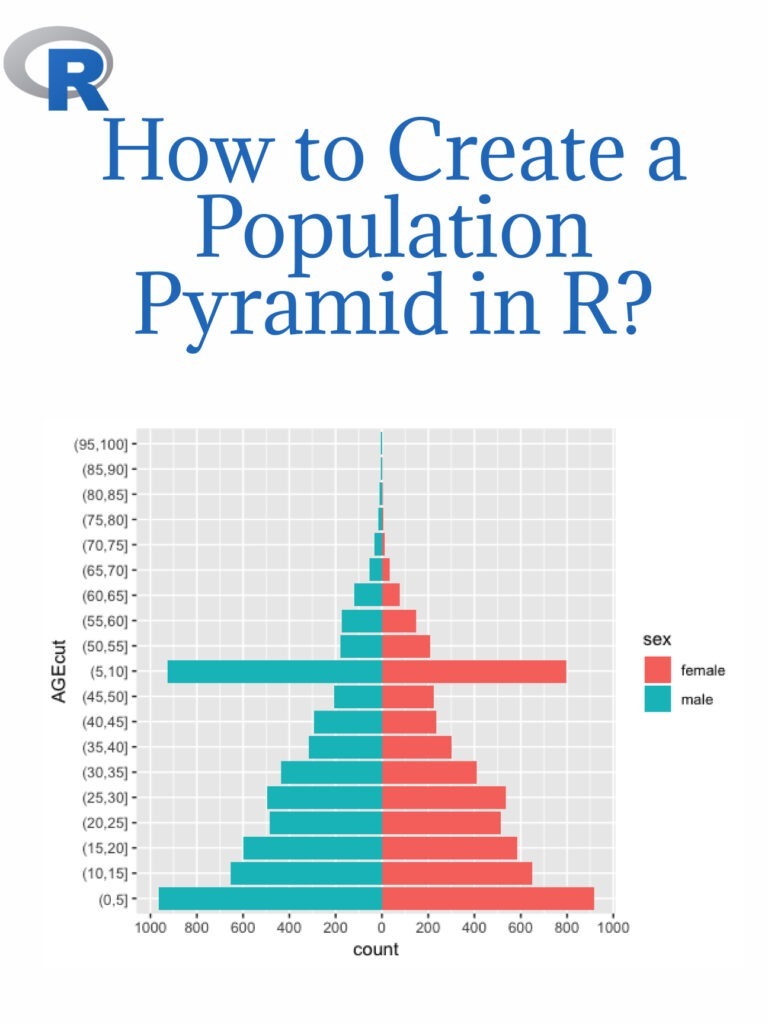
An age-sex pyramid is also known as a population pyramid. Using it, we can visualize the distribution of a population by age group and gender. In general, it resembles a pyramid. Females are represented on the right of the population pyramid, while males are typically depicted on the left. Based on the number or percentage of men and women in a particular population, this data visualization method can be used to visualize that population’s age. Creating a population pyramid in R is a common data analysis and visualization task. Here are the steps to create a population pyramid in R:

How to Create a Population Pyramid in R

Download:

Step 1: Install and load necessary packages Before starting to create a population pyramid, we need to install and load the ggplot2 and dplyr packages. These packages are used for data visualization and data manipulation, respectively.

install.packages("ggplot2")
install.packages("dplyr")

library(ggplot2)
library(dplyr)

Step 2: Load the Data To create a population pyramid, we need data on the age and sex distribution of the population. We can use the built-in “midwest” dataset from ggplot2 package as an example.

data(midwest)

Step 3: Data Wrangling Next, we need to prepare the data for the population pyramid visualization. We will use the dplyr package to manipulate the data.

midwest <- midwest %>%
  select(county, state, Poptotal, popdensity, percwhite, percblack, percamericanindian, percasian, perchispanic, percother, medianage, medianhousevalue, medianincome, region, division) %>%
  filter(!is.na(Poptotal), !is.na(medianage)) %>%
  mutate_at(vars(percwhite:percother), ~replace_na(., 0))

Step 4: Create the Population Pyramid Now, we can create the population pyramid using the ggplot2 package.

ggplot(midwest, aes(x = medianage, y = Poptotal, fill = factor(ifelse(medianage < 37.5, "Male", "Female")))) +
  geom_bar(stat = "identity", position = "identity") +
  scale_fill_manual(values = c("#619CFF", "#FF6161")) +
  labs(title = "Population Pyramid", x = "Median Age", y = "Population", fill = "") +
  coord_flip()

This will create a population pyramid in R, showing the age and sex distribution of the population.

The above example is just a sample, and you can use your own data to create the population pyramid in R.

Create A Dashboard In R

There are several ways to create a dashboard in R, but one of the most popular and powerful options is to use the Shiny package. Shiny allows you to build interactive web applications directly from R code, including data visualization and analysis. Here are the general steps to creating a dashboard in R using Shiny:

Create A Dashboard In R
  1. Install and load the Shiny package:
install.packages("shiny")
library(shiny)
  1. Load your data: You can use any data source that you like, but it’s important to make sure that the data is in a format that can be used by Shiny.
  2. Create a user interface (UI): This is where you define what the user will see and interact with in your dashboard. You can use Shiny’s built-in UI elements (such as sliders, drop-down menus, and text boxes) or create your own custom UI elements using HTML, CSS, and JavaScript.
  3. Create a server function: This is where you define the logic and calculations that will power your dashboard. You can use any R code you like, including data manipulation and analysis functions.
  4. Combine the UI and server: Use the shinyApp() function to combine the UI and server functions into a complete Shiny application.
  5. Deploy your dashboard: You can deploy your Shiny dashboard to a variety of platforms, including shinyapps.io and your own web server.

Here’s a basic example of a Shiny dashboard that displays a histogram of a dataset:

# Load the Shiny package
library(shiny)

# Load the dataset
data(mtcars)

# Define the UI
ui <- fluidPage(
  titlePanel("MTCars Histogram"),
  sidebarLayout(
    sidebarPanel(
      sliderInput("bins", "Number of bins:", min = 1, max = 50, value = 30)
    ),
    mainPanel(
      plotOutput("histogram")
    )
  )
)

# Define the server
server <- function(input, output) {
  output$histogram <- renderPlot({
    bins <- seq(min(mtcars$mpg), max(mtcars$mpg), length.out = input$bins + 1)
    hist(mtcars$mpg, breaks = bins, col = "blue", main = "MTCars Histogram")
  })
}

# Combine the UI and server
shinyApp(ui = ui, server = server)

This code creates a Shiny app with a slider that allows the user to control the number of bins in a histogram of the mpg column of the mtcars dataset. When the user moves the slider, the histogram is updated in real-time. You can customize this example and add more elements to create a full dashboard with multiple charts, tables, and other interactive features.

Download:

Geographic Data Science with R

Geographic Data Science with R is a powerful tool for analyzing and visualizing spatial data. It allows you to combine statistical analysis with geographic information, allowing you to better understand the patterns and relationships in your data. One of the key benefits of Geographic Data Science with R is its ability to handle large and complex data sets. With R’s powerful tools for data manipulation and visualization, you can quickly explore and analyze large data sets without sacrificing accuracy or speed. Another advantage of Geographic Data Science with R is the ability to work with a wide range of data formats, including raster and vector data. This flexibility makes it easier to work with data from a variety of sources and to integrate different types of data into your analysis. Visualizing and analyzing environmental change is an important application of Geographic Data Science with R. Here are some steps you can follow to get started:

Geographic Data Science with R

Acquire data: Start by collecting environmental data relevant to your study, such as temperature, precipitation, land cover, or vegetation indices. Many sources provide this type of data for free or for a fee, such as NASA, NOAA, or USGS.

Pre-process the data: Once you have obtained the data, you may need to pre-process it to prepare it for analysis. This may include converting data formats, aggregating or disaggregating data to match the scale of your analysis, or removing missing values.

Visualize the data: Use R’s powerful visualization tools to create maps, charts, and other visualizations of the data. For example, you can create heat maps to visualize temperature patterns or time series plots to track changes over time. Interactive maps can also be created using tools such as Leaflet or Shiny.

Analyze the data: Use statistical tools in R to analyze the data and identify patterns or trends. For example, you can use regression analysis to identify relationships between environmental variables, or cluster analysis to identify groups of locations with similar environmental conditions.

Interpret and communicate the results: Once you have analyzed the data, interpret the results and communicate them effectively to stakeholders, policymakers, or the public. Use visualizations and summaries to effectively communicate your findings.

Download:

Confidence Intervals in R

A confidence interval is a range of values that provides a plausible range of values for an unknown population parameter, based on a sample from that population. The confidence interval is expressed as a percentage, such as 95% or 99%, which represents the level of confidence you have that the true population parameter falls within the interval. For example, if you calculate a 95% confidence interval for the average height of students in the school, you can say with 95% confidence that the true average height falls within that range of values. Calculating confidence intervals using R is relatively simple. Here’s a general process you can follow:

Confidence Intervals in R
  1. Load your data into R. You can do this by typing the name of your data file, followed by the read.table() function, like this: mydata <- read.table("myfile.txt", header=TRUE). This assumes that your data is in a tab-delimited text file with headers.
  2. Calculate the sample mean and standard deviation. You can use the mean() and sd() functions in R to do this, like this: mymean <- mean(mydata$myvariable) and mysd <- sd(mydata$myvariable). Replace “myvariable” with the name of the variable in your data that you want to calculate the confidence interval for.
  3. Determine the sample size. You can use the nrow() function in R to get the number of rows (i.e., observations) in your data, like this: mysize <- nrow(mydata).
  4. Choose a confidence level. You’ll need to decide on a confidence level for your confidence interval. For example, you might choose 95%, which is a common level of confidence.
  5. Calculate the confidence interval. You can use the t.test() function in R to calculate the confidence interval, like this: myci <- t.test(mydata$myvariable, conf.level=0.95)$conf.int. This will give you a 95% confidence interval for the mean of your variable.
  6. Print or save the confidence interval. You can use the print() function to print the confidence interval to the console, like this: print(myci). Or you can save it to a variable and use it later in your code, like this: myci <- t.test(mydata$myvariable, conf.level=0.95)$conf.int.

Keep in mind that the exact method of calculating the confidence interval may vary depending on the type of data you’re working with and the statistical test you’re using. But the general process outlined above should give you a good starting point for calculating confidence intervals in R.

Related post: ANOVA in R

Download(PDF)

Data Analysis and Visualization Using Python

Python is a popular programming language for data analysis and visualization due to its versatility and a large number of libraries specifically designed for these tasks. Here are the basic steps to perform data analysis and visualization using Python:

Data Analysis and Visualization Using Python
  1. Import the required libraries: The most commonly used libraries for data analysis and visualization in Python are Pandas, Matplotlib, and Seaborn. You can import them using the following code:
import pandas as pd
import matplotlib.pyplot as plt
import seaborn as sns
  1. Load the data: Once the libraries are imported, you can load the data into a Pandas DataFrame. Pandas provides several functions to read data from different sources, such as CSV files, Excel files, SQL databases, etc. For example, to read a CSV file named ‘data.csv’, you can use the following code:
data = pd.read_csv('data.csv')
  1. Explore the data: Before visualizing the data, it is important to explore it to understand its structure and characteristics. You can use Pandas functions like head(), tail(), describe(), info(), etc. to get a summary of the data.
print(data.head())
print(data.describe())
print(data.info())
  1. Clean the data: If the data contains missing or inconsistent values, you need to clean it before visualizing it. Pandas provides functions to handle missing values and outliers, such as dropna(), fillna(), replace(), etc.
data.dropna(inplace=True) # remove rows with missing values
data.replace({'gender': {'M': 'Male', 'F': 'Female'}}, inplace=True) # replace inconsistent values
  1. Visualize the data: Once the data is cleaned and prepared, you can start visualizing it using Matplotlib and Seaborn. Matplotlib provides basic visualization functions like plot(), scatter(), hist(), etc., while Seaborn provides more advanced functions for statistical data visualization, such as distplot(), boxplot(), heatmap(), etc. Here’s an example of creating a histogram of age distribution using Seaborn:
sns.distplot(data['age'], bins=10)
plt.title('Age Distribution')
plt.xlabel('Age')
plt.ylabel('Density')
plt.show()

These are the basic steps of course, there are many more advanced techniques and libraries available, depending on your specific needs and goals.

Download(PDF)

Line graph with R

A line graph is a type of chart used to display data as a series of points connected by lines. It is commonly used to show trends over time or to compare multiple data sets. Line graphs are useful for visualizing data that changes continuously over time, such as stock prices, weather patterns, or population growth. They can also be used to compare multiple data sets, such as the performance of different companies in a particular industry. To create a line graph in R, you can use the built-in plot() function or the more powerful ggplot2 library. Here is an example of how to create a line graph using ggplot2.

Line graph with R
Line graph with R

First, let’s create a sample data frame with some random values:

# Create sample data frame
x <- 1:10
y <- c(3, 5, 6, 8, 10, 12, 11, 9, 7, 4)
df <- data.frame(x, y)

Next, we’ll use ggplot() to create a plot object, and then add a geom_line() layer to draw the line:

# Load ggplot2 library
library(ggplot2)

# Create plot object
p <- ggplot(df, aes(x, y))

# Add line layer
p + geom_line()

This will create a basic line graph with the x values on the x-axis and the y values on the y-axis. You can customize the appearance of the graph by adding additional layers or modifying the ggplot() object. For example, you can add axis labels and a title:

# Add axis labels and title
p + geom_line() + 
  labs(x = "X-axis label", y = "Y-axis label", title = "Title of the graph")

You can also modify the line color and thickness using the color and size arguments of geom_line():

# Change line color and thickness
p + geom_line(color = "red", size = 2) +
  labs(x = "X-axis label", y = "Y-axis label", title = "Title of the graph")

These are just a few examples of the many customization options available in ggplot2.

Download(PDF)

Data Structures and Algorithms with Python

Data structures and algorithms are fundamental concepts in computer science and software engineering. They help us solve problems more efficiently by organizing and manipulating data in a way that allows for faster retrieval and processing. Python is a popular programming language that is widely used for data analysis, scientific computing, web development, and many other applications. It provides a rich set of built-in data structures and libraries that make it easy to implement common algorithms and data structures.

Data Structures and Algorithms with Python

Some of the commonly used data structures in Python include lists, tuples, sets, and dictionaries. Lists are mutable sequences of elements, tuples are immutable sequences, sets are unordered collections of unique elements, and dictionaries are mappings between keys and values.

There are also several libraries in Python that provide more advanced data structures and algorithms, such as NumPy, Pandas, and Scikit-learn for data analysis and machine learning, and NetworkX for graph algorithms.

When it comes to algorithms, Python provides a rich set of built-in functions and libraries that make it easy to implement common algorithms, such as sorting, searching, and graph traversal. Some of the popular algorithms that are commonly implemented in Python include binary search, quicksort, mergesort, and breadth-first search.

To master data structures and algorithms with Python, it is important to have a good understanding of the fundamental concepts, as well as the specific features and libraries provided by the language. It is also helpful to practice implementing algorithms and data structures in Python and to study examples and tutorials from experienced programmers and online resources.

Download(PDF)

Statistics and Data Analysis for Financial Engineering

Statistics and data analysis are essential skills for financial engineering, as they provide the foundation for modeling and analyzing financial data. R is a popular programming language for data analysis and statistical modeling, and it has numerous packages that are well-suited for financial engineering applications. Here are some key areas where statistics and data analysis can be applied in financial engineering using R:

Statistics and Data Analysis for Financial Engineering

Risk Analysis: Financial engineers use statistical methods to estimate the likelihood of different types of risks, such as market risk, credit risk, and operational risk. R has several packages like “Risk” and “fBasics” that can be used to perform different types of risk analysis.

Time Series Analysis: Financial time series data typically exhibit patterns such as trends, seasonality, and autocorrelation. R has several packages like “tseries” and “forecast” that are specifically designed for analyzing time series data.

Portfolio Optimization: Financial engineers use statistical methods to optimize investment portfolios by balancing risk and return. R has several packages like “PortfolioAnalytics” and “quantmod” that can be used to perform portfolio optimization.

Monte Carlo Simulation: Monte Carlo simulation is a powerful statistical technique used to model complex systems and estimate probabilities. In finance, Monte Carlo simulation is used to estimate the value of financial derivatives and to simulate the behavior of financial markets. R has several packages like “mc2d” and “MCMCpack” that can be used for Monte Carlo simulation.

Data Visualization: Data visualization is an important part of data analysis in financial engineering. R has several packages like “ggplot2” and “lattice” that can be used to create visualizations of financial data.

Download(PDF)

Create an area graph with R

Create an area graph with R: Area graphs are a great way to visualize data over time, especially when you want to see how different data sets contribute to an overall trend. In this tutorial, we will be using R programming to create an area graph using the ggplot2 library.

Create an area graph with R

First, we need to install and load the ggplot2 library:

install.packages("ggplot2")
library(ggplot2)

Next, we need some data to work with. We will be using the built-in economics data set that comes with R, which contains data on the US economy from 1967 to 2015:

data(economics)

To create an area graph with ggplot2, we first need to prepare the data by converting it from a wide format to a long format using the gather function from the tidyr library:

library(tidyr)
economics_long <- gather(economics, key = "variable", value = "value", -date)

This code creates a new data frame called economics_long that has three columns: date, variable, and value. The date column contains the dates from the original economics data set, the variable column contains the names of the different economic indicators, and the value column contains the corresponding values for each indicator on each date.

Now that we have our data in the right format, we can create our area graph using ggplot2:

ggplot(economics_long, aes(x = date, y = value, fill = variable)) +
  geom_area()

This code creates a new ggplot object that uses the economics_long data frame as its data source. The aes function is used to specify the variables to be plotted: the date column on the x-axis, the value column on the y-axis, and the variable column for the fill color of the areas. The geom_area function is used actually to create the area graph.

By default, ggplot2 stacks the areas on top of each other, but we can change this by adding the position = "identity" argument to the geom_area function

ggplot(economics_long, aes(x = date, y = value, fill = variable)) +   geom_area(position = "identity") 

This code creates the same area graph as before, but with the area’s side by side instead of stacked.

We can also customize the graph’s appearance by adding labels, adjusting the color scheme, and so on. Here’s an example:

ggplot(economics_long, aes(x = date, y = value, fill = variable)) +
  geom_area(position = "identity", alpha = 0.7, color = "white") +
  scale_fill_manual(values = c("#FF5733", "#C70039", "#900C3F", "#581845")) +
  labs(title = "US Economic Indicators",
       subtitle = "1967-2015",
       x = "Year",
       y = "Value",
       fill = "Indicator") +
  theme_minimal()

This code creates an area graph with a reduced alpha value to add transparency, a white border for each area, and a custom color scheme using the scale_fill_manual function. We also added a title and subtitle, labels for the x- and y-axes, and a legend label using the labs function. Finally, we applied the theme_minimal theme to give the graph a clean, modern look.

ANOVA in R

ANOVA (Analysis of Variance) is a statistical technique used to determine whether there are any significant differences between the means of two or more groups. R is a powerful programming language used for statistical analysis, and it includes several functions for conducting ANOVA. In this article, we will discuss how to perform ANOVA in R.

ANOVA in R
ANOVA in R
  1. Install Required Packages To perform ANOVA in R, you need to install two packages: “car” and “multcomp”. You can install these packages using the following command:
install.packages("car")
install.packages("multcomp")
  1. Load the Required Libraries After installing the required packages, you need to load them into R using the following command:
library(car)
library(multcomp)
  1. Prepare the Data Before performing ANOVA, you need to prepare your data. The data should be organized in a way that allows you to compare the means of different groups. The data can be in the form of a CSV file, a spreadsheet, or a data frame in R.
  2. Conduct ANOVA Once your data is prepared, you can conduct ANOVA using the aov() function in R. The aov() function takes two arguments: the first argument is the formula that specifies the variables and their interactions, and the second argument is the data frame that contains the data.

For example, suppose we have a dataset called “mydata” that contains three variables: “group”, “score1”, and “score2”. The “group” variable has three levels (A, B, and C), and the “score1” and “score2” variables contain the scores of the participants in each group. To perform ANOVA, we can use the following code:

mydata <- read.csv("data.csv")
mydata$group <- factor(mydata$group)
fit <- aov(cbind(score1, score2) ~ group, data=mydata)

In this example, we first load the data from a CSV file called “data.csv”. We then convert the “group” variable into a factor using the factor() function. Finally, we use the aov() function to conduct ANOVA on the “score1” and “score2” variables, with the “group” variable as the factor.

  1. Check for Significant Differences After conducting ANOVA, you need to check whether there are any significant differences between the means of the groups. You can do this using the summary() function in R.
summary(fit)

The summary() function will provide you with the F-statistic, the degrees of freedom, and the p-value for each variable in the model. The p-value indicates the significance level of the variable, and a p-value less than 0.05 indicates that the variable is significant.

  1. Post-hoc Analysis If ANOVA indicates that there are significant differences between the means of the groups, you can perform post-hoc analysis to determine which groups are significantly different from each other. You can do this using the TukeyHSD() function in R.
TukeyHSD(fit)

The TukeyHSD() function will perform Tukey’s Honest Significant Difference (HSD) test, which is a post-hoc test that compares all pairs of groups and determines which pairs are significantly different from each other. The output of the TukeyHSD() function will provide you with the p-value and the confidence interval for each pair of groups.

Download(PDF)