Learn the Central Limit Theorem in R

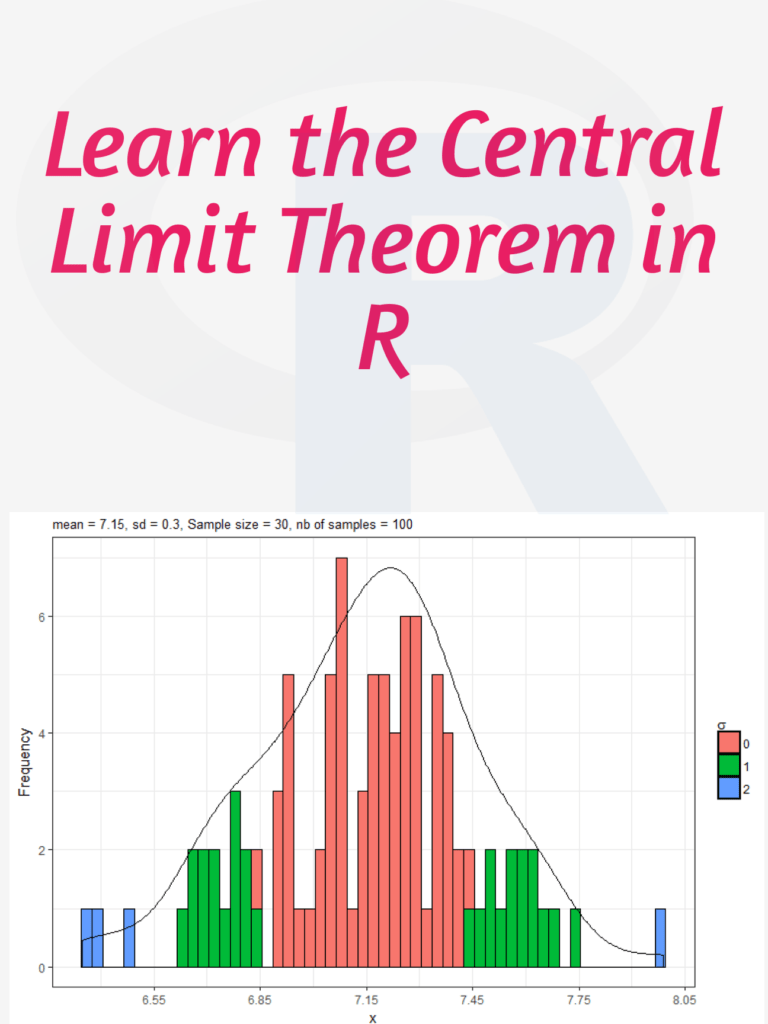
Learn the Central Limit Theorem in R: The Central Limit Theorem (CLT) is a fundamental concept in statistics that states that if you have a large sample size from any population with a finite mean and variance, then the sampling distribution of the mean will be approximately normal regardless of the shape of the original population distribution. In this tutorial, I will walk you through how to simulate the CLT using R step by step.

Learn the Central Limit Theorem in R

Download:

Step 1: Load Required Libraries We will be using the libraries “ggplot2” and “gridExtra” for this tutorial. So, we need to install and load them using the following code:

install.packages("ggplot2")
install.packages("gridExtra")

library(ggplot2)
library(gridExtra)

Step 2: Generate Data Let’s generate some data for this example. We will use the exponential distribution as our population distribution. The exponential distribution is a continuous probability distribution that describes the time between events in a Poisson process. It has a single parameter, which is the rate parameter.

set.seed(123) # for reproducibility
population <- rexp(1000, rate = 1)

Here, we generated 1000 observations from an exponential distribution with a rate parameter of 1.

Step 3: Simulate Sampling Distribution of Means To simulate the CLT, we will take random samples of size n from the population and calculate the mean. We will repeat this process 1000 times and store the means in a vector.

n <- 10 # sample size
num.simulations <- 1000 # number of simulations

sample.means <- replicate(num.simulations, mean(sample(population, n)))

Here, we took random samples of size 10 from the population and calculated the mean. We repeated this process 1000 times and stored the means in the vector “sample.means”.

Step 4: Visualize Sampling Distribution of Means Now, we can visualize the sampling distribution of means using a histogram.

# histogram of sample means
ggplot(data.frame(sample.means), aes(x = sample.means)) + 
  geom_histogram(aes(y = ..density..), color = "black", fill = "white", binwidth = 0.2) +
  stat_function(fun = dnorm, args = list(mean = mean(population), sd = sd(population)/sqrt(n)), color = "red", size = 1) +
  ggtitle(paste("Sampling Distribution of Means (n = ", n, ")", sep = "")) +
  xlab("Sample Means") +
  ylab("Density")

In this code, we created a histogram of the sample means and added a red line for the theoretical normal distribution with the same mean and standard deviation as the sampling distribution of means. We also added a title and axis labels to the plot.

Step 5: Repeat with Different Sample Sizes Finally, we can repeat this process for different sample sizes and visualize the results using a grid of plots.

# function to simulate CLT and create plot
plot_CLT <- function(n) {
  sample.means <- replicate(num.simulations, mean(sample(population, n)))
  
  plot <- ggplot(data.frame(sample.means), aes(x = sample.means)) + 
    geom_histogram(aes(y = ..density..), color = "black", fill = "white", binwidth = 0.2) +
    stat_function(fun = dnorm, args = list(mean = mean(population), sd = sd(population)/sqrt(n)), color = "red", size = 1) +
    ggtitle(p

Data Visualization in Python: A Comprehensive Guide to Powerful Packages

Data visualization is a crucial aspect of modern data analysis, transforming raw data into meaningful insights through graphical representations. Python, a popular language for data science, offers an extensive suite of libraries and packages for data visualization. Whether you’re a beginner or an expert, understanding these packages can help you craft stunning visualizations and effectively communicate your findings.

In this article, we’ll explore some of the most widely used Python packages for data visualization, including their features, benefits, and use cases.

Why Data Visualization Matters?

Data visualization is more than just charts and graphs. It bridges the gap between data and decision-making by:

  • Simplifying complex data: Makes large datasets easier to comprehend.
  • Highlighting patterns and trends: Identifies correlations, outliers, and anomalies.
  • Driving storytelling: Visual elements can make your analysis more impactful.
Data Visualization in Python: A Comprehensive Guide to Powerful Packages

Download:

Top Python Packages for Data Visualization

1. Matplotlib

Matplotlib is the cornerstone of Python data visualization. It is a robust library for creating static, animated, and interactive plots.

Key Features:

  • Customizable plots with fine control over appearance.
  • Supports multiple plot types, such as line graphs, scatter plots, and histograms.
  • Integrates seamlessly with other Python libraries like NumPy and Pandas.

Use Case: Ideal for creating publication-quality figures and simple visualizations.

import matplotlib.pyplot as plt  
x = [1, 2, 3, 4]  
y = [10, 20, 25, 30]  
plt.plot(x, y)  
plt.title('Simple Line Plot')  
plt.show()  

2. Seaborn

Built on top of Matplotlib, Seaborn is a data visualization library that simplifies complex visualizations.

Key Features:

  • Pre-built themes and color palettes.
  • Statistical plotting capabilities like heatmaps, box plots, and violin plots.
  • Handles Pandas DataFrame objects directly.

Use Case: Best for creating aesthetically pleasing and statistical visualizations.

import seaborn as sns  
import pandas as pd  
data = pd.DataFrame({'x': [1, 2, 3, 4], 'y': [10, 20, 25, 30]})  
sns.lineplot(data=data, x='x', y='y')  

3. Plotly

Plotly is an interactive graphing library that allows for the creation of dynamic, web-based visualizations.

Key Features:

  • Interactive plots with zoom and hover functionalities.
  • 3D plotting capabilities.
  • Integration with Dash for building web-based dashboards.

Use Case: Suitable for interactive dashboards and presentations.

import plotly.express as px  
df = px.data.gapminder().query("year == 2007")  
fig = px.scatter(df, x="gdpPercap", y="lifeExp", color="continent", size="pop")  
fig.show()  

4. Bokeh

Bokeh specializes in creating interactive and scalable visualizations for modern web browsers.

Key Features:

  • Supports large and streaming datasets.
  • Integrates well with Flask, Django, and other web frameworks.
  • Enables interactive tools like sliders, widgets, and tooltips.

Use Case: Ideal for web-based interactive plots.

from bokeh.plotting import figure, show  
plot = figure(title="Simple Scatter Plot")  
plot.circle([1, 2, 3, 4], [10, 20, 25, 30], size=10)  
show(plot)  

5. Altair

Altair is a declarative statistical visualization library based on Vega and Vega-Lite.

Key Features:

  • Simple grammar for creating visualizations.
  • Automatic handling of chart aesthetics and interactivity.
  • Works efficiently with Pandas DataFrames.

Use Case: Best for quick exploratory visualizations with minimal coding.

import altair as alt  
import pandas as pd  
data = pd.DataFrame({'x': [1, 2, 3, 4], 'y': [10, 20, 25, 30]})  
chart = alt.Chart(data).mark_line().encode(x='x', y='y')  
chart.show()  

Choosing the Right Library

The choice of a data visualization library depends on your project requirements:

  • For simplicity: Use Matplotlib or Seaborn.
  • For interactivity: Choose Plotly or Bokeh.
  • For quick exploration: Opt for Altair.

Conclusion

Python’s data visualization ecosystem is rich and diverse, offering tools for every need. By leveraging these libraries, you can transform data into compelling visual stories that drive impactful decisions. Whether you’re visualizing financial trends, analyzing scientific data, or building dashboards, Python has you covered.

Download: Python 3 and Data Visualization

Master Data Visualization Using ggplot2

To master data visualization using ggplot2, it is important to start with the basics and understand the different components of a plot, such as layers, aesthetics, and scales. Learning the grammar of graphics, which is the foundation of ggplot2, is essential for creating complex and customized visualizations. Practicing creating different types of visualizations with ggplot2, starting with simple plots and gradually working your way up to more complex ones, can help improve your skills.

Additionally, it’s helpful to learn from others by examining examples of ggplot2 visualizations and utilizing online resources like blogs, forums, and tutorials. Experimenting with different chart types and using color effectively are important aspects of creating visually appealing and informative visualizations. Lastly, it’s important to consider accessibility for all users when creating visualizations, by using appropriate contrast and avoiding colorblindness issues, among other considerations. By following these steps, you can become proficient in data visualization using ggplot2.

Master Data Visualization Using ggplot2

Download:

Let’s understand with an example

let’s use the “mtcars” dataset that comes with R. This dataset contains information about various cars, including their miles per gallon (mpg), horsepower (hp), and weight (wt).

First, we need to load the ggplot2 package and the mtcars dataset:

library(ggplot2)
data(mtcars)

Next, let’s create a scatterplot of mpg versus horsepower. We can do this using the ggplot() function, specifying the dataset to use and the aesthetic mappings (i.e., which variables to map to the x and y axes):

ggplot(data = mtcars, aes(x = hp, y = mpg)) +
  geom_point()

This will create a basic scatterplot with horsepower on the x-axis and mpg on the y-axis. We use the geom_point() function to add points to the plot.

Next, let’s add a regression line to the plot to show the relationship between the two variables more clearly:

ggplot(data = mtcars, aes(x = hp, y = mpg)) +
  geom_point() +
  geom_smooth(method = "lm")

We add the geom_smooth() function with the “lm” (linear model) method to add a regression line to the plot.

Finally, let’s customize the plot a bit by changing the color of the points and regression line, adding axis labels and a title, and adjusting the axis limits:

ggplot(data = mtcars, aes(x = hp, y = mpg)) +
  geom_point(color = "blue") +
  geom_smooth(method = "lm", color = "red") +
  labs(x = "Horsepower", y = "Miles per gallon", title = "Relationship between horsepower and miles per gallon") +
  theme_classic() +
  xlim(c(0, 400)) +
  ylim(c(0, 35))

We use the labs() function to add axis labels and a title, and the theme_classic() function to change the plot theme to a more classic style. We also use the xlim() and ylim() functions to adjust the axis limits.

This should give you a good idea of how to create a basic data visualization using ggplot2 in R. Of course, there are many other types of plots and customizations you can make using ggplot2, but this should serve as a starting point.

Five tips to improve your R code

R is a powerful programming language used for data analysis and statistical computing. However, writing efficient and effective R code can be challenging, especially for those who are new to the language. In this article, we will discuss five tips to improve your R code and make it more readable, efficient, and reliable.

Five tips to improve your R code

1. Use vectorization

Vectorization is the process of performing operations on entire vectors instead of individual elements. This technique can significantly improve the performance of your code by reducing the number of loops required. For example, instead of using a for loop to add two vectors element-wise, you can use the “+” operator to add the vectors directly.

Here’s an example:

# Using a for loop
x <- 1:1000
y <- 1:1000
z <- numeric(length(x))

for (i in 1:length(x)) {
  z[i] <- x[i] + y[i]
}

# Using vectorization
x <- 1:1000
y <- 1:1000
z <- x + y

2. Avoid global variables

Using global variables can make your code more difficult to debug and maintain, especially when dealing with large programs. It’s best to use local variables instead, which are created and used within a function. This approach can also help avoid naming conflicts between different parts of your code.

Here’s an example:

# Using global variables
x <- 10

my_function <- function() {
  y <- x + 5
  return(y)
}

# Using local variables
my_function <- function(x) {
  y <- x + 5
  return(y)
}

result <- my_function(10)

3. Use appropriate data structures

Choosing the appropriate data structure can make a significant difference in the performance of your code. For example, using a matrix instead of a data frame can be faster for numerical operations, while using a list can be more flexible for storing different types of objects.

Here’s an example:

# Using a matrix
x <- matrix(1:1000000, nrow = 1000)
row_sums <- apply(x, 1, sum)

# Using a data frame
x <- data.frame(matrix(1:1000000, nrow = 1000))
row_sums <- apply(x, 1, sum)

# Using a list
my_list <- list(a = 1, b = "hello", c = TRUE)

4. Write readable code

Writing readable code can make it easier for others to understand your code and for you to maintain it in the future. Some best practices for writing readable code include using descriptive variable names, writing comments to explain complex code, and formatting your code consistently.

Here’s an example:

# Writing readable code
x <- c(1, 2, 3, 4, 5) # Create a vector of numbers
y <- sum(x) # Calculate the sum of the vector

5. Use functions from packages

R has a vast library of packages that provide pre-built functions for a wide range of tasks. Using functions from these packages can save you time and improve the reliability of your code, as these functions have often been thoroughly tested and optimized.

Here’s an example:

# Using a function from a package
library(dplyr)

x <- data.frame(a = c(1, 2, 3), b = c(4, 5, 6))
y <- select(x, a) # Select the 'a' column of the data frame

These five tips can help you improve your R code and make it more efficient, readable, and reliable.

Learn R for Applied Statistics: With Data Visualizations, Regressions, and Statistics

Learn R for Applied Statistics: With Data Visualizations, Regressions, and Statistics: Learning R for applied statistics can be a great way to gain insights into data analysis and modeling. It provides a wide range of statistical techniques, including linear and nonlinear modeling, time-series analysis, and multivariate analysis. R is also popular among researchers for data visualization and exploratory data analysis. With its open-source nature and active community, R offers extensive documentation and various packages, making it a powerful tool for statistical analysis and modeling in fields such as economics, biology, social sciences, and more. Its flexibility and ease of use make it an excellent choice for researchers and data analysts of all levels.

R provides several libraries and packages for regression analysis, making it an excellent tool for applied statistics. With its active community and extensive documentation, R is an excellent choice for researchers, data analysts, and scientists of all levels. One of the most widely used libraries for regression analysis in R is the “lm” function. It is used for linear regression and helps users to fit a linear model to a given set of data. The package provides users with several diagnostic measures such as the R-squared value, residual plots, and coefficients. Another popular library for regression analysis in R is the “glm” function.

Learn R for Applied Statistics: With Data Visualizations, Regressions, and Statistics

Download:

The package helps users to fit generalized linear models to a given set of data. The package provides a wide range of regression models such as logistic regression, Poisson regression, and negative binomial regression. The “car” library is another popular package for regression analysis in R. It provides several diagnostic tools and regression models such as ANOVA, MANOVA, and multiple regression. Finally, the “caret” package provides various machine learning algorithms, including regression analysis. The package helps users to train, test, and evaluate regression models and provides several techniques to handle missing data and outliers.

R is an excellent tool for data visualization and exploratory data analysis, offering various packages and libraries for creating high-quality graphics. With its powerful graphics capabilities and active community, R is an excellent choice for researchers, data analysts, and scientists of all levels. R’s ggplot2 package is one of the most widely used libraries for creating data visualizations. It provides a flexible and elegant system for creating complex and informative graphics. Its grammar of graphics approach allows users to create a wide range of visualizations using a consistent set of rules.

Other popular R packages for data visualization include plotly, lattice, and ggvis. Plotly provides interactive visualizations that allow users to explore data in real time, while lattice offers a powerful and flexible system for creating multi-panel plots. ggvis, on the other hand, provides an interactive grammar of graphics system for creating complex visualizations with interactivity.

Download(PDF)

How to make a boxplot in R?

A box plot is a graphical representation of a dataset that displays the distribution of data through five summary statistics: the minimum value, the first quartile (25th percentile), the median (50th percentile), the third quartile (75th percentile), and the maximum value. The box in the plot represents the middle 50% of the data (between the first and third quartiles), while the whiskers extend from the box to show the range of the data, excluding any outliers. Outliers are represented by dots or asterisks outside the whiskers. Box plots are useful for quickly visualizing the spread, skewness, and outliers of a dataset. They are commonly used in statistical analysis, especially for comparing distributions between different groups or variables.

How to make a boxplot in R?

Download:

To make a boxplot in R, you can use the boxplot() function, which is a built-in function in R. Here’s an example code:

# Create a vector of data
data <- c(10, 20, 15, 30, 25, 35, 40, 50)

# Create a boxplot of the data
boxplot(data)

In the above example, we first create a vector of data called data. Then we use the boxplot() function to create a boxplot of the data.

You can customize the boxplot by adding different parameters to the boxplot() function. Here are some examples:

  • Adding a title to the plot:
boxplot(data, main="Boxplot of Data")
  • Changing the x-axis label:
boxplot(data, xlab="Data")
  • Changing the color of the box and whiskers:
boxplot(data, col="blue")
  • Creating a horizontal boxplot:
boxplot(data, horizontal=TRUE)

These are just a few examples of how you can customize the boxplot in R. You can find more information about the boxplot() function and its parameters in the R documentation.

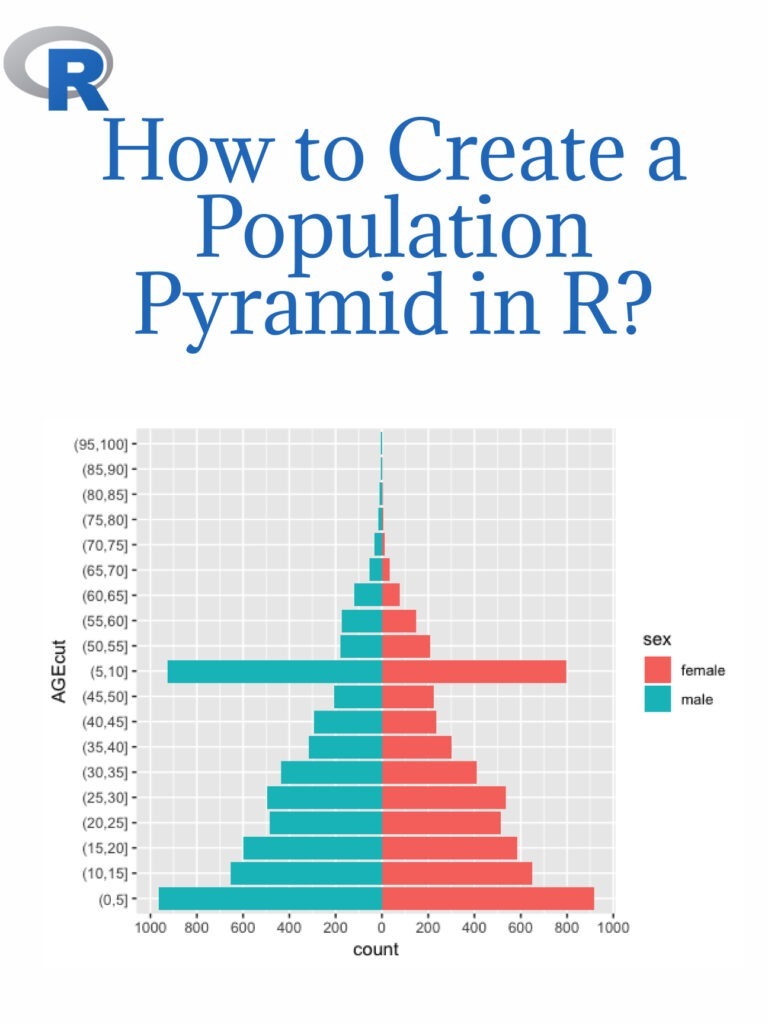
Read more: How to Create a Population Pyramid in R?

How to Create a Population Pyramid in R?

An age-sex pyramid is also known as a population pyramid. Using it, we can visualize the distribution of a population by age group and gender. In general, it resembles a pyramid. Females are represented on the right of the population pyramid, while males are typically depicted on the left. Based on the number or percentage of men and women in a particular population, this data visualization method can be used to visualize that population’s age. Creating a population pyramid in R is a common data analysis and visualization task. Here are the steps to create a population pyramid in R:

How to Create a Population Pyramid in R

Download:

Step 1: Install and load necessary packages Before starting to create a population pyramid, we need to install and load the ggplot2 and dplyr packages. These packages are used for data visualization and data manipulation, respectively.

install.packages("ggplot2")
install.packages("dplyr")

library(ggplot2)
library(dplyr)

Step 2: Load the Data To create a population pyramid, we need data on the age and sex distribution of the population. We can use the built-in “midwest” dataset from ggplot2 package as an example.

data(midwest)

Step 3: Data Wrangling Next, we need to prepare the data for the population pyramid visualization. We will use the dplyr package to manipulate the data.

midwest <- midwest %>%
  select(county, state, Poptotal, popdensity, percwhite, percblack, percamericanindian, percasian, perchispanic, percother, medianage, medianhousevalue, medianincome, region, division) %>%
  filter(!is.na(Poptotal), !is.na(medianage)) %>%
  mutate_at(vars(percwhite:percother), ~replace_na(., 0))

Step 4: Create the Population Pyramid Now, we can create the population pyramid using the ggplot2 package.

ggplot(midwest, aes(x = medianage, y = Poptotal, fill = factor(ifelse(medianage < 37.5, "Male", "Female")))) +
  geom_bar(stat = "identity", position = "identity") +
  scale_fill_manual(values = c("#619CFF", "#FF6161")) +
  labs(title = "Population Pyramid", x = "Median Age", y = "Population", fill = "") +
  coord_flip()

This will create a population pyramid in R, showing the age and sex distribution of the population.

The above example is just a sample, and you can use your own data to create the population pyramid in R.

Create A Dashboard In R

There are several ways to create a dashboard in R, but one of the most popular and powerful options is to use the Shiny package. Shiny allows you to build interactive web applications directly from R code, including data visualization and analysis. Here are the general steps to creating a dashboard in R using Shiny:

Create A Dashboard In R
  1. Install and load the Shiny package:
install.packages("shiny")
library(shiny)
  1. Load your data: You can use any data source that you like, but it’s important to make sure that the data is in a format that can be used by Shiny.
  2. Create a user interface (UI): This is where you define what the user will see and interact with in your dashboard. You can use Shiny’s built-in UI elements (such as sliders, drop-down menus, and text boxes) or create your own custom UI elements using HTML, CSS, and JavaScript.
  3. Create a server function: This is where you define the logic and calculations that will power your dashboard. You can use any R code you like, including data manipulation and analysis functions.
  4. Combine the UI and server: Use the shinyApp() function to combine the UI and server functions into a complete Shiny application.
  5. Deploy your dashboard: You can deploy your Shiny dashboard to a variety of platforms, including shinyapps.io and your own web server.

Here’s a basic example of a Shiny dashboard that displays a histogram of a dataset:

# Load the Shiny package
library(shiny)

# Load the dataset
data(mtcars)

# Define the UI
ui <- fluidPage(
  titlePanel("MTCars Histogram"),
  sidebarLayout(
    sidebarPanel(
      sliderInput("bins", "Number of bins:", min = 1, max = 50, value = 30)
    ),
    mainPanel(
      plotOutput("histogram")
    )
  )
)

# Define the server
server <- function(input, output) {
  output$histogram <- renderPlot({
    bins <- seq(min(mtcars$mpg), max(mtcars$mpg), length.out = input$bins + 1)
    hist(mtcars$mpg, breaks = bins, col = "blue", main = "MTCars Histogram")
  })
}

# Combine the UI and server
shinyApp(ui = ui, server = server)

This code creates a Shiny app with a slider that allows the user to control the number of bins in a histogram of the mpg column of the mtcars dataset. When the user moves the slider, the histogram is updated in real-time. You can customize this example and add more elements to create a full dashboard with multiple charts, tables, and other interactive features.

Download:

Geographic Data Science with R

Geographic Data Science with R is a powerful tool for analyzing and visualizing spatial data. It allows you to combine statistical analysis with geographic information, allowing you to better understand the patterns and relationships in your data. One of the key benefits of Geographic Data Science with R is its ability to handle large and complex data sets. With R’s powerful tools for data manipulation and visualization, you can quickly explore and analyze large data sets without sacrificing accuracy or speed. Another advantage of Geographic Data Science with R is the ability to work with a wide range of data formats, including raster and vector data. This flexibility makes it easier to work with data from a variety of sources and to integrate different types of data into your analysis. Visualizing and analyzing environmental change is an important application of Geographic Data Science with R. Here are some steps you can follow to get started:

Geographic Data Science with R

Acquire data: Start by collecting environmental data relevant to your study, such as temperature, precipitation, land cover, or vegetation indices. Many sources provide this type of data for free or for a fee, such as NASA, NOAA, or USGS.

Pre-process the data: Once you have obtained the data, you may need to pre-process it to prepare it for analysis. This may include converting data formats, aggregating or disaggregating data to match the scale of your analysis, or removing missing values.

Visualize the data: Use R’s powerful visualization tools to create maps, charts, and other visualizations of the data. For example, you can create heat maps to visualize temperature patterns or time series plots to track changes over time. Interactive maps can also be created using tools such as Leaflet or Shiny.

Analyze the data: Use statistical tools in R to analyze the data and identify patterns or trends. For example, you can use regression analysis to identify relationships between environmental variables, or cluster analysis to identify groups of locations with similar environmental conditions.

Interpret and communicate the results: Once you have analyzed the data, interpret the results and communicate them effectively to stakeholders, policymakers, or the public. Use visualizations and summaries to effectively communicate your findings.

Download:

Confidence Intervals in R

A confidence interval is a range of values that provides a plausible range of values for an unknown population parameter, based on a sample from that population. The confidence interval is expressed as a percentage, such as 95% or 99%, which represents the level of confidence you have that the true population parameter falls within the interval. For example, if you calculate a 95% confidence interval for the average height of students in the school, you can say with 95% confidence that the true average height falls within that range of values. Calculating confidence intervals using R is relatively simple. Here’s a general process you can follow:

Confidence Intervals in R
  1. Load your data into R. You can do this by typing the name of your data file, followed by the read.table() function, like this: mydata <- read.table("myfile.txt", header=TRUE). This assumes that your data is in a tab-delimited text file with headers.
  2. Calculate the sample mean and standard deviation. You can use the mean() and sd() functions in R to do this, like this: mymean <- mean(mydata$myvariable) and mysd <- sd(mydata$myvariable). Replace “myvariable” with the name of the variable in your data that you want to calculate the confidence interval for.
  3. Determine the sample size. You can use the nrow() function in R to get the number of rows (i.e., observations) in your data, like this: mysize <- nrow(mydata).
  4. Choose a confidence level. You’ll need to decide on a confidence level for your confidence interval. For example, you might choose 95%, which is a common level of confidence.
  5. Calculate the confidence interval. You can use the t.test() function in R to calculate the confidence interval, like this: myci <- t.test(mydata$myvariable, conf.level=0.95)$conf.int. This will give you a 95% confidence interval for the mean of your variable.
  6. Print or save the confidence interval. You can use the print() function to print the confidence interval to the console, like this: print(myci). Or you can save it to a variable and use it later in your code, like this: myci <- t.test(mydata$myvariable, conf.level=0.95)$conf.int.

Keep in mind that the exact method of calculating the confidence interval may vary depending on the type of data you’re working with and the statistical test you’re using. But the general process outlined above should give you a good starting point for calculating confidence intervals in R.

Related post: ANOVA in R

Download(PDF)